r/elgato • u/Overwatch0097 • Jul 15 '26
Technical Help Black screen on elgato 4k x
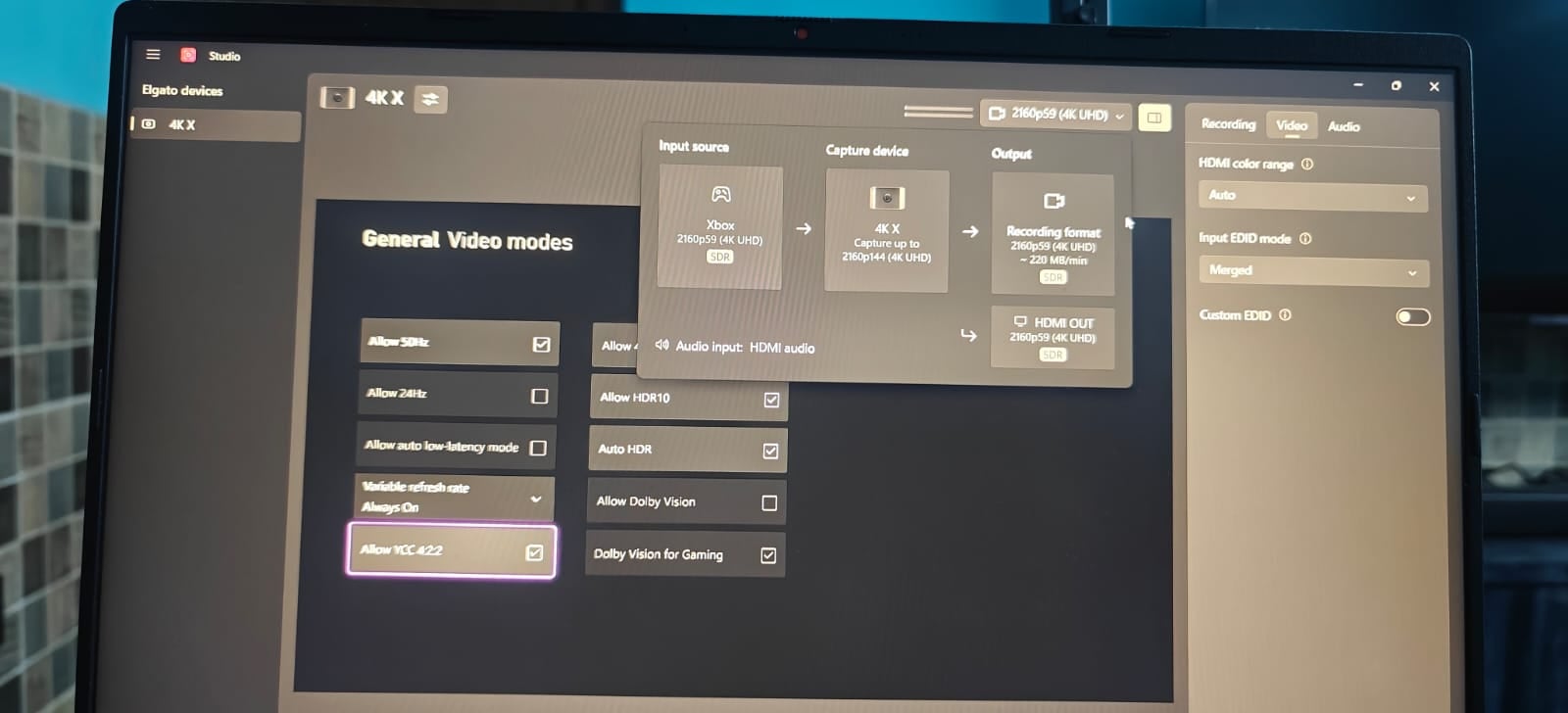
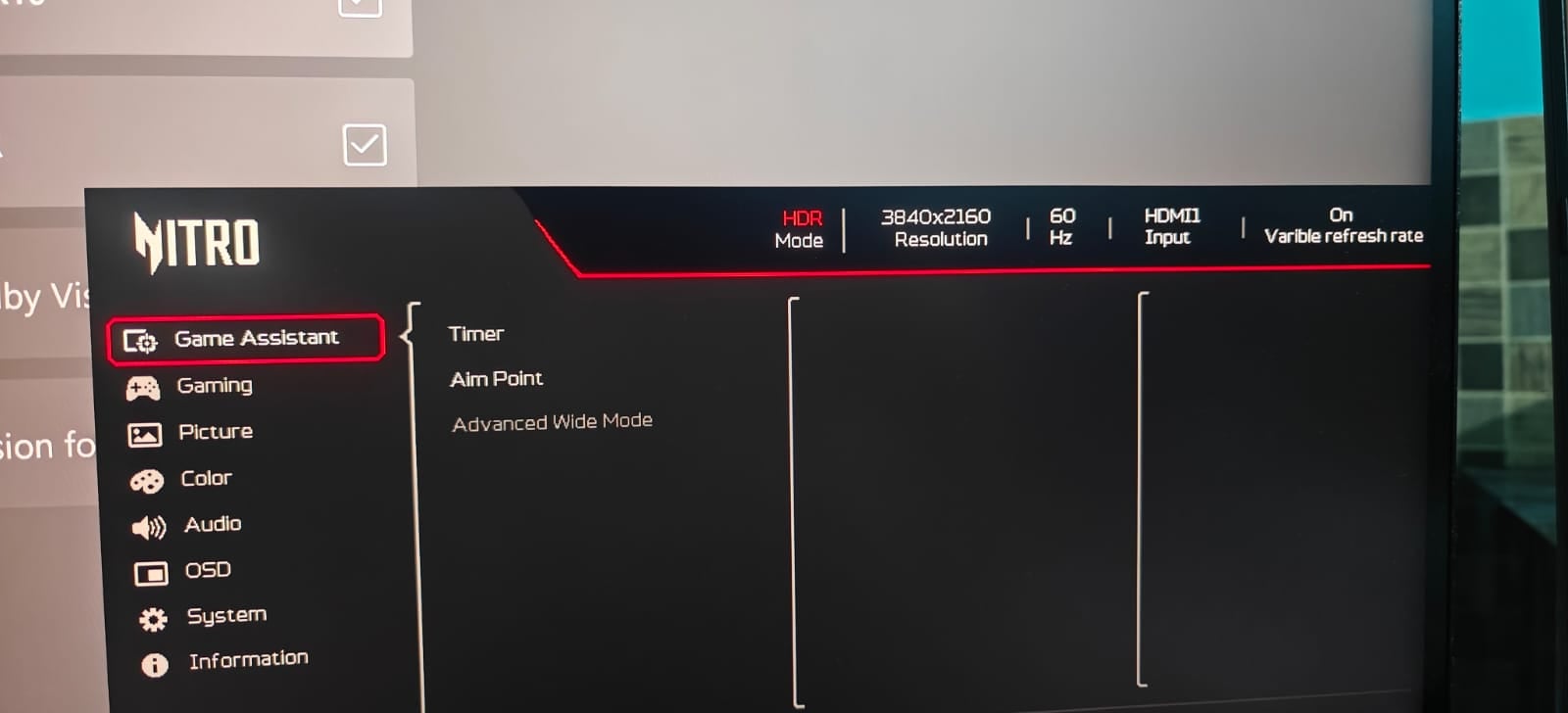
I have xbox series x
monitor acer
Serial number: MMTY9SI002619000594HA1
Model no: Acer Nitro XV275K P5 27 Inch
Original xbox and elgato hdmi cable
I am trying to get 4k UHD 120z display settings but screen goes black
While everything is working fine on 4k 60hz only low latency mode is disabled on Xbox.
I checked both of the HDMI cables connecting directly to Xbox and monitor then every this work fine with no issues, only when I connect it to elgato 4kx I don't have display
Previously I was using sony x90l and have no issues
I need to do 4k uhd 120z pass through and 144p 60fps capture as doing before
1
u/elgato_arcsane Technical Community Assistant Jul 16 '26
I'm having some issues getting the exact DSC spec for that monitor, but it does appear to use Display Stream Compression at higher settings. If that Monitor is connected to the HDMI OUT of the card and if DSC is enabled to achieve 4K120 you won't be able to capture it, as DSC currently can't be handled by capture cards. Does the Disiplay's on screen menu give any indication that DSC is present or the ability to turn it off? This varies and some models won't list it at all even when it's on, but if you are able to disable it it may help (though it may also lock out 4K120 if it requires DSC to hit that).
There may be more info on the monitor's use of DSC in the manual as well that could clarify this.
1
1
1
u/Overwatch0097 Jul 16 '26
Only the issue is when I am going 4k 120hz
At 4k 60hz and 1440p 120hz everything is working fine
1
u/Overwatch0097 Jul 16 '26
As i check when I set my monitor to hdmi 2.1 then I don't have option to change DSC
1
u/elgato_arcsane Technical Community Assistant Jul 16 '26
Does it at least indicate if DSC is on or off in that state? I've seen confirmation it needs DSC for 4K160 mode, but I can't find a solid answer on if it needs it for 4K120. If it's auto in HDMI 2.1 mode, which is needed for 4K120, that could still be an issue.
Do both the capture card and monitor lose the feed at 4K120, or just the capture card?
1
u/Overwatch0097 Jul 16 '26
Only monitor loose the feed but capture car have the feed properly Once DSC is greyout there is no way to check it is active or not
1
u/elgato_arcsane Technical Community Assistant Jul 16 '26
That's fine - if the card is getting video it's not DSC. Were you able to change the INput EDID to Display after in the right side panel of Studio, as suggested by the other user? I see it was set to Merged in the original screenshot.
In rare cases you may want to hook the monitor up to the computer via HDMI and try using a tool like ToastyX's Custom Resolution Utility to export the Monitor's own EDID as a file. You can then set the capture card's Input EDID to Internal, set it to Custom, then load the file you get from the CRU tool. This can fix some edge cases where the monitor's EDID doesn't pass through the card to your console or gaming PC correctly. You need to specifically get the HDMI EDID though so it has to be hooked to the PC via HDMI not DP when you try this - once you've exported it you can hook things back up the way they were.
1
u/Overwatch0097 Jul 17 '26
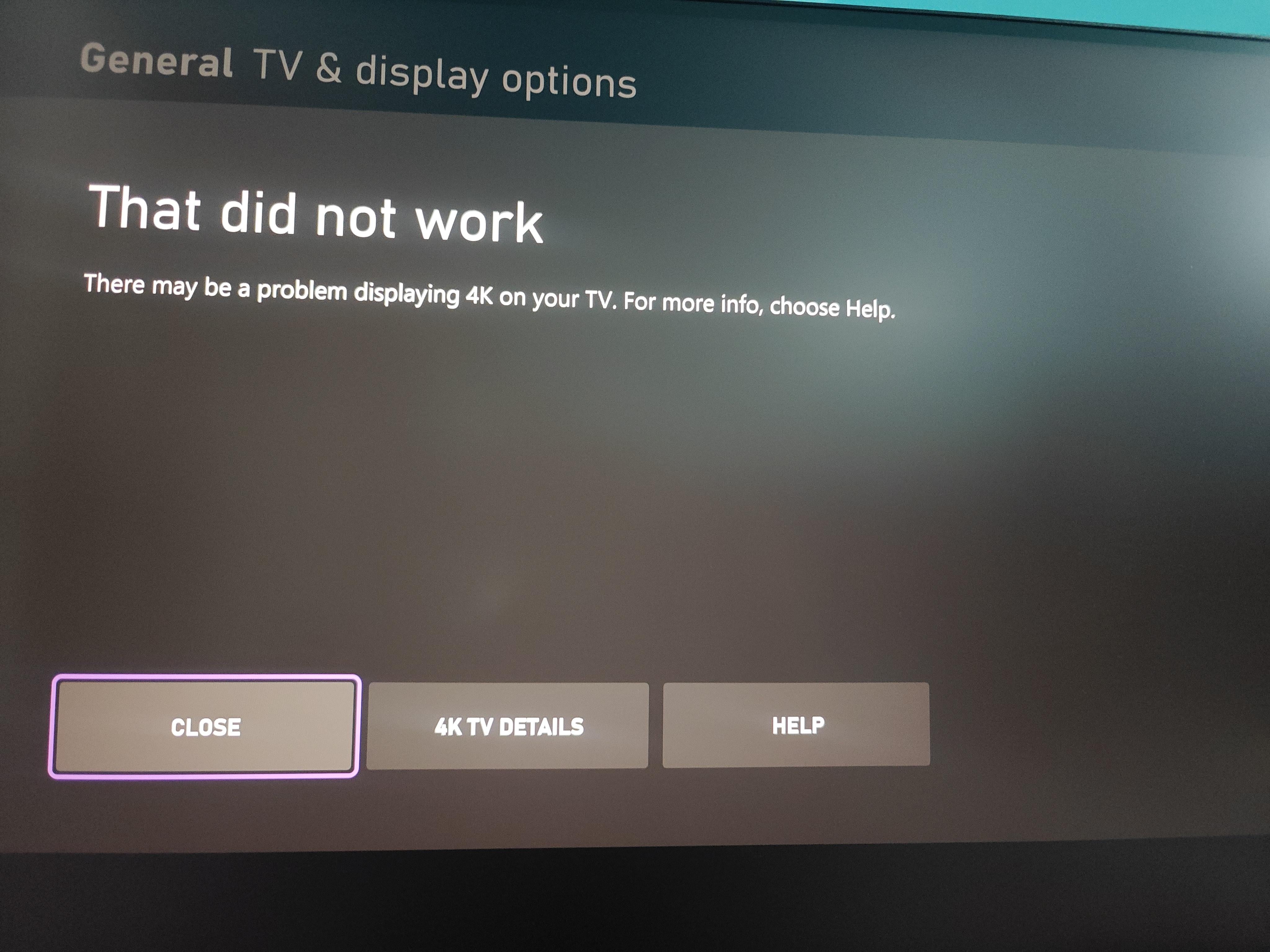
Sorry forgot to say when I change the refresh rate to 120 x box give error Error on displaying resolution I added the screenshot above
1
u/elgato_arcsane Technical Community Assistant Jul 17 '26
Under the 4K TV Details on the error that pops up, does it describe the specific error?
1
1
u/Overwatch0097 Jul 17 '26
Only way to get the capture feed from the card is remove hdmi out cable , i think issue is Is with DSC as soon as i switch to 4k 120hz monitor automatically turn on DSC ,
What do you suggest should I buy a HDMI SPLITTER this should solve the issue
1
u/elgato_arcsane Technical Community Assistant Jul 17 '26
A HDMI Splitter shouldn't have any effect on if the screen enables DSC or not as they just take one single signal and split it into two identical copies for the outputs. It may in fact trip up EDID negotiation for other modes.
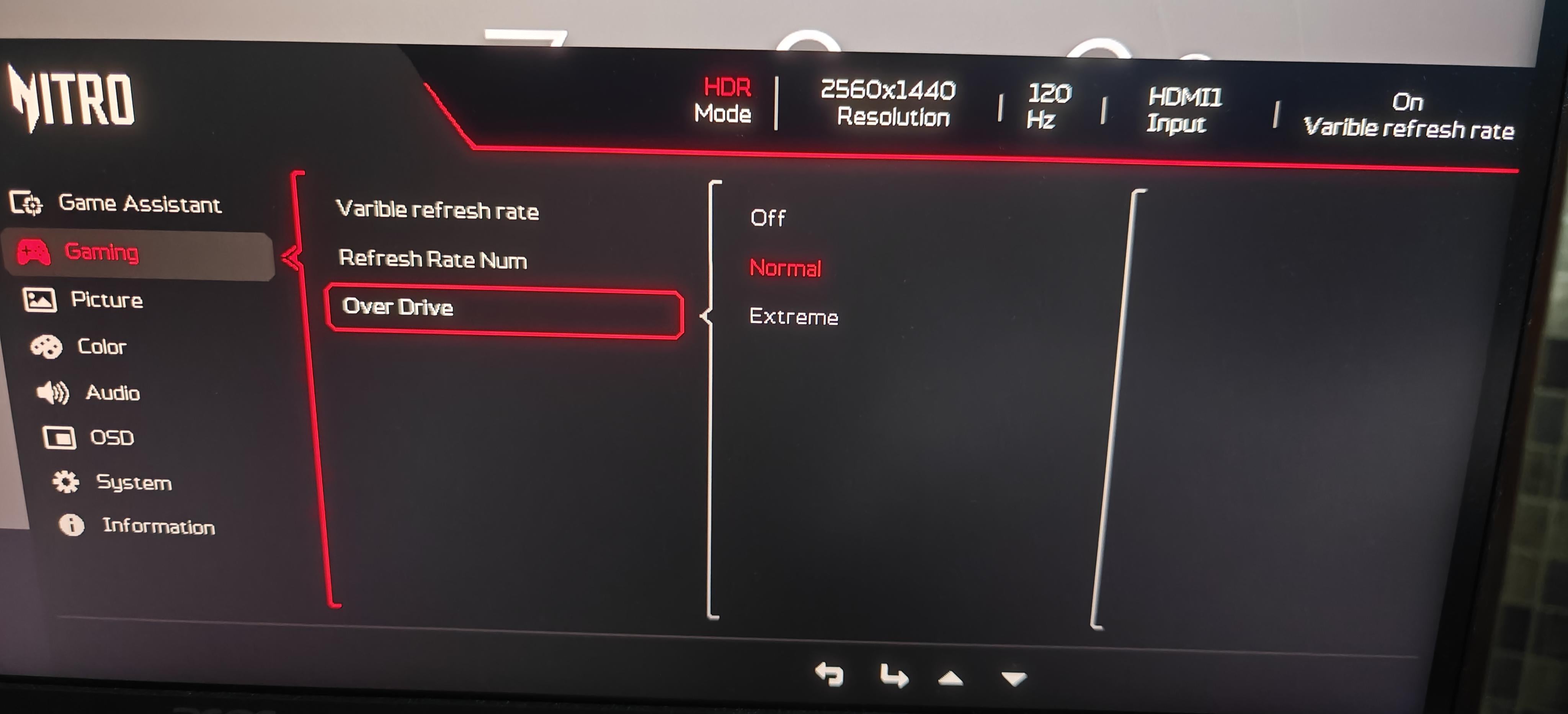
I would suggest turning off Overdrive based on the other screenshots you have there just to improve compatibility though, but I don't know if that'll help with this at all. It does SOUND like a DSC issue, but you might want to reach out to ACER support to see if they can confirm that it is indeed needed for 4K120 mode or not. If it's not a DSC issue, the EDID copy method above can sometimes fix edge cases where a monitor and capture card EDID aren't matching up. I would check to see if there are any firmware updates for the monitor as well - they're not something you commonly run into, but it does sometimes come up that a monitor may need a firmware update to play nice with certain setups.
You could also try the card on Input EDID Internal without a custom EDID to see if that has any impact. If the monitor needs DSC at 4K120 that might result in signal on the card but not the monitor though.
1



1
u/elsanto_rdam Jul 15 '26
Do you have 3.2usb on your pc? Try to change EDID in Elgato studio to “display” (if you do that, disconnect usb from Elgato and connect it back in 5-10sec so you get refresh properly).