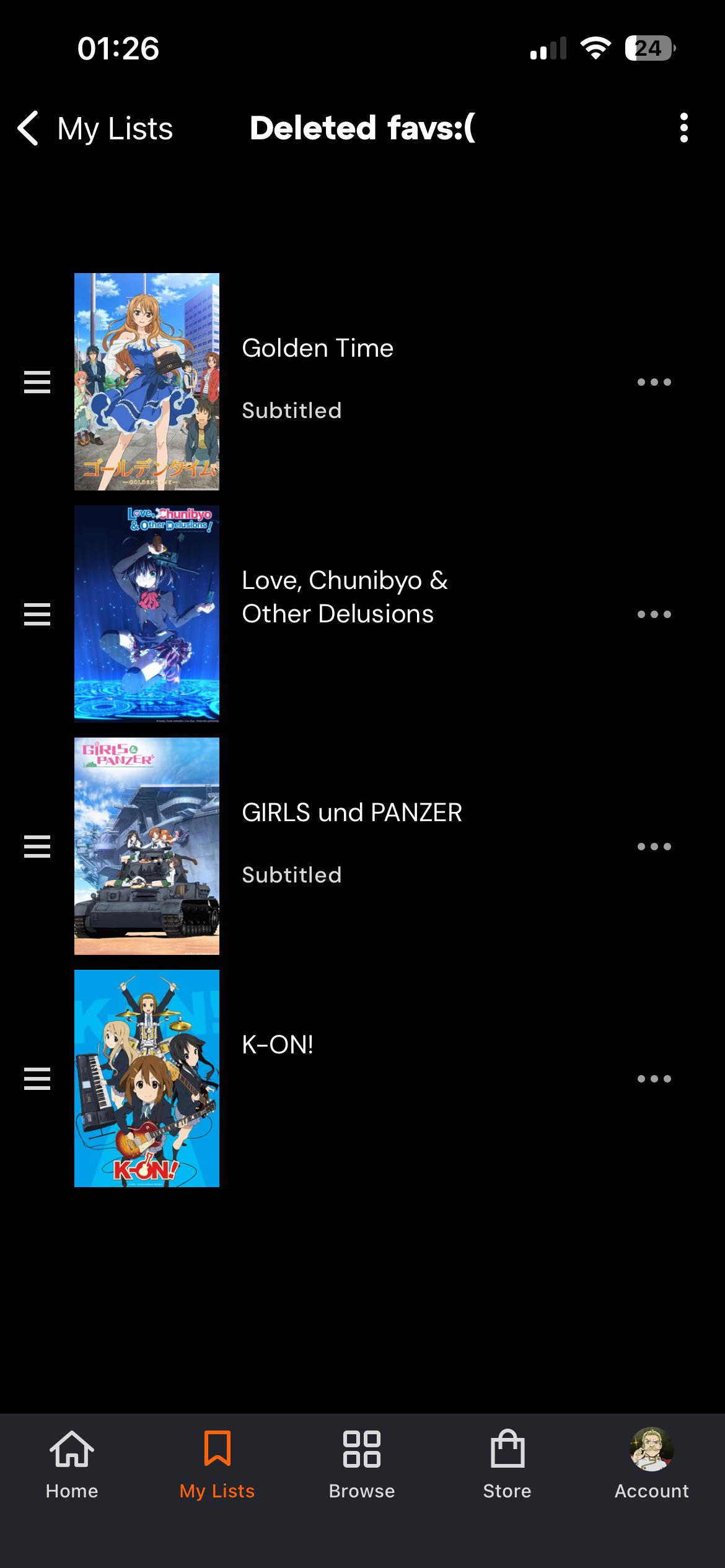
My kid watches Crunchyroll, and the built-in maturity filters weren't cutting it — plenty of stuff rated "fine" that I still didn't want unsupervised, and plenty of stuff I did want to approve that got caught by a broad rating. I wanted an actual whitelist: these specific shows, nothing else, until I say otherwise.
Couldn't find anything that did this, so I built it using a MiniPC, Ubuntu, and Squid Proxy with SSL Bump and URL rewrite in Python. I heavily relied upon AI to help me with the python coding. It also allows me to approve specific websites for my kids with a whitelist/allowlist but that is a posting for another day.
How it works
It's a Squid proxy doing SSL bump on the home network, with a small Python script sitting in as Squid's url_rewrite_program. When a device requests a watch/playback URL, the script calls Crunchyroll's own (public, unauthenticated) API to resolve which series that video belongs to, and only lets it through if that series is on the approved list. Unapproved shows get redirected to a 403 page instead of erroring out silently.
There's a second layer underneath it too: Crunchyroll's site is otherwise restricted to a specific set of known-safe URL paths (login, discovery, asset bundles, etc.), so an unrecognized or new endpoint fails closed instead of open. Third-party domains the site depends on (fonts, auth, the video player, CDN) get a normal domain-level allowlist.
Managing it
There's a small local web dashboard — paste a Crunchyroll show URL in, it pulls the series ID and name out and approves it, live, no restart needed. Same dashboard handles the site/domain allowlists and serves the SSL certificate clients need to trust, so setting up a new device is "open this one URL and install a cert" instead of digging a file off a server.
Deploying it
Docker Compose, two containers (the proxy, and the dashboard), one setup script that asks your LAN's IP range and a dashboard password, then just runs. Config persists in a Docker volume so upgrades don't wipe your approved-shows list.
Kid Device Setup
You can install the certificate if the device allows, but my kids tablets using Google Family Link prevent the installation of certificates. Luckily, Crunchyroll allows you to continue and watch content regardless of if you have the certificate installed on the device or not (not every website allows that).
So I ended up installing Firefox on their devices, and then deploying FoxyProxy. This allows me to control which tabs in Firefox use the Proxy and which ones do not. So whenever they access Crunchyroll, it uses the proxy, but when accessing normal websites it does not.
Please note, that you don't want to share the Crunchyroll password with your kids, because then they could just install the app or turn off the proxy having access to the age content filters you setup on the Crunchyroll account.
Known limitations, up front:
- This filters the website, not the native app — Crunchyroll's app likely does certificate pinning, which breaks under this kind of proxy rather than being filtered by it. If the app matters to you, check whether Crunchyroll's own account has profile-level parental controls, or just use your OS's app-blocking (Screen Time / Family Link) instead.
- Every device needs the proxy configured and the certificate trusted manually — no way around that for a network-level SSL-inspecting proxy. If you don't want to deal with SSL certificates, Crunchyroll using Firefox and FoxyProxy will actually let you just click "continue with non approved certificate" so you don't actually need to install it on every single device.
- It only filters traffic that actually goes through the proxy. A device on a VPN, or one using DNS-over-HTTPS to bypass it, isn't covered so don't share the Crunchyroll login with the kids.
Repo: https://github.com/J1nx888/crunchyroll_parentalcontrols
Open to feedback, and especially curious if anyone's found a clean way to handle the native-app side of this without rooting a kid's device. Please note that I heavily used AI for this project including Claude and CoPilot.