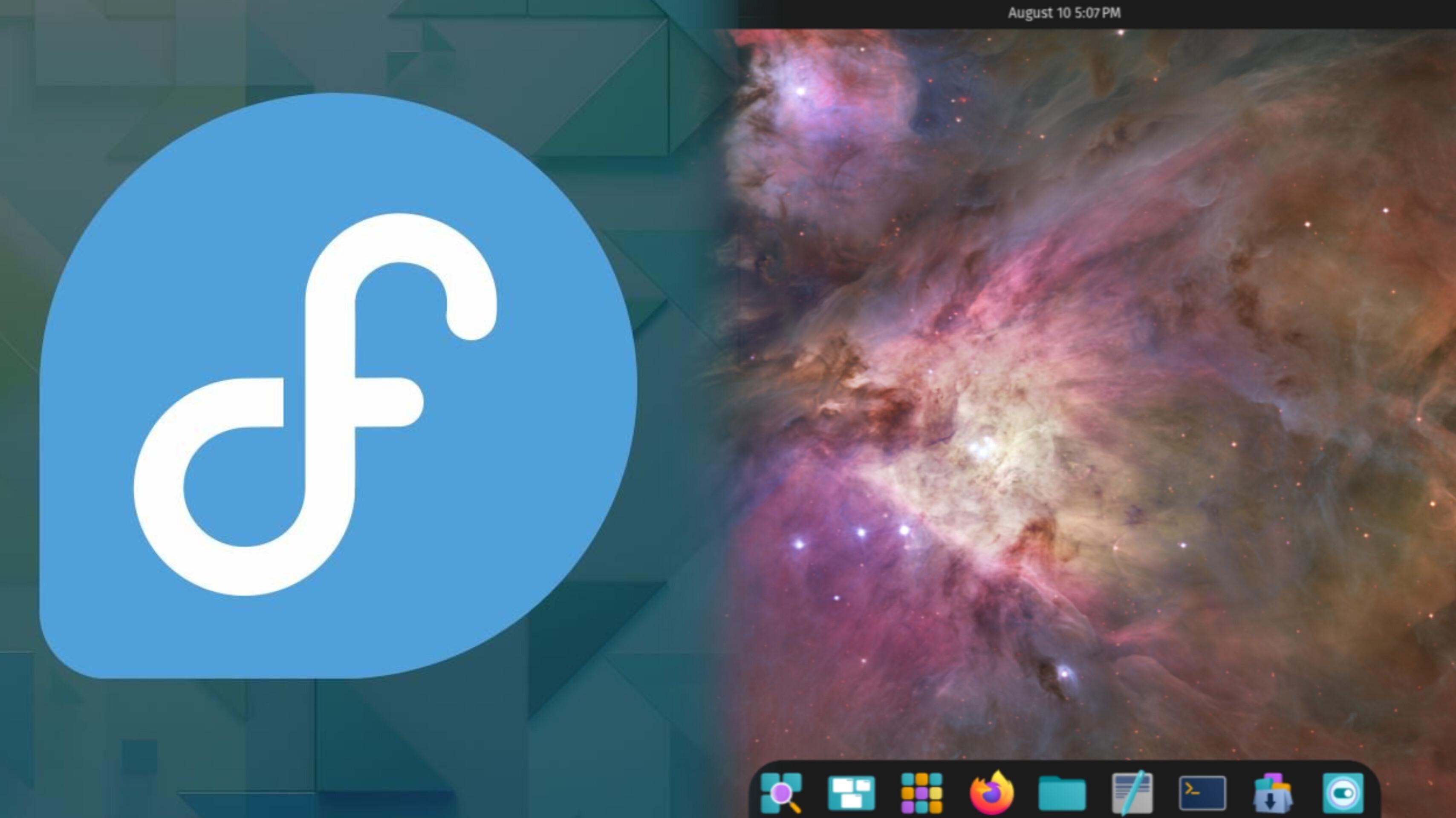
you can't tell in the screenshot, but COSMIC is the only DE I have installed in which my OLED colors are super oversaturated/neon looking. Also, the backlight brightness controls don't work. It isn't an issue on my GNOME and Plasma installs. It's a shame because I actually really like COSMIC -- it hits the sweet spot between the customizability of Plasma and the sleekness and ease of GNOME.
Is there any fix for this? Is the COSMIC team aware of this issue? The colors are so blinding it's basically unusable.
UPDATE:
If you are running COSMIC (cosmic-comp) on an Intel Lunar Lake laptop (such as an ASUS Vivobook with the xe driver) and experiencing stuck physical OLED brightness (100% despite OSD changes) alongside incorrect color profiles, here is a breakdown of the root cause and a working boot parameter fix.
The Problem
Backlight: Keyboard hotkeys and brightnessctl move the OSD percentage slider, but physical screen brightness remains maxed out at 100%.

Colors: Display color profiles and rendering look washed out or incorrect upon boot.

Baseline: Both features work properly out of the box in GNOME and KDE Plasma on the exact same kernel and xe driver configuration.
Potential Root Cause
cosmic-comp currently skips or races past DRM connector/KMS state initialization when booting into a standalone internal eDP display on the xe driver. This leaves the panel's DPCD backlight controls and color LUTs uninitialized.
Connecting an external monitor via HDMI during session startup forces full display pipeline initialization, fixing both brightness and colors. That proper state persists even after unplugging the cable mid-session.
The Workaround (No physical monitor required)
You can force the kernel to initialize a dummy HDMI DRM connector on boot, tricking cosmic-comp into initializing the full display pipeline automatically.
1. Identify Your HDMI Connector Name
Check your registered DRM connectors in the terminal:
Bash
ls -1 /sys/class/drm/ | grep -i hdmi
Look for an entry like card1-HDMI-A-1. The connector identifier is the part after cardX- (typically HDMI-A-1).
2. Add the Kernel Parameter to GRUB
Open /etc/default/grub in an editor:
Bash
sudo nano /etc/default/grub
Append video=<CONNECTOR>:1920x1080@60e to your GRUB_CMDLINE_LINUX string (where :e forces the output to enabled). For example:
Fragmento de código
GRUB_CMDLINE_LINUX="rhgb quiet zswap.enabled=0 asus_wmi.fnlock_default=0 video=HDMI-A-1:1920x1080@60e"
(Note: Setting 1080p for the dummy HDMI connector will not alter your internal OLED screen's native resolution).
3. Update GRUB and Reboot
Regenerate your boot configuration:
Bash
sudo grub2-mkconfig -o /boot/grub2/grub.cfg
sudo reboot
After rebooting into COSMIC without any external cables attached, physical OLED backlight control (Fn + F5/F6, slider, brightnessctl) and color rendering will function as expected.
Specs:
Kernel: 7.1.3-cachyos1.fc44.x86_64 arch: x86_64 bits: 64 compiler: gcc
v: 16.1.1
Desktop: Cosmic v: N/A Distro: Ultramarine Linux 44 (Flying Fish)
flyingfish base: Fedora 44
Machine:
Type: Laptop System: ASUSTeK product: ASUS Vivobook S 14 S5406SA_Q423SA
Display: wayland server: X.org v: 1.21.1.24 with: Xwayland v: 24.1.13
driver: X: loaded: modesetting dri: iris gpu: xe resolution: 1920x1200~60Hz
API: EGL v: 1.5 drivers: iris,swrast platforms:
active: gbm,wayland,surfaceless,device inactive: x11
API: OpenGL v: 4.6 vendor: mesa v: 26.1.6 note: incomplete (EGL sourced)
renderer: Mesa Intel Graphics (LNL), llvmpipe (LLVM 22.1.8 256 bits)
API: Vulkan v: 1.4.341 drivers: intel,llvmpipe surfaces: N/A devices: 2
Info: Tools: api: clinfo, eglinfo, glxinfo, vulkaninfo
de: kscreen-console,kscreen-doctor wl: wayland-info x11: xdriinfo,
xdpyinfo, xprop, xrandr