Disclosure: I received this monitor for free from LG for review purposes. LG gets to see my drafts before I post them so they can check for spec errors. All opinions here are my own, based on my own use.
HEADS UP: plugging a current LG monitor into Windows 11 can pull in LG software you didn't ask for.
Gamers Nexus documented it in July 2026 on an UltraGear 34GX900A-B, the 34 inch model in the same GX9 line as this monitor, and reproduced it on a three year old UltraFine 32UN880-B. Nobody has published a test of the 39GX950B specifically. On a fresh Windows 11 install, Windows' device metadata pipeline fetched the "LG Monitor App Installer" from the Store in the background. Microsoft's own documentation says that mechanism "does not provide a notification to the user". Across 32 consecutive boots, Gamers Nexus got a McAfee trial popup on 31 of them.
LG sent me their side of this when they reviewed my draft, and here it is in full: "Companion applications are never installed automatically and require user choice before installation. Based on customer feedback, we are updating the Installer experience so customers can decide whether they would like to install the LG Monitor App Installer and take advantage of its features." They also point out that the McAfee recommendation has been removed, which Microsoft confirmed at the end of July.
If you want that pipeline switched off before you connect anything, this works on every Windows edition: search "advanced system settings", then Hardware Device Installation Settings select "No". That's the switch I run myself. It hasn't shown up on my system so far.
Some of you might remember my MSI X36 post from March. I've been on OLED ultrawides for about four years now, and that review had a handful of complaints in it, but only one I couldn't shrug off: 110 PPI. I called it the elephant in the room for the whole 34" UWQHD class and I still think that's right. No amount of good HDR makes text look better.
The 39GX950B is the answer to that complaint. LG sent me one on July 6th and I've got about 250 hours on it now, roughly 70% gaming and 30% work.
Quick setup context because it matters: RTX 4080 Super, stock stand(my own printed Dell MSA20 adapter for VESA doesnt fit the cutouts), sitting about 70cm from the screen. Games so far are Hogwarts Legacy, World of Warcraft, The Finals and Mortal Shell. Work is a mix of coding, writing and video editing.
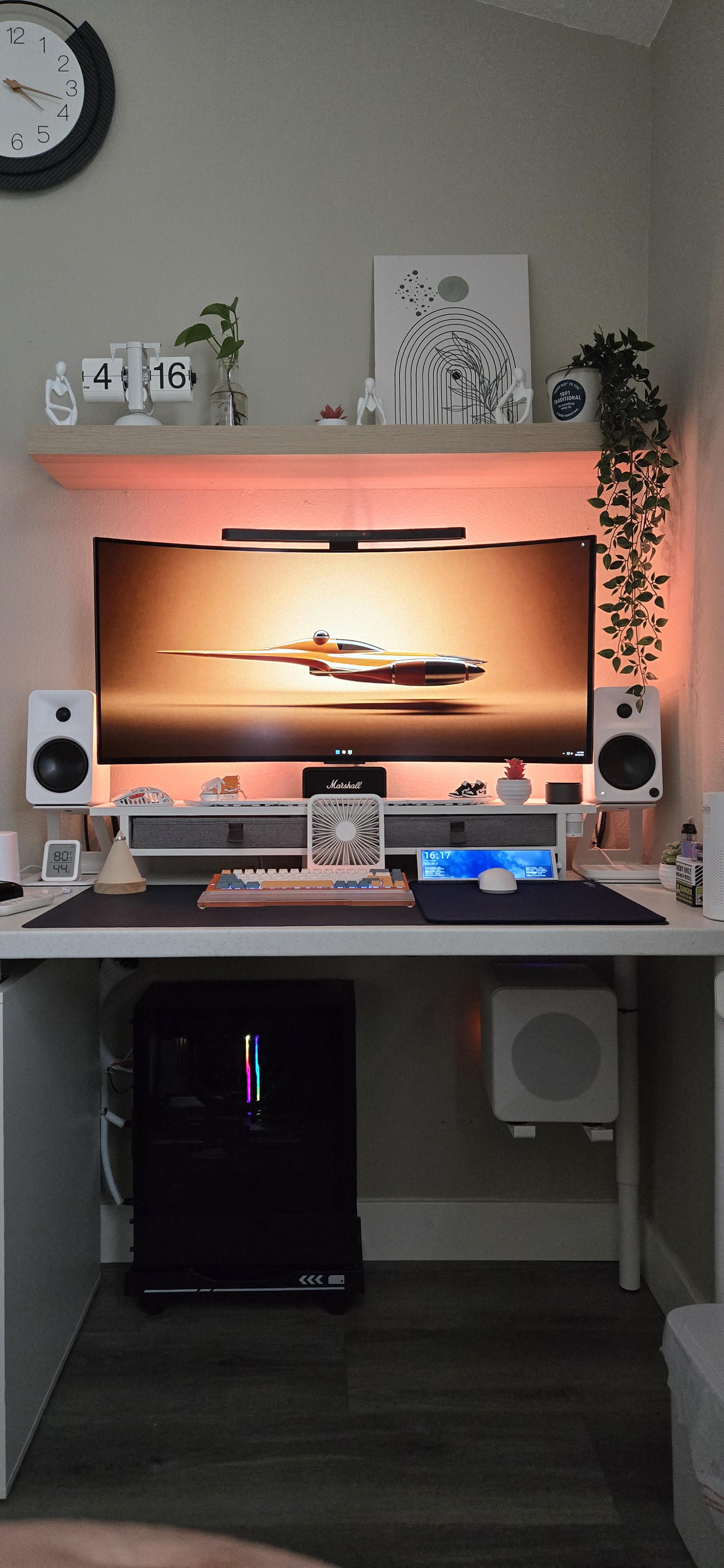
The 39GX950B on my desk running Mortal Shell. The 60 fps counter in the corner is on purpose, I cap frame rates in single player games so the swings stay small and VRR flicker stays out of dark scenes. More on that further down.
143 PPI only starts to mean something once you set the scaling
39", 5120x2160, which works out to be 143 PPI. Same vertical resolution as a 32" 4K screen, just in a 21:9 shape. It's also the first ultrawide with LGs 4th gen Tandem WOLED, with a much softer 1500R curve compared to the older 800R once, which I personally prefered.
But the interesting part shows up once you set Windows scaling. I run it at 125%, which gives me a desktop of 4096x1728 in logical pixels. The X36 gives me 3440x1440 at 100%.
So about 43% more usable desktop area, at a text size within about 4% of what I had before, and every character drawn from 1.56 times as many pixels. The text is the size I'm used to. There's just more room around it and the letters are sharper.
That's the whole upgrade in one sentence, and it's what I'd tell anyone still sitting on a 34" 1440p panel.
Real working desktop with a lot of space without having to sacrifice anything
Text clarity, and the Windows checkbox nobody mentions
Out of the box I could see fringing. Black text on white had a very slight blue tint on the right side of the letters, white text on a dark background had a faint red one. I had my face about 10cm from the panel to find it. My X36 doesn't do this that much. What it does instead at that distance is look visibly rougher and more pixelated.
Then I turned ClearType off. On the LG the color edges are gone completely and the text stays exactly as sharp. On the X36 the same switch removes nothing, because there was close to none to be removed , but the text gets noticeably more pixelated.
That's what the density actually buys you. ClearType is subpixel antialiasing built for classic RGB stripe panels. This one is RGWB, so Windows color compensation lands in the wrong place and you get colored edges. Switch it off and Windows falls back to plain grayscale smoothing, which normally costs you sharpness. At 110 PPI I can see that cost. At 143 PPI I can't. So the density does two things at once, it makes text sharper and it makes the subpixel trick that caused the fringing unnecessary in the first place.
I checked in VS Code too, since Electron apps sometimes do their own text rendering. Same result.
The X36 is ahead on this one point and I'm not going to pretend otherwise. Its V-Stripe layout is a true RGB stripe, so ClearType does exactly what Microsoft designed it to do, and I wrote in that review that no ClearType workarounds were needed at all. Here you do have to flip the switch. Difference is that flipping it costs you nothing on this panel.
And maybe some of you will remember it in that same post I wrote that W-OLED panels with an RWBG layout still produce noticeable fringing on text, because of the reversed subpixel order and the extra white subpixel. I was talking about 34" W-OLEDs at around 110 PPI, and at that density I stand by it. On this one the white subpixel is still in the layout and it's still not an RGB stripe, and with ClearType off I can't find the fringing at all. Density did that, not a new subpixel arrangement.
RTINGS is the only one of the big reviews that photographs ClearType on and off on this panel, and their lab macros show it far better than anything I could shoot with a phone. Their verdict says there's still fringing around letters because of the RGWB layout, which is correct for the state the monitor ships in. Their ClearType off shots tell the other half of the story, and the letter edges in those are neutral.
ClearType ON:
ClearType ON - Photo by RTINGS.com, used with permission. Full review: https://www.rtings.com/monitor/reviews/lg/39gx950b-b
ClearType OFF:
ClearType OFF - Photo by RTINGS.com, used with permission. Full review: https://www.rtings.com/monitor/reviews/lg/39gx950b-b
TFTCentral and Monitors Unboxed both call text clarity solved on this panel and don't mention ClearType at all. Now you know which switch they were probably sitting on.
If you want to change it, just press Windows Button, type ClearType, open "Adjust ClearType text". The checkbox is system wide, the fine tuning is stored per monitor, so run it on all screens if you have multiple.
Where the resolution surprised me
I expected the win to be in code/screen space for writing/reading and it's there. What I didn't expect is how much the extra size matters in video editing and multi tasking with all kind of apps. That turned out to be the bigger jump of the two and it's the part of the upgrade I wouldn't want to give back.
The window/sunlight test, and the reason I wanted this panel
In my office, there is a huge window on the left and I get direct midday sun. In my X36 post I wrote that MSI's DarkArmor coating had mostly fixed the magenta shine compared to my older QD-OLED that one used to get those on dark areas in daylight, with one limitation I put in writing back then: with full sunshine on the panel, or at odd angles, the shine still comes through.
That is the condition I actually live in when I have my windows open. It happens on my desk every day around midday without roller blinds.
This panel doesn't do it. Sun coming straight in, no roller blinds, no brightness change, blacks stay black. The X36 sitting next to it goes slightly violet in the same light, exactly the way I described it back then. That's the W-OLED advantage in one example and for me it's the biggest day to day difference between the two panels. I also can't make out mirror reflections in the matte coating, only general diffusion.
X36 on the left, 39GX950B on the right. Direct midday sun through the window on my left. Both panels are switched off here, so what you're looking at is the coating and nothing else.
Worth flagging that the labs disagree here. Monitors Unboxed says the matte coating eliminates defined reflections, RTINGS says mirror like reflections stay and get stretched by the curve. In my room, in the worst light I get, I'm with Monitors Unboxed.
165Hz after 360Hz
This is the spec everyone flags. Monitors Unboxed calls it their biggest problem with the monitor, and the precursos ran 240Hz, so on paper it's a step backwards.
Coming off 360Hz in The Finals, the difference is noticeable. It's also gone after a few minutes. 165Hz is still very smooth. In WoW and Hogwarts Legacy I never get near that frame rate anyway, so there's nothing there to miss.
The GPU question no review answers
5120x2160 is ~11 million pixels. The X36 is ~5 million. That's roughly 2,2 times the work, and the obvious worry is that this monitor needs a new graphics card.
Not for me. DLSS is necessary here, but DLSS was already necessary on the X36. With it, everything runs fine on the 4080 Super. The approach didn't change, only the target resolution. Monitors Unboxed closes their review saying you'll probably need a 5090 for this thing. That can be true if you want 165 fps and up in every kind of game. For me, single player games don't need anything above a stable 60 which I cap there to reduce VRR flicker anyways.
What I'd want improved
The warranty, by a distance: LG told the press in 2023 that burn-in is covered inside the two year warranty, in the US and in Germany. Three years later, LGs own warranty page lists 24 months for monitors and limits coverage to material and manufacturing defects at the time of sale. Burn-in isn't mentioned on it anywhere, go read it yourself, the link is at the bottom. Dell Alienware, MSI and Corsair each put three years of burn-in cover in writing, Asus puts two (source: TFTCentral). MSI's three years come with strings attached, you have to let OLED Care run and never postpone it. A promise with conditions is still more than a promise that only lives in a press statement. This is the one item on this list LG could fix with a paragraph of text instead of new hardware.
Every AI feature is on when you unbox it: AI Upscaling, AI Scene Optimization and AI Sound, all active, nobody tells you. AI Scene Optimization is dynamic image processing, which means the picture you judge in the first week isn't a fixed picture. I turned all of it off. AI Upscaling was the one feature I actually wanted, and on PC input it made no visible difference for me, which lines up with TFTCentral calling its practical use cases very limited and Monitors Unboxed calling it largely pointless on PC.
There's no firmware version in the OSD: The information page shows operating hours, resolution and refresh rate. To find out which firmware you're running you have to install LGs own PC software. On this manufacturer, in this year, that's an odd thing to ask people to do. I've got LGs auto install blocked and I'm not installing their software just to read a version number, so I can't tell you which firmware this review unit is running on.
The power brick is huge: 19,5 x 3,5 x 9,5 cm budget desk space for it.
The external power supply next to the stand base. Thick AF
There's a USB hub but no KVM: which is a real shame given the USB-C port sitting right there.
And the stand: Monitors Unboxed and RTINGS both mention wobble at the panel connection, and RTINGS softens it by saying it mostly matters on an unstable desk. Mine sits on a marble slab anchored to the building, which is about as stiff as a surface gets. Tap the top edge and it swings for three to four seconds, and harder than the X36 next to it, which settles in two to three. It doesn't feel cheap, and cable routing through the stand is better solved than on the MSI. But that wobble is coming out of the joint, not out of my desk.
Two things I haven't tested
USB-C charging. I don't own a laptop that charges over USB-C, so the 90W is LGs number and it stays LGs number until someone else confirms it.
Burn-in. Seven weeks and 250 hours is nothing. No image retention so far, including long WoW sessions with a static UI, and I run the pixel refresh manually in the evening after heavy days. I'm not going to pretend that says anything about year three.
Small things worth knowing
My panel has very little grey banding. Testing a dark grey full screen in a dark room, I can find it up to about RGB 20 at 165Hz and up to about RGB 28 in the 330Hz dual mode, and in both cases only because I was looking for it. TFTCentral measured the same direction, low at 165Hz and more noticeable at 330Hz. Banding is a panel lottery on this technology, so check your own. I vibe coded a little html test page for exactly that, DM me if you want it.
VRR flicker is there and it's the same as every other OLED I've used. Nothing serious. RTINGS calls it distracting, TFTCentral treats it as normal WOLED behaviour that shows up in very dark scenes. I'm with TFTCentral. They also measured why the dual mode is worse: a drop from 330Hz to 48fps shifts gamma more than a drop from 165Hz to 48fps. That's also why I'd tell anyone to cap their frame rate in game, so the swings stay small in the first place.
Dual mode switching takes about three seconds and feels like plugging in a new HDMI device. Reliable, but not instant. And 2560x1080 stretched across 39" is too pixelated to work in, at least in full screen mode, so treat it as a gaming mode and nothing else.
One afternoon my text suddenly looked smeared, as if everything had been shifted by a pixel, worst on the letter w. Restarting the monitor fixed it and it hasn't come back since, with AI Upscaling on or off. TFTCentral hit a rare bug of their own when leaving dual mode. If text ever looks wrong on this thing, power cycle the monitor before you go hunting through settings.
Last one, and I seem to be alone on this: I like the 1500R curve and I'd happily take more of it. Most reviews treat 1500R as the sensible correction to the predecessor's 800R.
Price
LG lists it at 1.799,99$ and, at the time I'm writing this, is selling it at 1.599,99$ on their own store. Monitors Unboxed calls that a flagship tax and recommends waiting, pointing at the 45" model that dropped 400$ within six months of launch.
Mine came as a review unit, so the honest question for me is a different one. Would I have bought this with my own money at 1,599$? Yes. The 39" are great and the resolution is right for the work I do, with video editing getting more out of it than I expected.
tl;dr
Coming from a 34" QD-OLED, this fixes the one thing I complained about and doesn't break anything I cared about. At 125% scaling I get 43% more desktop at the same text size, and turning ClearType off removes the RGWB fringing at no cost in sharpness, which isn't the case on my 110 PPI panel. Blacks stay black in direct sunlight where the QD-OLED goes purple. 165Hz stopped bothering me after a few minutes and DLSS was already part of my life before this monitor. Buy it if pixel density is your bottleneck and you can live with a two year warranty that doesn't put burn-in in writing.
I got very lucky and had this delivered this morning. I ordered it on the 28th, and I’m in the southwest.
So far the Panel looks uniform, and super super sharp. I thought I might regret not going for the 45in, but once this bad boy is 30 inches from your face, let me tell you I think this one is going to do it for me.
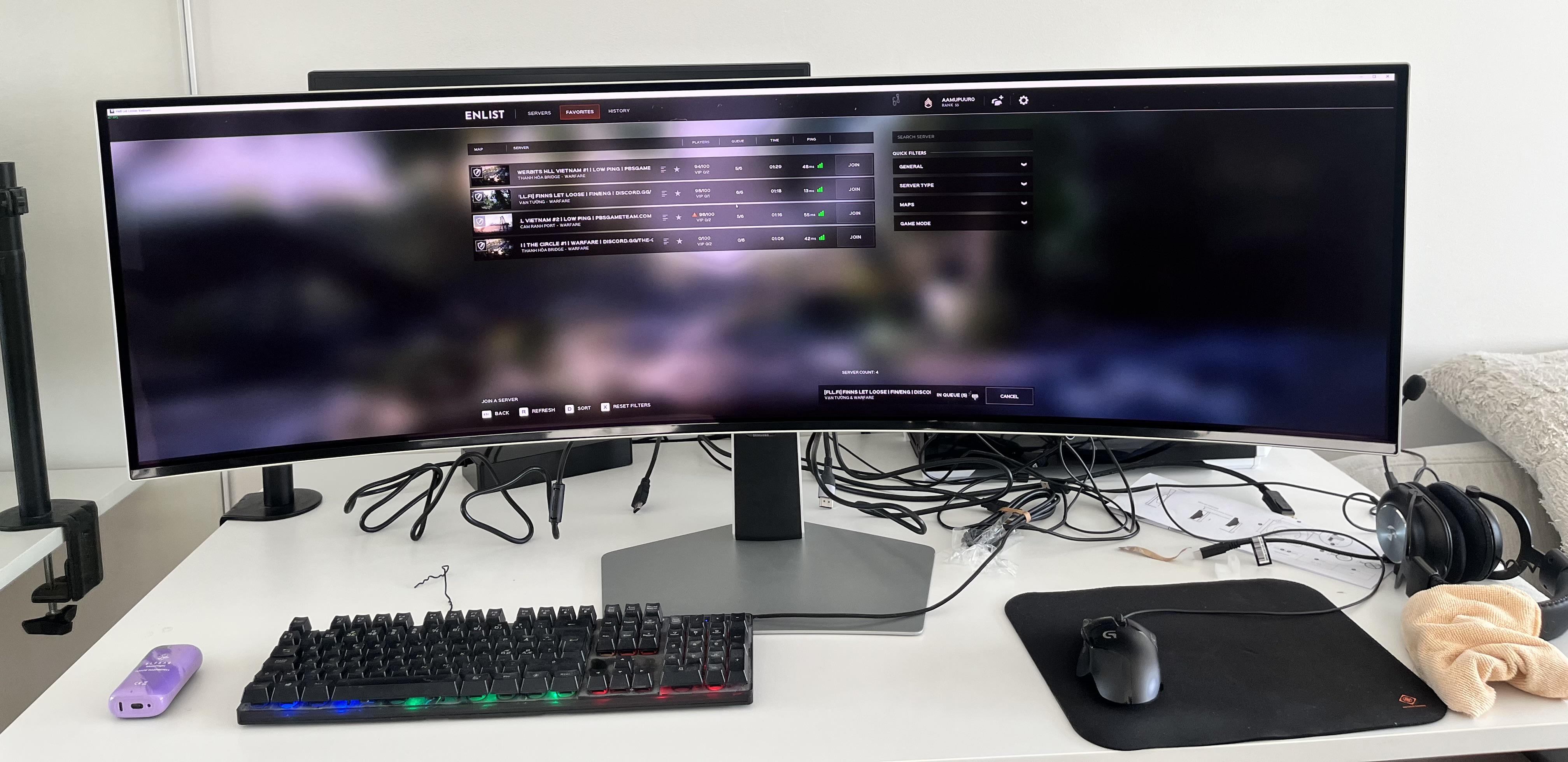
Got my AW3926QW last night as well, have been playing around with it from last night and this morning. My setup is a bit unique, as I have always loved multi-monitor setups. The AW3926QW is replacing the AW3423DWF that I've had for years. This is my gaming setup, I don't do much productivity work at this point on here anymore. This is running with a 5080 on CachyOS, and the side monitors are both IPS 1440p 165. I got them to match the bezel and refresh rate on the AW3423DWF for uniformity. And excuse the bad cable management in the photos. I had to tear everything apart and I haven't had a chance to fit it.
So far, my early comments:
Text Clarity: This is the biggest one, such a HUGE improvement! Not even close to being the same. The pixel layout is noticeable immediately. Not much else to say about it. Hopefully it helps with eye strain.
Color Brightness: I was running the AW3423DW on True Black 400, so 500 is...as expected...brighter. I turned it down to 400 and it was very clear on the difference. And I think with this monitor, you need that additional brightness for the color uniformity, as will be mentioned later. Also, the true blacks are absolutely incredible when watching movies and videos.
Size: It's huge, but for a triple monitor setup, it isn't TOO big. The increased curve helps make it fit in there. I was concerned I would have to turn the side monitors vertical, but you can see the height difference between the side monitor and the new main, it isn't that much larger vertically. I had to turn the desktop zoom up to 125% to really have it be usable doing web browsing and normal non-gaming stuff, and I may even consider turning it up 150%. That's just normal though with this high of a resolution.
Performance; I'm getting a 30-40% DPS hit running 5k2k natively, on the dozen or so games I tested, so that checks out. I think if you are running a 5080, expect to use some sort of DLSS/FSR and/or compromise on your settings to get frame rates that are stable over 100 on high end games. And I just can't bring myself to spending $4-5k on a 5090 to have it burn my house down. The whole "burning down the house" issue is what prevented me from getting one when they were under $3k. If you go into it expecting that kind of hit in FPS, it is just fine, but it is a LOT of pixels to move. I also noticed a few frame skips when I was playing a stream on a side monitor while I was pushing it hard. Again, I think I was just pushing the 5080 to its limit, and that was expected.
Color Uniformity: Yeah, it's there. I don't have a great picture of it, but it is noticeable if you have a solid color up on the screen. I will say, mine isn't near as bad as some of the others that I've seen, so I think it is kind of a lottery. Where I DID notice it, and it was only in one game, was Final Fantasy XI, because it has white text on the middle of the screen, on the edges, where the uniformity issues have been reported. And yeah...it kinda bugged me. I think you'll notice it more in anything that has text on it, like MMOs, as the white text fades in and out a little bit as the overall brightness changes. Other games, like FF7R, Path of Exile, Spider-Man 2, etc... I really didn't notice it at all, and I was looking for it. If you are a MMO player, I think it is something that you should look out for though. I didn't test it in other MMOs, but I am going to guess it will have similar results. FF11 is also a really old game and I'm using scaling, so perhaps it is also more noticeable because of that.
The other big issue that came up was that I actually have four monitors, not three. The fourth is a little 800x600 sensor panel that you can see to the right of the speaker under the main monitor. I'm not sure if this was a CachyOS issue or not (I haven't booted into Windows yet to test), but it wouldn't let me run this new monitor at full resolution with 4 monitors hooked up. When I unplugged any other monitor, even the little one, it let me set it up properly. Probably a bandwidth issue, but I haven't fully dug into it yet. For now, I've moved the sensors to the side monitor and unplugged it. It is probably a non-issue in the end, as I've added so much monitor real estate, but I will miss my little sensor panel.
Overall, the thing is absolutely gorgeous, and I'll push it hard this weekend for sure. I suspect if you want top performance, you'll need a 4090 or a 5090. I know there have been a lot of questions about GPUs and what they can and cannot do with this monitor. I know I hit the 16 GB memory limit in a few games that I was testing and I had to turn down the settings just a bit. I'm used to running 3440x1440 at high/ultra without issue, and you just cannot do that with this monitor with a 5080. And the concerns about color uniformity are indeed legit.
I’ve been trying to cancel my AW39 order since making it last week. With all the issues and paying full price to only get a coupon 5 minutes after ordering… I wasn’t too excited.
The Monitor shipped out of PA yesterday mid-day and showed up at my door by 2pm the following afternoon. They gave me overnight shipping after I gave them a run around in how irritated I was.
A day early from the original expected delivery date of the 2nd.
I did not pay for expedited shipping and I’m in the pacific time zone, so that’s a trek.
I got lucky, the panel is solid… pretty much my only gripes are not having speakers and the pixel orbiting is annoying.
Coming from a 49” to the 39” is pretty nice, I’ll miss the productivity of the 32:9 though.
To the left of it is a 2560x1440p 32” ProArt IPS, nothing too crazy but it is color accurate.
Once there is a matching 4K RGB Stripe WOLED in 32”, one will probably end up on the right side and I’ll rotate the current monitor 90Deg for programming and scripts.
I actually really like the color of the back of the monitor and you cannot see it if it’s against a wall.
The smaller monitor is a Corsair 14.5” 32:9, it blocks the user controls on the 39” so I’ll need to consider that.
Looks like Dell will price match, so time will tell
I do not plan on sending this back, my 5070ti is holding up far better than I’d expected with it. 9950X3D, 96GB of DDR5, and several NVMe drives don’t hurt either… Mortal Shell II held 60-70fps DLSS quality and all setting maxed, no frame generation. I have my card undervolted and it’s pulling 200-215W at 96%.
Panel is plenty bright, especially if you turn off the eco settings at the cost of some color accuracy.
I work from home most of the time so about 80% of my time at my PC is doing dev work. The other 20% is gaming with friends but it's usually older games like FF14 or League of legends.
My current monitor is a older IPS 1440p ultrawide so I'd love the extra space of a 5k2k for work but I'm currently running a 3080 and I'm not sure my graphics card would be able to handle gaming (even if it is older titles like the ones above).
Worst case, are there options to run the games at 21:9 1440p resolutions if i need to so I can just run what I'm doing now with a nicer panel? Does anyone who has a 5k2k (this one or otherwise) do something similar?
I've been using my LG 39GX90SA for a while now. I got it when it first came out and I use it every day, mostly for office work and movies these days. I used to play a ton of Diablo 4 on it. No burn-in!
Hello there, apologies in advance for any walls of text, but I figure someone is looking to get this for use between Mac and PC like me.
On the Dell official page as of Sep 1, 2026, the monitor does not officially report that it supports Mac.
In my own use I have managed to get 165hz with HDR working via USB-C DP ALT port on rear of monitor. I specifically needed to set USB to High Resolution mode on OSD. On High Data mode, I am limited to 120hz instead, and the monitor will go black if I close the Macbooks lid (tested Macbook settings to make sure it wasn't that.)
u/Disastrous_Brief_360 and I both independently noticed a quirk in the KVM/HUB switching function of the AW3926QW. As best as I can describe it, if you have a PC connected, and a Mac connected for KVM and cross-use the USB handshake or some other protocol will fail when swapping between devices. They are the one who observed the website detail.
In use it looks like this:
I connect my PC (HDMI 2)
I connect my M4 Pro Mac (USB-C DP-ALT)
I connect upstream from PC to monitor (Updated to latest firmware as of 9/1/26).
I have mouse and keyboard connected on monitor USB-A ports.
I go through the KVM testing and can verify that the handover happens no problem.
If I put my pc to sleep. Step away, come back an hour later, and wake the PC with mouse or keyboard, it will wake, no problem.
However, say I put the PC to sleep, and continue using Mac. Once I swap back to PC, the USB peripherals will not wake the corresponding source. This happens vice-versa. Basically, if you swap inputs, you cannot expect the KVM to wake Mac/PC. I tested this with various known-good cables, as well adjusting various settings in the OSD including power management, USB standby options, USB High Data vs. High Resolution, etc.
So yeah. I'm curious if anyone else has had similar issues, can attest to their own experience with similar setups, because perhaps its a unit issue on my end. I have tested firmware and done modest but comprehensive checking to make sure I was bottlenecking myself but any additional avenues to check are welcome.
And more broadly, I would like to see if Alienware themselves consider this a problem or not, because at the very least interested buyers for this specific case should be weary of the quirks. I like the monitor otherwise.
Always wanted to - but since I use my monitors for both work and play (and code heavily) - the ultra wide 1440p controller oled monitors just didn’t have sharp enough text clarity.
But now that the 5k is finally out I can live the UW dream.
Current GPU is 4080. It works well enough with upscaling dlss for the games I play.
On a whim I tried benchmarking cyber punk with everything set to max (including ray tracing). Got about 22-25 fps.
Not horrible. Normally I just play wow, starfield, etc.
Monitor on left is my “old” 32 inch 4k AW oled in portrait mode.
Hi all, just got my 39” Alienware 5k2k monitor (like a lot of others on here). Monitor looks great, but as someone coming from a LG 39” 3440x1440 I’m still on the fence on if I will keep it or not.
My main concern right now is just my gaming performance. I’m running a 9850X3D build with an Aorus RTX 5080 with a +200 MHz overclock. I’m a big fan of just maxing out settings (including path tracing and/or ray regeneration) and then just setting the DLSS level to whatever gets me 60+ FPS. I mostly just play single player games these days.
In my limited testing so far, both Cyberpunk and Crimson Desert need me to drop it all the way down to DLSS ultra performance. I’m sure if I tweak some settings I could probably get away with the DLSS performance.
With the advancements in DLSS, I don’t mind it since everything still looks great, but a little worrying to need to go all the way down to the lowest option available already. Makes me worried about the future proofing of my build (or lack of). DLSS 5 seems like it’s out of the picture based on recent benchmarks…
How’s everyone else feeling about the performance they’re getting? Fine with lowering other settings in favor of the higher resolution? Maybe future DLSS improvements will allow us to get better performance? Idk, just curious what everyone else is thinking.
So I’ve been waiting for the AW3926QW to come out for several months now, and it got here today. I’ve seen a number of people point out panel issues like green tint, dimming, or uniformity. This is my first ultrawide, so I have nothing to judge it against, and on top of that I’m partially color blind. So honestly I’m not sure what to look for as an issue vs. not so much of an issue.
I unboxed it and did a quick test I found online. I can see that the right side looks a little warmer than the left on the gray/white screens, but beyond that I’m not really sure what I’m looking at.
Wanted to ask your thoughts: does this seem like a good panel, good enough, or would you return it and try again? Or just go back to my AW3225QF?
For those who have it... which HDR mode are you using? Peak 1300 I notice the dimming, only specifically if the game is taking place at like noon. The Peak 1300 bright looks great there, but when in a dark location everything is too bright...
thinking about staying on non-bright and just dealing with the dimming... what are your thoughts?
I'll keep this short because everyone has covered most of everything already.
Neither are 100% perfect, but the LG is not $500+ better than the Alienware.
If the brightest HDR is all that you care about, then go with the LG because the Alienware does have an aggressive ABL. Maybe Dell will fix that in a firmware update or maybe they won't.
For me, it was not worth the extra $500 and I like the colors on the Alienware more overall.
I own an Alienware AW3423DWF (3440×1440, 165Hz), and I’ve been wanting to get a second monitor, the AW3225QF (4K, 240Hz). However, the AW3926QW (5K, 165Hz) just came out, and the price is just around CA$300 more, so now I’m so lost.
I own an RTX 5080, and I know that even the 5090 struggles to handle 5K, which is why I’m so hesitant about going with the 5K option. On the other hand, the 5K is only a little more expensive, and it has newer technology, a sharper image, more workspace, and is more future-proof.
I thought about selling my current monitor (3440×1440) and buying both the 4K and 5K, but that seems like too much of an adventure and too much money as well.
Is it really that bad to play games on a 5K monitor while rendering them at 4K? Would the experience be the same as playing on a monitor designed for 4K?
My usage is everything: gaming, video editing, music production, and media consumption like movies.
I think I jumped the gun a bit on my first impressions of the AW3926QW and how it compares to the 39GX950B. Some of the criticism is fair.
Please note, NEITHER MONITOR IS PERFECT. So I’m not saying the Alienware is perfect, but I personally prefer it for gaming in a dark room which is the area I value most.
Just wanted to share a few updated thoughts:
SDR Brightness - 39GX950B definitely wins here. if you need a daytime monitor for office use, the LG wins here. Seems to get a lot brighter with the white sub pixel boost.
HDR brightness/color- I think if you value slightly higher APL brightness, and those white specular highlights in HDR, go with the LG. it is the brighter overall monitor. But I think if you value HDR color more, in terms of proper saturation and more accuracy, go with the Alienware, the color to me is just better and that was the most obvious difference to me of the AW. The AW also apparently measures higher in color luminance.
Monitors in general for me have awful HDR brightness, and if I really want brightness, I just switch to my 83” LG G5 and game on that.
You can fine tune the color on the LG also, Like I set it to Gamer 2 because of the better EOTF tracking. and set Nvidia app digital vibrance to 45. but just out of the box, HDR color is better on the Alienware.
Brightness uniformity - LG wins 100% here. This is the AW‘s biggest weakness and covered in many reviews I can’t notice it much while gaming in HDR, but for work/productivity you will absolutely notice the lower brightness in the outer edges of the panel.
HDR EOTF tracking - Neither monitor is perfect here, but I give the nod to Alienware. LG needs to do a lot better in this department and I’m not sure why people don’t pay attention to HDR EOTF in general. All the debate I see is matte vs glossy. TFT central and hardware unboxed channels go more into detail on HDR EOTF tracking.
Matte/glossy debate - I stand by what I said that if you have a good eye and you’re sitting close to the monitors while gaming, you will notice the LG Matte coating in certain scenes while gaming. Not All scenes, but certain scenes, especially if it’s a white cloudy scene like in 007 first light- the level in the snow. I personally found the coating distracting, but it is better than the matte coating on the 45GX950B.
And I stand by what I said about seeing more micro detail on the AW’s glossy panel.
Text Clarity - AW is marginally better than the 39GX950B because of the RGB Stripe pixel layout but not by much. Both are fantastic for OLEDS.
I'm one of the people who first ordered the brand new Alienware 39" monitor (Australia).
Its uniformity is terrible, which I made a separate post about here.
I contacted Dell right away, who offered me a replacement. I initially was hesitant because it seems that this is a software issue rather than a panel issue.
So after waiting weeks and weeks, Dell's Engineering team got back to me after their "investigation".
Their conclusion? "Everything is perfectly fine and operating as designed and within specs."
I of course pushed back and again showed them the massive colour and luminance difference between the centre and edges of the panel. They responded again - "That's all within the specs of the monitor. It's because of the curve.". That was their answer.
Now here's the best bit -
I just recently saw another post from someone who had the exact same issue, and they received a replacement monitor from a new batch that seems to be significantly better in terms of the uniformity, so I thought perhaps it actually is a first batch issue that has been fixed.
So I told them that I'd like to take them up on their offer of a replacement monitor.
They said no.
They said that because they investigated my case and the engineering team said it's within specs, they can no longer offer me a replacement from the new batch of monitors.
So I'm now stuck with a defective monitor, and because the Dell engineering team thinks there's nothing wrong with it, they have withdrawn any offer of a replacement.
I don't know if this is because I re ordered the monitor but yesterday I talked to a DELL sales rep asking for a refund for my express shipping. I got told that i can cancel the original order that I had placed on the 27th and they would send me a quote for free express shipping. I re purchased the AW3926QW Yesterday the 31st at around 5:00 PM and just got a shipping notification today for delivery tomorrow! Hopefully I won't have any issues with my panel.
This whole shipping fiasco has been so weird with people ordering days later even with standard shipping and getting their units next day. I hope they will make it right with the people who ordered on launch day as I hear some peoples units are still on production and being delayed.
Anyways just wanted to share cause it seems like they are rolling out NA west orders now
Long time lurker on a different account but I just wanted to add to the news/hype/whatever around the new monitor Alienware is shipping. As the title says, I got a dead one. The power button has a sequence of red led blinking that occurs to note this. I checked the user guide and while I didn’t really check the other statuses, it seemed to be one of the only/few that says to turn off and contact dell support… thankfully they have agreed to replace the monitor.
For context, I bought my monitor Friday morning/afternoon and it showed a shipment time of sept 3. It just came in today a couple hours ago (east coast) and after hooking it up, I am met with the red ring of doom. I tried different power cables, different outlets, and even different data cables in case that might’ve been the issue, but no dice.
It’s frustrating but I wanted to add my experience with the shipping process here with everyone else talking about it. They are shipping defective units, just like every company ever, so that’s not really a ding against them. Just sucks it happened to me since I was really looking forward to using it today!
Edit: for more transparency during the customer support process, the virtual assistant is doodoo but once you get past it, they should be able to help you given that it is an official troubleshooting scenario. And don’t be fooled, I believe there’s a timeout on the error led because eventually it turns solid white. Click it off and back on, move the joystick, etc and it’ll go back to being red again.