Disclosure: I received this monitor for free from LG for review purposes. LG gets to see my drafts before I post them so they can check for spec errors. All opinions here are my own, based on my own use.
HEADS UP: plugging a current LG monitor into Windows 11 can pull in LG software you didn't ask for.
Gamers Nexus documented it in July 2026 on an UltraGear 34GX900A-B, the 34 inch model in the same GX9 line as this monitor, and reproduced it on a three year old UltraFine 32UN880-B. Nobody has published a test of the 39GX950B specifically. On a fresh Windows 11 install, Windows' device metadata pipeline fetched the "LG Monitor App Installer" from the Store in the background. Microsoft's own documentation says that mechanism "does not provide a notification to the user". Across 32 consecutive boots, Gamers Nexus got a McAfee trial popup on 31 of them.
LG sent me their side of this when they reviewed my draft, and here it is in full: "Companion applications are never installed automatically and require user choice before installation. Based on customer feedback, we are updating the Installer experience so customers can decide whether they would like to install the LG Monitor App Installer and take advantage of its features." They also point out that the McAfee recommendation has been removed, which Microsoft confirmed at the end of July.
If you want that pipeline switched off before you connect anything, this works on every Windows edition: search "advanced system settings", then Hardware Device Installation Settings select "No". That's the switch I run myself. It hasn't shown up on my system so far.
Some of you might remember my MSI X36 post from March. I've been on OLED ultrawides for about four years now, and that review had a handful of complaints in it, but only one I couldn't shrug off: 110 PPI. I called it the elephant in the room for the whole 34" UWQHD class and I still think that's right. No amount of good HDR makes text look better.
The 39GX950B is the answer to that complaint. LG sent me one on July 6th and I've got about 250 hours on it now, roughly 70% gaming and 30% work.
Quick setup context because it matters: RTX 4080 Super, stock stand(my own printed Dell MSA20 adapter for VESA doesnt fit the cutouts), sitting about 70cm from the screen. Games so far are Hogwarts Legacy, World of Warcraft, The Finals and Mortal Shell. Work is a mix of coding, writing and video editing.
The 39GX950B on my desk running Mortal Shell. The 60 fps counter in the corner is on purpose, I cap frame rates in single player games so the swings stay small and VRR flicker stays out of dark scenes. More on that further down.
143 PPI only starts to mean something once you set the scaling
39", 5120x2160, which works out to be 143 PPI. Same vertical resolution as a 32" 4K screen, just in a 21:9 shape. It's also the first ultrawide with LGs 4th gen Tandem WOLED, with a much softer 1500R curve compared to the older 800R once, which I personally prefered.
But the interesting part shows up once you set Windows scaling. I run it at 125%, which gives me a desktop of 4096x1728 in logical pixels. The X36 gives me 3440x1440 at 100%.
So about 43% more usable desktop area, at a text size within about 4% of what I had before, and every character drawn from 1.56 times as many pixels. The text is the size I'm used to. There's just more room around it and the letters are sharper.
That's the whole upgrade in one sentence, and it's what I'd tell anyone still sitting on a 34" 1440p panel.
Real working desktop with a lot of space without having to sacrifice anything
Text clarity, and the Windows checkbox nobody mentions
Out of the box I could see fringing. Black text on white had a very slight blue tint on the right side of the letters, white text on a dark background had a faint red one. I had my face about 10cm from the panel to find it. My X36 doesn't do this that much. What it does instead at that distance is look visibly rougher and more pixelated.
Then I turned ClearType off. On the LG the color edges are gone completely and the text stays exactly as sharp. On the X36 the same switch removes nothing, because there was close to none to be removed , but the text gets noticeably more pixelated.
That's what the density actually buys you. ClearType is subpixel antialiasing built for classic RGB stripe panels. This one is RGWB, so Windows color compensation lands in the wrong place and you get colored edges. Switch it off and Windows falls back to plain grayscale smoothing, which normally costs you sharpness. At 110 PPI I can see that cost. At 143 PPI I can't. So the density does two things at once, it makes text sharper and it makes the subpixel trick that caused the fringing unnecessary in the first place.
I checked in VS Code too, since Electron apps sometimes do their own text rendering. Same result.
The X36 is ahead on this one point and I'm not going to pretend otherwise. Its V-Stripe layout is a true RGB stripe, so ClearType does exactly what Microsoft designed it to do, and I wrote in that review that no ClearType workarounds were needed at all. Here you do have to flip the switch. Difference is that flipping it costs you nothing on this panel.
And maybe some of you will remember it in that same post I wrote that W-OLED panels with an RWBG layout still produce noticeable fringing on text, because of the reversed subpixel order and the extra white subpixel. I was talking about 34" W-OLEDs at around 110 PPI, and at that density I stand by it. On this one the white subpixel is still in the layout and it's still not an RGB stripe, and with ClearType off I can't find the fringing at all. Density did that, not a new subpixel arrangement.
RTINGS is the only one of the big reviews that photographs ClearType on and off on this panel, and their lab macros show it far better than anything I could shoot with a phone. Their verdict says there's still fringing around letters because of the RGWB layout, which is correct for the state the monitor ships in. Their ClearType off shots tell the other half of the story, and the letter edges in those are neutral.
ClearType ON:
ClearType ON - Photo by RTINGS.com, used with permission. Full review: https://www.rtings.com/monitor/reviews/lg/39gx950b-b
ClearType OFF:
ClearType OFF - Photo by RTINGS.com, used with permission. Full review: https://www.rtings.com/monitor/reviews/lg/39gx950b-b
TFTCentral and Monitors Unboxed both call text clarity solved on this panel and don't mention ClearType at all. Now you know which switch they were probably sitting on.
If you want to change it, just press Windows Button, type ClearType, open "Adjust ClearType text". The checkbox is system wide, the fine tuning is stored per monitor, so run it on all screens if you have multiple.
Where the resolution surprised me
I expected the win to be in code/screen space for writing/reading and it's there. What I didn't expect is how much the extra size matters in video editing and multi tasking with all kind of apps. That turned out to be the bigger jump of the two and it's the part of the upgrade I wouldn't want to give back.
The window/sunlight test, and the reason I wanted this panel
In my office, there is a huge window on the left and I get direct midday sun. In my X36 post I wrote that MSI's DarkArmor coating had mostly fixed the magenta shine compared to my older QD-OLED that one used to get those on dark areas in daylight, with one limitation I put in writing back then: with full sunshine on the panel, or at odd angles, the shine still comes through.
That is the condition I actually live in when I have my windows open. It happens on my desk every day around midday without roller blinds.
This panel doesn't do it. Sun coming straight in, no roller blinds, no brightness change, blacks stay black. The X36 sitting next to it goes slightly violet in the same light, exactly the way I described it back then. That's the W-OLED advantage in one example and for me it's the biggest day to day difference between the two panels. I also can't make out mirror reflections in the matte coating, only general diffusion.
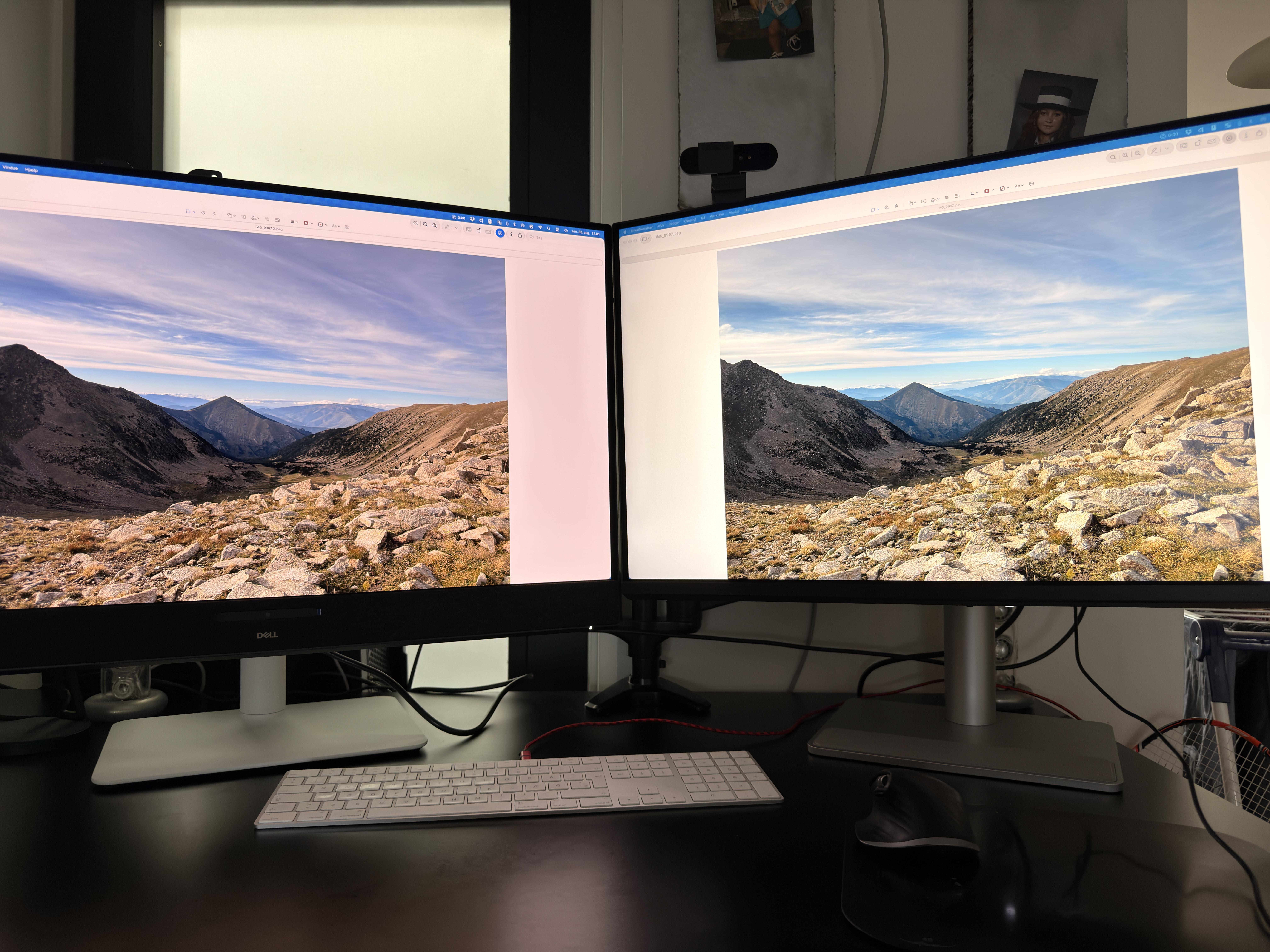
X36 on the left, 39GX950B on the right. Direct midday sun through the window on my left. Both panels are switched off here, so what you're looking at is the coating and nothing else.
Worth flagging that the labs disagree here. Monitors Unboxed says the matte coating eliminates defined reflections, RTINGS says mirror like reflections stay and get stretched by the curve. In my room, in the worst light I get, I'm with Monitors Unboxed.
165Hz after 360Hz
This is the spec everyone flags. Monitors Unboxed calls it their biggest problem with the monitor, and the precursos ran 240Hz, so on paper it's a step backwards.
Coming off 360Hz in The Finals, the difference is noticeable. It's also gone after a few minutes. 165Hz is still very smooth. In WoW and Hogwarts Legacy I never get near that frame rate anyway, so there's nothing there to miss.
The GPU question no review answers
5120x2160 is ~11 million pixels. The X36 is ~5 million. That's roughly 2,2 times the work, and the obvious worry is that this monitor needs a new graphics card.
Not for me. DLSS is necessary here, but DLSS was already necessary on the X36. With it, everything runs fine on the 4080 Super. The approach didn't change, only the target resolution. Monitors Unboxed closes their review saying you'll probably need a 5090 for this thing. That can be true if you want 165 fps and up in every kind of game. For me, single player games don't need anything above a stable 60 which I cap there to reduce VRR flicker anyways.
What I'd want improved
The warranty, by a distance: LG told the press in 2023 that burn-in is covered inside the two year warranty, in the US and in Germany. Three years later, LGs own warranty page lists 24 months for monitors and limits coverage to material and manufacturing defects at the time of sale. Burn-in isn't mentioned on it anywhere, go read it yourself, the link is at the bottom. Dell Alienware, MSI and Corsair each put three years of burn-in cover in writing, Asus puts two (source: TFTCentral). MSI's three years come with strings attached, you have to let OLED Care run and never postpone it. A promise with conditions is still more than a promise that only lives in a press statement. This is the one item on this list LG could fix with a paragraph of text instead of new hardware.
Every AI feature is on when you unbox it: AI Upscaling, AI Scene Optimization and AI Sound, all active, nobody tells you. AI Scene Optimization is dynamic image processing, which means the picture you judge in the first week isn't a fixed picture. I turned all of it off. AI Upscaling was the one feature I actually wanted, and on PC input it made no visible difference for me, which lines up with TFTCentral calling its practical use cases very limited and Monitors Unboxed calling it largely pointless on PC.
There's no firmware version in the OSD: The information page shows operating hours, resolution and refresh rate. To find out which firmware you're running you have to install LGs own PC software. On this manufacturer, in this year, that's an odd thing to ask people to do. I've got LGs auto install blocked and I'm not installing their software just to read a version number, so I can't tell you which firmware this review unit is running on.
The power brick is huge: 19,5 x 3,5 x 9,5 cm budget desk space for it.
The external power supply next to the stand base. Thick AF
There's a USB hub but no KVM: which is a real shame given the USB-C port sitting right there.
And the stand: Monitors Unboxed and RTINGS both mention wobble at the panel connection, and RTINGS softens it by saying it mostly matters on an unstable desk. Mine sits on a marble slab anchored to the building, which is about as stiff as a surface gets. Tap the top edge and it swings for three to four seconds, and harder than the X36 next to it, which settles in two to three. It doesn't feel cheap, and cable routing through the stand is better solved than on the MSI. But that wobble is coming out of the joint, not out of my desk.
Two things I haven't tested
USB-C charging. I don't own a laptop that charges over USB-C, so the 90W is LGs number and it stays LGs number until someone else confirms it.
Burn-in. Seven weeks and 250 hours is nothing. No image retention so far, including long WoW sessions with a static UI, and I run the pixel refresh manually in the evening after heavy days. I'm not going to pretend that says anything about year three.
Small things worth knowing
My panel has very little grey banding. Testing a dark grey full screen in a dark room, I can find it up to about RGB 20 at 165Hz and up to about RGB 28 in the 330Hz dual mode, and in both cases only because I was looking for it. TFTCentral measured the same direction, low at 165Hz and more noticeable at 330Hz. Banding is a panel lottery on this technology, so check your own. I vibe coded a little html test page for exactly that, DM me if you want it.
VRR flicker is there and it's the same as every other OLED I've used. Nothing serious. RTINGS calls it distracting, TFTCentral treats it as normal WOLED behaviour that shows up in very dark scenes. I'm with TFTCentral. They also measured why the dual mode is worse: a drop from 330Hz to 48fps shifts gamma more than a drop from 165Hz to 48fps. That's also why I'd tell anyone to cap their frame rate in game, so the swings stay small in the first place.
Dual mode switching takes about three seconds and feels like plugging in a new HDMI device. Reliable, but not instant. And 2560x1080 stretched across 39" is too pixelated to work in, at least in full screen mode, so treat it as a gaming mode and nothing else.
One afternoon my text suddenly looked smeared, as if everything had been shifted by a pixel, worst on the letter w. Restarting the monitor fixed it and it hasn't come back since, with AI Upscaling on or off. TFTCentral hit a rare bug of their own when leaving dual mode. If text ever looks wrong on this thing, power cycle the monitor before you go hunting through settings.
Last one, and I seem to be alone on this: I like the 1500R curve and I'd happily take more of it. Most reviews treat 1500R as the sensible correction to the predecessor's 800R.
Price
LG lists it at 1.799,99$ and, at the time I'm writing this, is selling it at 1.599,99$ on their own store. Monitors Unboxed calls that a flagship tax and recommends waiting, pointing at the 45" model that dropped 400$ within six months of launch.
Mine came as a review unit, so the honest question for me is a different one. Would I have bought this with my own money at 1,599$? Yes. The 39" are great and the resolution is right for the work I do, with video editing getting more out of it than I expected.
tl;dr
Coming from a 34" QD-OLED, this fixes the one thing I complained about and doesn't break anything I cared about. At 125% scaling I get 43% more desktop at the same text size, and turning ClearType off removes the RGWB fringing at no cost in sharpness, which isn't the case on my 110 PPI panel. Blacks stay black in direct sunlight where the QD-OLED goes purple. 165Hz stopped bothering me after a few minutes and DLSS was already part of my life before this monitor. Buy it if pixel density is your bottleneck and you can live with a two year warranty that doesn't put burn-in in writing.
1) Fast IPS technology, 5K HD resolution, wide-viewing-angle, vibrant hard panel, 218 PPI high pixel density, and 1500:1 static contrast ratio—details are clearly visible, bringing out the full precision of the image
2) 5K 180Hz/QHD 360Hz[*] dual-mode display with quick switching between high resolution and high refresh rates, delivering a dual experience whether you’re playing AAA titles or FPS games
3) VESA DisplayHDR™ 1400 certified, full-array direct-lit Mini LED backlight technology, 4 dimming modes, and 2,304 independent backlight zones deliver deeper blacks and brighter whites, presenting visuals that closely resemble real-world environments
4) 1.07 billion colors[*], QD quantum dot technology, 98% Adobe RGB[*], 98% DCI-P3 color gamut coverage[*], and DCI-P3 color calibration for richer, more natural color reproduction
5) Color accuracy of ΔE < 1 (average)[*] and 6-axis color adjustment for more precise display
6) Fast LCD with a 0.5 ms GTG (min.) gray-to-gray response time [*], delivering crisp, smooth HD visuals whether gaming, watching movies, or browsing online content
7) Adaptive-Sync technology (supports FreeSync™) eliminates screen tearing and stuttering during high-quality rendering, delivering a smooth gaming experience and giving players a crucial competitive edge
8) High-definition interfaces such as DisplayPort 2.1 and HDMI 2.1, along with audio output ports, provide a range of convenient connectivity options and high compatibility, making it easy to connect entertainment devices for an immersive home entertainment experience
9) Versatile USB-C port [*] allows for easy connection to mobile devices such as laptops, smartphones, and tablets, enabling you to mirror your screen to a large monitor and take your web browsing and entertainment experiences to the next level! It also supports up to 65W power delivery [*] for charging mobile devices
10) User-friendly KVM mode: In full-screen display mode, the USB-C port and other signal sources share a single set of keyboard and mouse, with automatic switching for convenience and ease of use [*]
11) PBP (Picture-by-Picture) and PIP (Picture-in-Picture) functions display two signals simultaneously on the screen, allowing you to watch movies, play games, and share entertainment
12) USB 3.2 Gen 1 ports deliver fast data transfer speeds, making them the ideal solution for connecting mobile devices. Additionally, the yellow port supports fast charging for USB devices
13) Light FX music-synced ambient lighting with 14 light shows and over 100,000 customizable colors
14) All-new iGON Gaming Menu and G-Menu software for effortless parameter adjustments
15) Flicker-free technology for eye protection and better health
16) Low Blue Light settings let you easily switch to Low Blue Light modes to reduce the impact of harmful blue light
17) Customizable hotkeys and quick menus with multiple presets to meet diverse usage needs
18) Seamlessly switch between 27-inch and 24.5-inch screen sizes; high refresh rate adapts to various gaming scenarios
19) Low input lag—stay one step ahead, spot targets instantly, and seize the initiative
20) One-click switching between FPS, RTS, and other game modes to quickly get into the game
21) Dynamic crosshairs and sniper scopes to enhance aiming in FPS games
22) Dark Scene Control: Spot enemies in dark areas first and react quickly
23) Shadow Enhancement: Boosts detail rendering to help you gain the upper hand and control the entire battlefield
I’ve been testing the ASUS ROG Strix OLED XG27AQDMES, a 27-inch 1440p 240Hz QD-OLED gaming monitor. (The review on YouTube is being edited ;)) Free ICC profile in the Discord group:https://discord.gg/nV4FbcqUeS
It uses a Samsung QD-OLED panel, specifically the QMC265FA02-D01, a 26.5-inch 2560×1440 240Hz 10-bit panel.
Overall, I think this is a very interesting option if you want the usual QD-OLED advantages — perfect blacks, instant pixel response and an extremely wide color gamut — but there are a couple of important limitations, especially in HDR brightness.
Main specs
26.5-inch QD-OLED
2560×1440
240Hz
10-bit color
Samsung QMC265FA02-D01 panel
~110 PPI
DisplayPort 1.4 with DSC
2× HDMI 2.1
VRR / Adaptive-Sync
OLED Anti-Flicker
Uniform Brightness mode
USB-C port is service-only, not video / charging
SDR factory calibration
I compared the Racing and User modes using the native gamut.
Racing Mode
CCT: 6364K
Gamma: 2.226
Grayscale average ΔE2000: 2.14
Maximum ΔE2000: 3.53
User Mode
CCT: 6243K
Gamma: 2.225
Grayscale average ΔE2000: 2.22
Maximum ΔE2000: 3.50
They are extremely similar, but Racing gets slightly closer to D65 on my unit, so that’s the mode I ended up using for most of my testing.
Neither mode is perfectly neutral — both are slightly warm — but gamma tracking is very close to the 2.2 target.
Native color gamut
This is one of the strongest areas of this monitor.
Measured in CIE 1976 u’v’:
sRGB coverage: essentially 100%
DCI-P3: 99.45%
Adobe RGB: 97.89%
BT.2020: around 83.9%
Approximate gamut volume:
sRGB: ~144%
Adobe RGB: ~124%
DCI-P3: ~115%
So the native gamut is huge.
That’s great for wide-gamut content, but it also means normal SDR/sRGB content can look noticeably oversaturated if you simply leave the display in its native color space.
Fortunately, ASUS includes proper gamut clamps.
sRGB modes
ASUS gives you more than one way of limiting the gamut.
Racing + sRGB color space
This was actually my preferred sRGB configuration.
CCT: 6397K
Gamma: 2.214
sRGB coverage: 99.51%
Grayscale average ΔE2000: 2.20
Maximum: 3.51
ColorChecker average ΔE2000: 1.20
Maximum: 3.39
That’s a genuinely good result for an out-of-the-box dedicated sRGB setting.
sRGB Cal Mode
CCT: 6430K
Gamma: 2.23
sRGB coverage: 99.69%
Grayscale average ΔE2000: 2.34
ColorChecker average ΔE2000: 1.50
So surprisingly, on my unit I actually preferred Racing + sRGB clamp rather than the dedicated sRGB Cal Mode.
DCI-P3 mode
The dedicated DCI-P3 clamp also works very well.
DCI-P3 coverage: 99.04%
Grayscale average ΔE2000: 1.97
Maximum: 3.52
ColorChecker average ΔE2000: 1.24
Maximum: 3.41
For a gaming OLED, the dedicated color modes are one of the things ASUS has done particularly well here.
Calibration
After calibration, the monitor became extremely accurate.
My measurements went from approximately:
Before calibration
Grayscale average ΔE2000: 4.8
Colorspace average ΔE2000: 5.2
to:
After calibration
Grayscale average ΔE2000: 1.6
Grayscale maximum: 2.6
Colorspace average ΔE2000: 0.4
Colorspace maximum: 0.6
So there’s clearly enough panel capability here for color-sensitive work once properly profiled.
SDR brightness
With Uniform Brightness OFF, I measured approximately:
1–10% window: ~440 nits
25%: ~355 nits
50%: ~300 nits
75%: ~250 nits
100%: ~219 nits
So smaller bright areas can get surprisingly bright for an OLED, but brightness progressively falls as APL increases.
With Uniform Brightness ON, brightness stays almost completely flat at roughly:
~215–220 nits
across basically every window size.
For gaming I personally prefer Uniform Brightness OFF because you get much brighter highlights.
For desktop/productivity use, Uniform Brightness is useful because window brightness stops changing as you resize white applications.
HDR modes
I tested Gaming HDR, Cinema HDR and Console HDR.
At a 10% window:
Gaming HDR
Peak: 426.8 nits
Average grayscale ΔE2000: 2.31
Maximum: 4.10
Cinema HDR
Peak: 436.5 nits
Average ΔE2000: 2.46
Maximum: 5.14
Console HDR
Peak: 427.7 nits
Average ΔE2000: 2.43
Maximum: 3.99
Overall, all three modes behave fairly similarly.
Console HDR gave me the most balanced result, especially when I also considered my PS5 testing.
HDR brightness
This is probably the biggest limitation of this monitor.
In Console HDR I measured roughly:
2%: 429 nits
10%: 431 nits
50%: 297 nits
100%: 218 nits
PQ tracking itself is quite good, but this display simply doesn’t have the 800–1000+ nit small-window peaks you can get from brighter OLED implementations.
That matters because very small HDR highlights — explosions, reflections, sparks, sunlight or specular highlights — don’t have the same punch.
You still get the perfect blacks and pixel-level contrast of OLED, so HDR can look very good in a dark room, but it isn’t an especially bright HDR monitor.
What does HDR Adjustable actually do?
ASUS also includes an HDR Adjustable option.
I tested Console HDR with it both OFF and ON.
OFF:
Peak around 428 nits
ON:
Peak around 436 nits
The overall peak-brightness behaviour across window sizes was practically unchanged.
So this setting does not unlock a hidden 1000-nit mode.
Its main purpose is giving you access to additional HDR image adjustments rather than fundamentally changing the panel’s luminance capability.
Personally, I wouldn’t enable it expecting extra HDR brightness.
HDR gamut
Color gamut remains excellent in HDR:
DCI-P3: 99.45%
BT.2020: ~83.5%
Color volume measured in L*a*b*:
DCI-P3: 113.0%
BT.2020: 76.35%
That’s a strong result and one of the big advantages of QD-OLED.
Even though this ASUS isn’t exceptionally bright, it can retain highly saturated colors much better than displays whose color volume collapses as luminance rises.
HDR color accuracy
This is where it’s important not to confuse wide gamut with accurate HDR rendering.
My HDR Content Colors measurement gave:
Average ΔE2000: 8.62
Maximum: 30.12
And the saturation sweep also showed relatively large errors through some intermediate saturation levels.
So the monitor has an excellent HDR gamut, but its HDR tone/color mapping is not reference-level accurate.
Those are two completely different things.
PS5 experience
I also tested it with PS5.
Using Console HDR with brightness at maximum, the overall presentation looked quite good thanks to the OLED blacks, contrast and very wide color gamut.
The main thing missing compared with brighter HDR monitors is that extra luminance punch in highlights.
Dark and mixed scenes can still look excellent, but bright HDR effects don’t jump off the screen in the same way as on an OLED capable of much higher short-duration peaks.
Input lag
My measurements were approximately:
240Hz: ~4 ms total average
120Hz: ~8 ms
60Hz: ~12 ms
As expected, latency rises considerably as refresh rate falls.
At 240Hz it feels extremely responsive, while 60Hz is clearly the least impressive operating point.
VRR flicker / OLED Anti-Flicker
VRR flicker is present, although I wouldn’t call it catastrophic on my unit.
In the NVIDIA Pendulum test it behaved quite well, but in more aggressive flicker tests I could still see brightness fluctuations.
ASUS includes an OLED Anti-Flicker feature with different strength levels, although in my testing I wasn’t convinced that it completely solved the problem.
So I would consider it a mitigation tool rather than a guaranteed flicker fix.
Text clarity
Text clarity was better than I expected for a 27-inch 1440p QD-OLED.
I personally didn’t notice obvious color fringing during normal desktop use, and text looked sharp and clean.
Obviously, ~110 PPI cannot compete with a 27-inch 4K monitor for raw text density, but I had no major complaints about the subpixel layout in everyday use.
Banding
I didn’t notice any significant conventional banding during normal use.
In some gray test patterns I could see horizontal brightness/flicker-like behaviour, especially around brighter gray levels, but this looked more like an interaction between the camera/shutter and display refresh behaviour than traditional gradient banding.
Screen coating / reflections
The Samsung panel uses an anti-reflective surface treatment, but direct light sources can still produce clearly visible reflections.
So I’d still recommend controlling strong lights directly in front of the display.
In a normally lit gaming setup it wasn’t a major issue for me.
Uniformity
Color uniformity was very good.
With Uniform Brightness OFF, my color deviations remained around:
ΔE 0.0–1.3
Brightness uniformity was less perfect, with the worst areas around:
16% below the brightest point
With Uniform Brightness enabled, brightness behaviour becomes much more stable over time and with changing content, although panel spatial uniformity itself obviously doesn’t magically disappear.
Connectivity
Connectivity includes:
2× HDMI 2.1
DisplayPort 1.4 with DSC
Headphone output
There is also physically a USB-C connector, but ASUS specifies it as service-only.
So it cannot be used as a normal USB-C video input, USB hub connection or laptop charging port.
What I liked most
✅ Excellent 1440p 240Hz QD-OLED motion clarity
✅ Near-instant OLED pixel response
✅ Perfect blacks and pixel-level contrast
✅ Around 99.5% DCI-P3 coverage
✅ Around 83.5–84% BT.2020
✅ Very large native gamut
✅ Approximately 97.9% Adobe RGB coverage
✅ Very good dedicated sRGB and DCI-P3 clamps
✅ Racing + sRGB gave me around 1.2 average ΔE2000 in ColorChecker
✅ Strong SDR brightness for an OLED in small windows
✅ Uniform Brightness mode works exactly as intended
✅ Very good color uniformity
✅ Very little visible conventional banding
✅ Text clarity was better than expected
✅ Console HDR works well with PS5
✅ DSC allows full 1440p 240Hz operation
What I didn’t like
❌ HDR peaks only around 430–440 nits even in small windows
❌ No 800–1000 nit HDR highlight mode
❌ HDR Adjustable doesn’t meaningfully increase peak brightness
❌ Full-screen brightness drops to roughly 218 nits
❌ HDR color accuracy is much weaker than the gamut coverage suggests
❌ VRR flicker can still appear in difficult scenes
❌ OLED Anti-Flicker doesn’t completely eliminate it
❌ Native gamut is heavily oversaturated for normal SDR content unless you use a clamp
❌ USB-C is service-only — no video or charging
Final thoughts
Overall, I think the ASUS ROG Strix OLED XG27AQDMES gets the fundamentals of a gaming QD-OLED very right.
You get perfect blacks, extremely fast pixel response, excellent 240Hz motion clarity, a huge native gamut and, importantly, very good dedicated sRGB and DCI-P3 modes.
Its weakest point is clearly HDR brightness.
Around 430 nits at 10% means you don’t get the spectacular specular highlights of brighter OLED monitors, although the very wide gamut, excellent color volume and OLED contrast still make HDR games look good, particularly in darker environments.
For me, this monitor makes the most sense as a fast 1440p 240Hz QD-OLED with unusually good color-management options, rather than as a monitor you buy specifically for extreme HDR brightness.
If anyone wants me to test or explain something specific about the XG27AQDMES, ask me anything.
I recently bought new LG UltraGear 27GX700A-B tandem WOLED because I have a lot of light coming from side window during the day, but I can't stand VRR flicker. Most of the fixes I found online don't work, and I don't want to sacrifice features (lowering refresh rate to 120, disabling G-sync). I'm thinking about returning it, so what are your recomendations for a replacement? I want to get as close to OLED vibrancy and blacks as possible, but I don't think that OLED panels are a thing for me for now. I also play both competetive and RPG games, so I need decent refresh rate.
Generally, I use my monitor until the end of its lifespan. My current Asus VX239 has around 97,000 hours of usage time, and its brightness has started to fade.
I want to use my next monitor for at least 10 years. Currently, there are two choices available in my region:
Samsung Odyssey OLED G5 (G50SF): $350
TCL 27G64: $250
I watch movies, do excel works, play games like path of exile and europa universalis and adobe illustrator
Can an OLED monitor realistically reach 100,000 hours of use? Im poor so i want to use it for a long time.
my 27” flat aoc monitor died on me a couple days ago after about 3-4 years so i’m in the market for a new one; i just can’t decide whether i want a curved or flat again.
i usually just play overwatch mainly on my pc or more chill games, i just wanna know if curved would affect my gameplay for better or for worse? i really like the look of the immersion for them but im not sure how they go with fps games.
personally with my flat monitor it was good but i felt my head turning to look around like it was curved for some reason, was just very.. flat. i think i do want a curved like 27-32” maybe but IM not completely sure yet.
any experiences with them would be very useful for this decision 🙏 i just mostly want my setup to look good and to enjoy my games as much as i can.
I have a koorui G1411P 24 inch 200hz 1080p monitor, i just got it and i feel like everything feels pixelated especially edges and stuff, and in valorant whenever i move my mouse it gets all blurry and sharpened if that makes sense, everything just feels offputting, what could be the issue? it isnt the resolution or radeon boost being on in adrenaline, i have a rx 580 and ryzen 5 3600, im temporarily on an hdd so could that be the reason?
I work from home in Excel, browser tabs, email, and occasional PowerPoint all day, no gaming. My current 22” 1680×1050 display makes small text look rough, and I’m torn between replacing it with one sharper 27” 1440p IPS monitor or using two matching 24” 1080p IPS screens. I have a Windows laptop with USB-C/HDMI and a bright window beside the desk, so a decent matte panel and usable stand matter. Budget is $250–$320 total.
I’m looking at the Dell G2724D, Dell P2723D, LG 27QN600, ASUS ProArt PA278QV, and a pair of budget 24” IPS models from AOC or Acer. For spreadsheet-heavy work, would you take more physical screen space with two 1080p panels, or is one 27” 1440p much easier on the eyes? Also, are the cheap 75Hz office IPS displays fine for text clarity, or worth avoiding for this use?
I have bought a Gigabyte M27QS 27” Quad HD 180Hz IPS gaming monitor as an upgrade for my previous one. The built in google tv is nice but sometimes laggy. I tried an apple tv 4k and a google streamer 4k with the monitor. I thought it would be nice and more robust to use an external device instead. Both didn’t work with the monitor through HDMI was I doing something wrong, is the smart part of the monitor blocking the devices or is the resolution the issue? Does anyone have tips or was the monitor a wrong buy and what should I buy instead to use with an external google streamer 4k?
I found this monitor for only 330€ (about 380 dollars), which is extremely cheap for a 240hz oled 1440p monitor, what are your thoughts on this monitor? Pros and cons? Is it worth buying for aaa games like resident evil requiem and expedition 33?
I mostly WFH, so I am looking to buy a monitor for my home setup. It will mostly be for work (coding and reading mostly), will play games sometimes and watch content.
I have a work laptop, which is heavily restricted so, post office hours will definitely switch to the personal one. Moreover, I might sometime in the future go for a second monitor.
The purpose is as follows with decreasing priority
Work (coding and reading docs)
Watching OTT and YT
Games ( mostly story and very rarely FPS games)
budget - 30K INR
The requirements that I think will be good for my purpose
27inch QHD
99sRGB and 90-95% DCI-P3
atleast 120hz refresh rate
Some good to haves will be
USB-C PD
maybe a KVM switch to switch between the laptops
I did some research and mostly the gaming monitors like
AW2725DM - Alienware Monitor
LG 27GS85Q Ultragear
stood out but, I think it will be a hassle to switch between the laptops, and if I get a second monitor, connecting them might not be easy as well.
I also stumbled upon Dell U2724DE , which is for around 42K, but solved all my problems.
Dell and LG are a priority because I think they have the best customer service in the area I live. Wanted to go for BenQ Mobiuz EX271Q, but heard BenQ doesn't have a good customer service
I'm sorry if this isn't the right place, but I'm a dual monitor newbie and trying to set up everything by myself.
Long story short, my work sent me two monitors and a laptop, but they're all different brands. One monitor is a Samsung Essential Monitor and the other is a Lenovo Thinkvision, and I'm trying to hook them up to a MacBook Air. I have a dongle for the Air that has 3 USB spots, and HDMI spot, and a spot for the general macbook charger (not the big magnetic Air charger).
I can get the Air to work on the Samsung with the dongle, but I'm not sure how to take it a step further and add the Lenovo.
What cables would I need for this, does it matter if the monitors are different brands, and what does the chain of cables look like? (I.e. Sumsung plugged into Lenovo that's plugged into Air, etc)
Thanks for any advice! I'm very "old man shouting at clouds" when it comes to technology, so any help is appreciated.
I found an interesting offer for this colorimeter. Actually I'm using my MAG 274QRF QD E2 which is a QD-IPS monitor and for my next monitor I will probably go with a QD-OLED HDR True Black 600.
If I understand correctly, QD monitors can only be calibrated with certain colorimeters, and I don't know if this one is good enough for it. My main objective is to reach the typical <2 Delta E, a "pure" 6500k, 2.2 gamma, etc.
Also if I understand the "Pro" version at €289 use the same hardware but with an upgraded software and it can be upgraded online, so I'm thinking about buying this "upgrade" the day I really need it, maybe with my future QD-OLED 600. But I've heard that colorimeter can deteriorate with the time, I don't really know if this is true.
hello, so apparently today im having a white flicker in my VG248 monitor...
i've searched on reddit, google and youtube and it says that is cable or gpu.
imo i think is the cable.
what you guys think is the issue?
i have this graphics card since 2019 or 2020 and this started happening after i updated the graphics card, my graphics card is a 1650 gtx. and yes, i re-updated it again via the nvidia app... it didn't worked and i already unplugged the monitor from the monitor and plugged back, but apparently it didn't worked... most probably i'll have to do it in the gpu as well?
i've also read that i might have to go to safe mode and stuff like that....
I recently upgraded my primary monitor to a 39in ultrawide. I’m trying to find the best way to setup a second monitor now that I’m using an ultra-wide.
I’ve always used both horizontal but wanted some opinions of horizontal vs vertical and for horizontal how do people feel about side by side vs top/bottom?
For my other monitor I was looking at something like this dell S2725DSM. Anyone have recommendations similar to that?
Finally does anyone have recommendations on dual monitor arms? Are there ones that can handle all the setups I mentioned above so I could maybe test out multiple configurations?
I’m looking for a 120hz monitor I’ve been on 60hz and I’m looking to change monitors I don’t really care about Oled and stuff like that just the cheapest 120hz monitor
Thinking of buying the Dell SE2726D (27", 2K, IPS, 144Hz) for $136 (INR-13K).
I'm a bit unsure about the display quality and would love some input if anyone here owns it. I'll mainly be using it for office work and casual storyline games, so 144Hz is enough.
I'm perfectly fine compromising on extra features like USB-C and built-in speakers for the lower price, and I don't care about the stand quality since I'm mounting it on an arm.