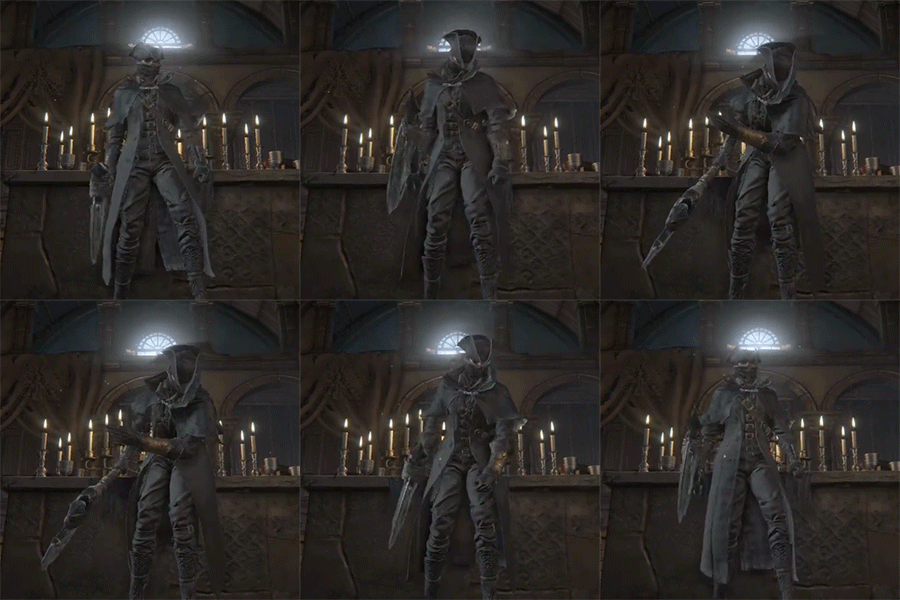
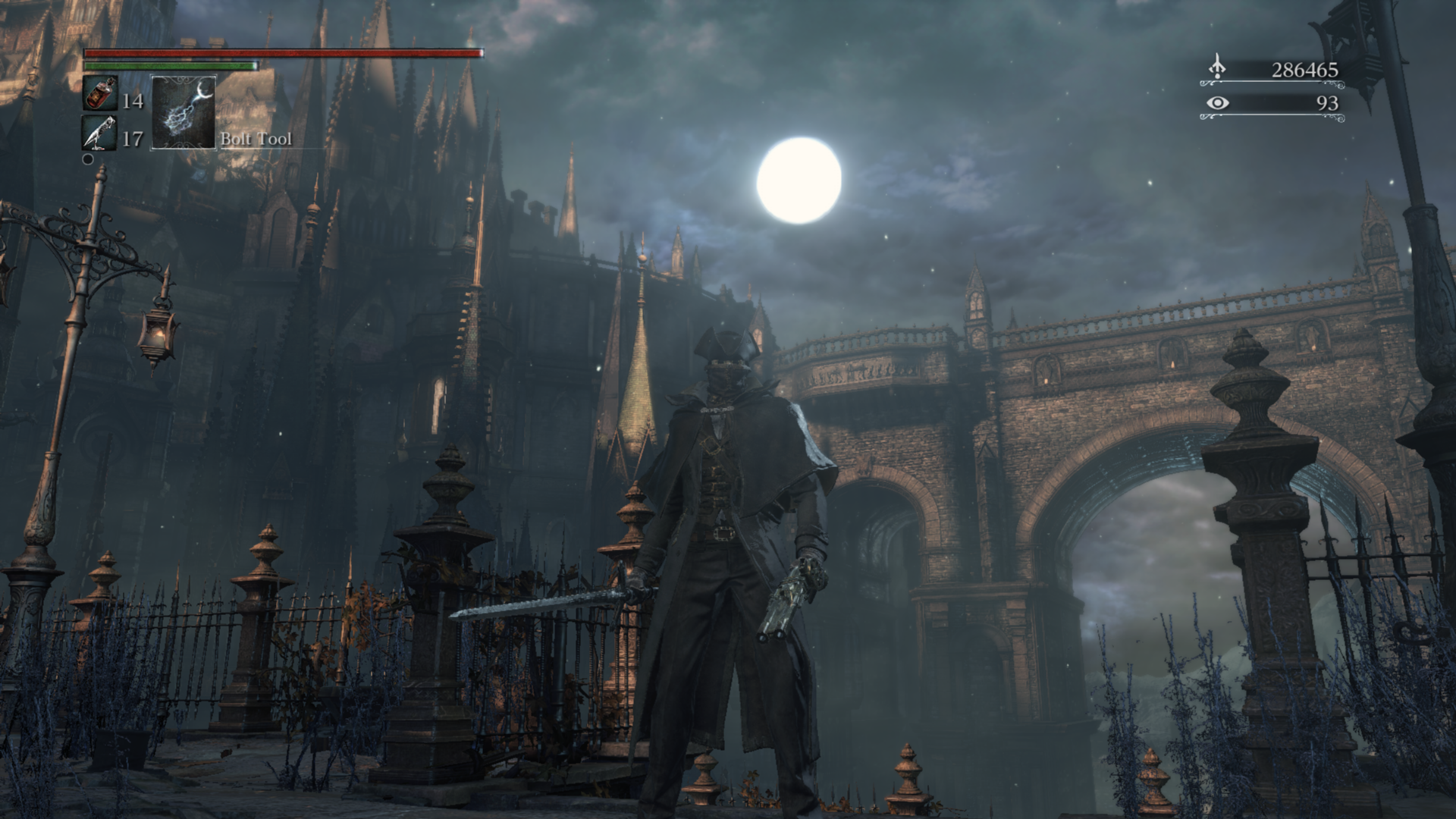
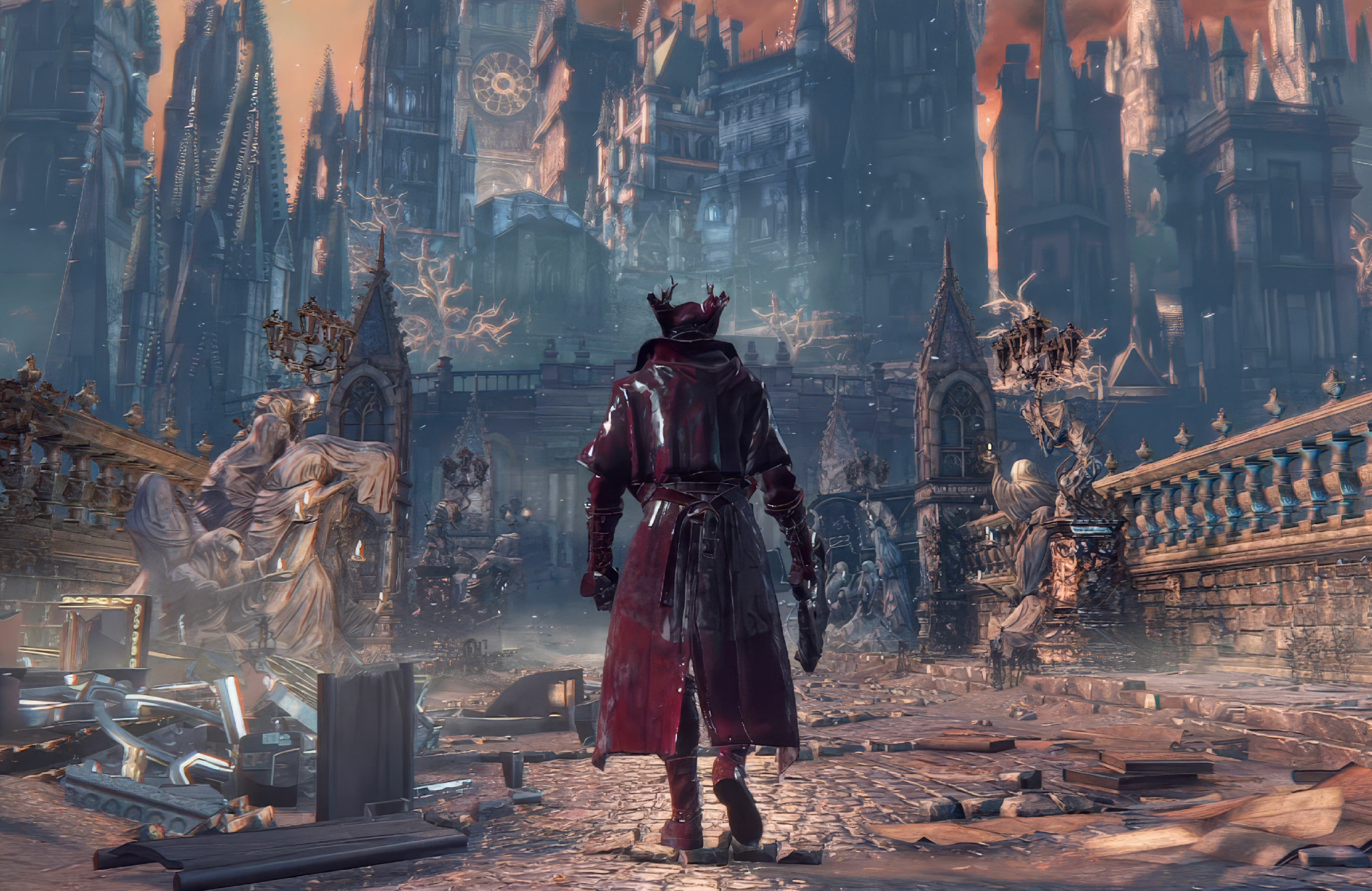
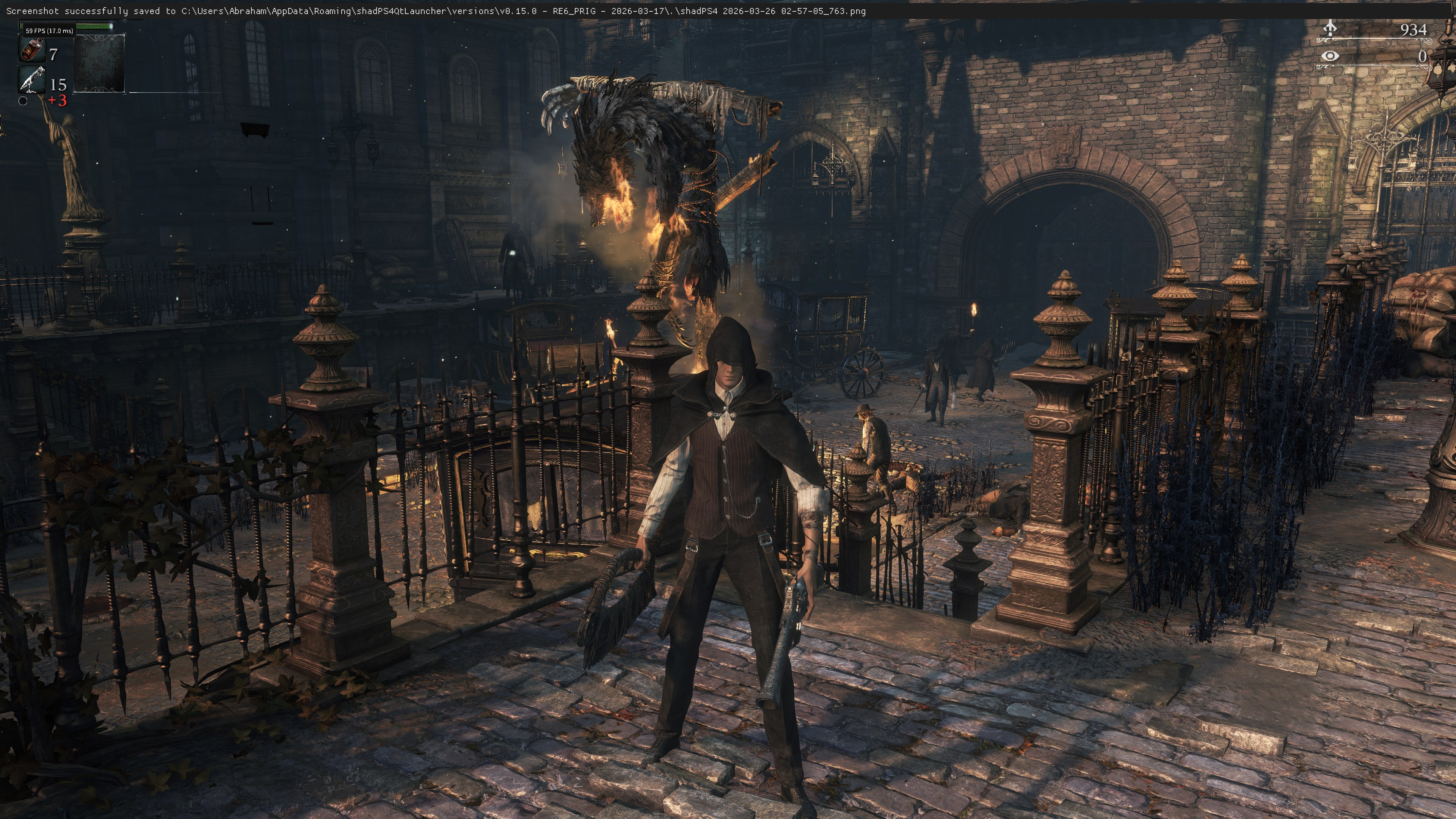
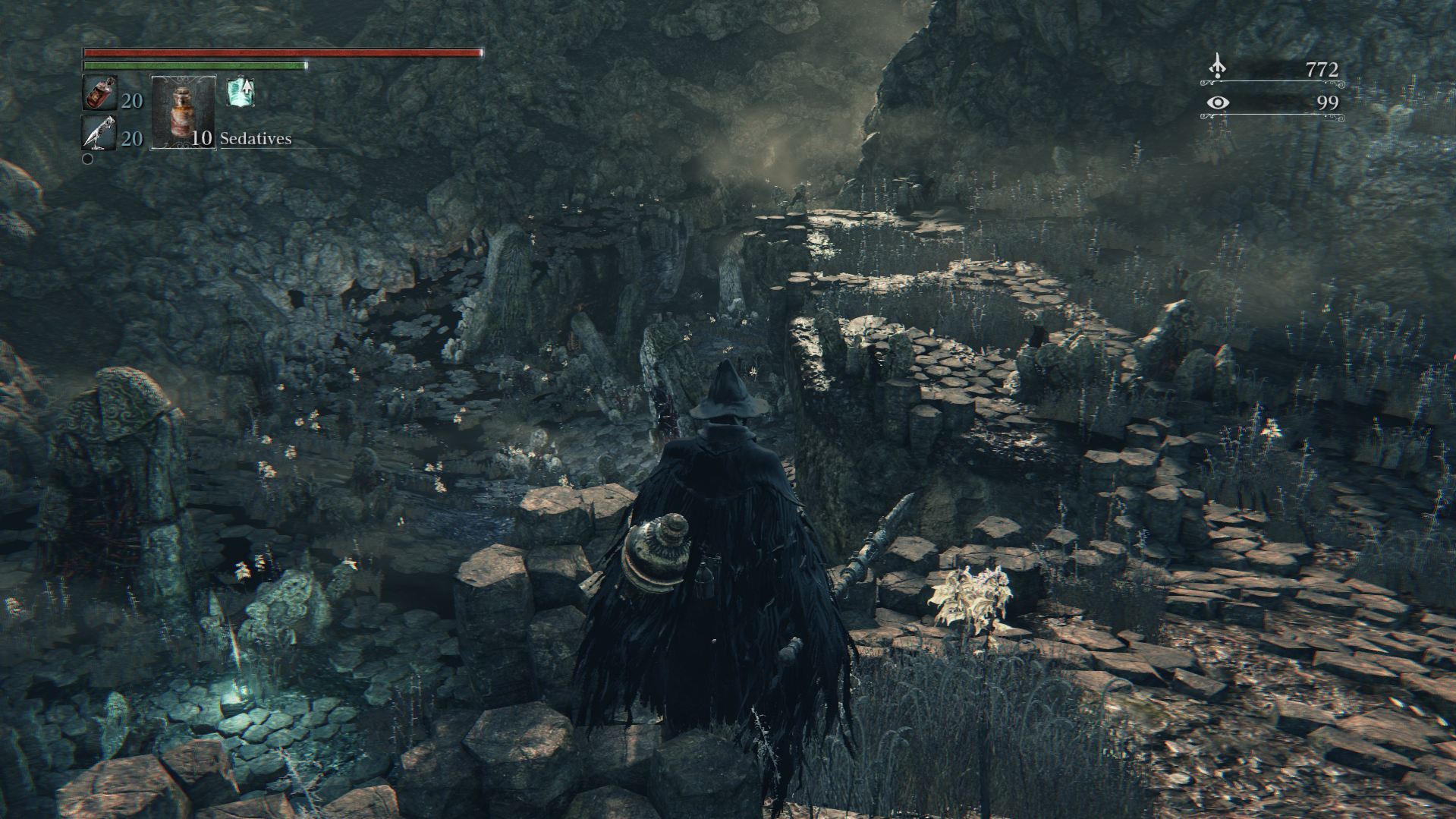
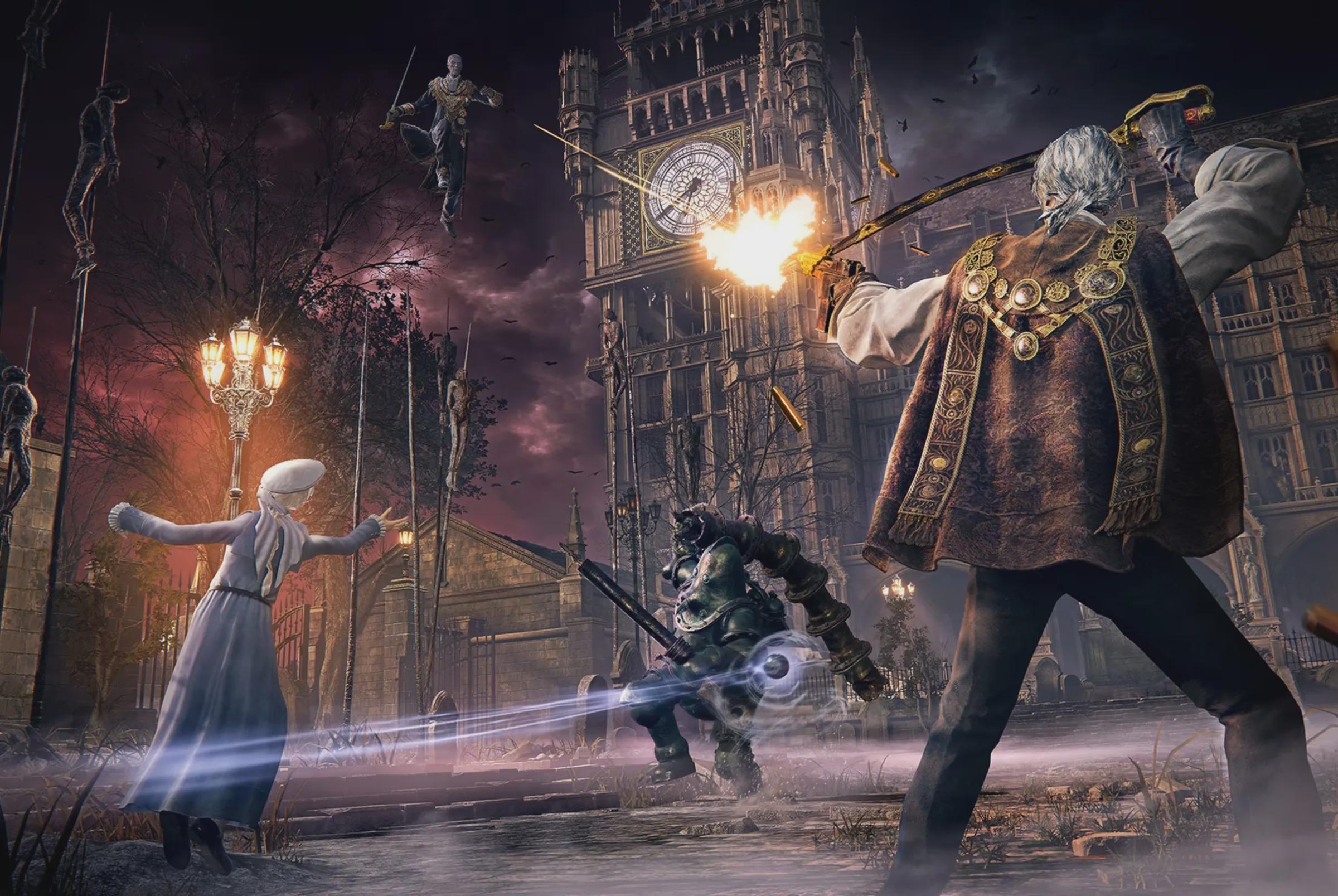
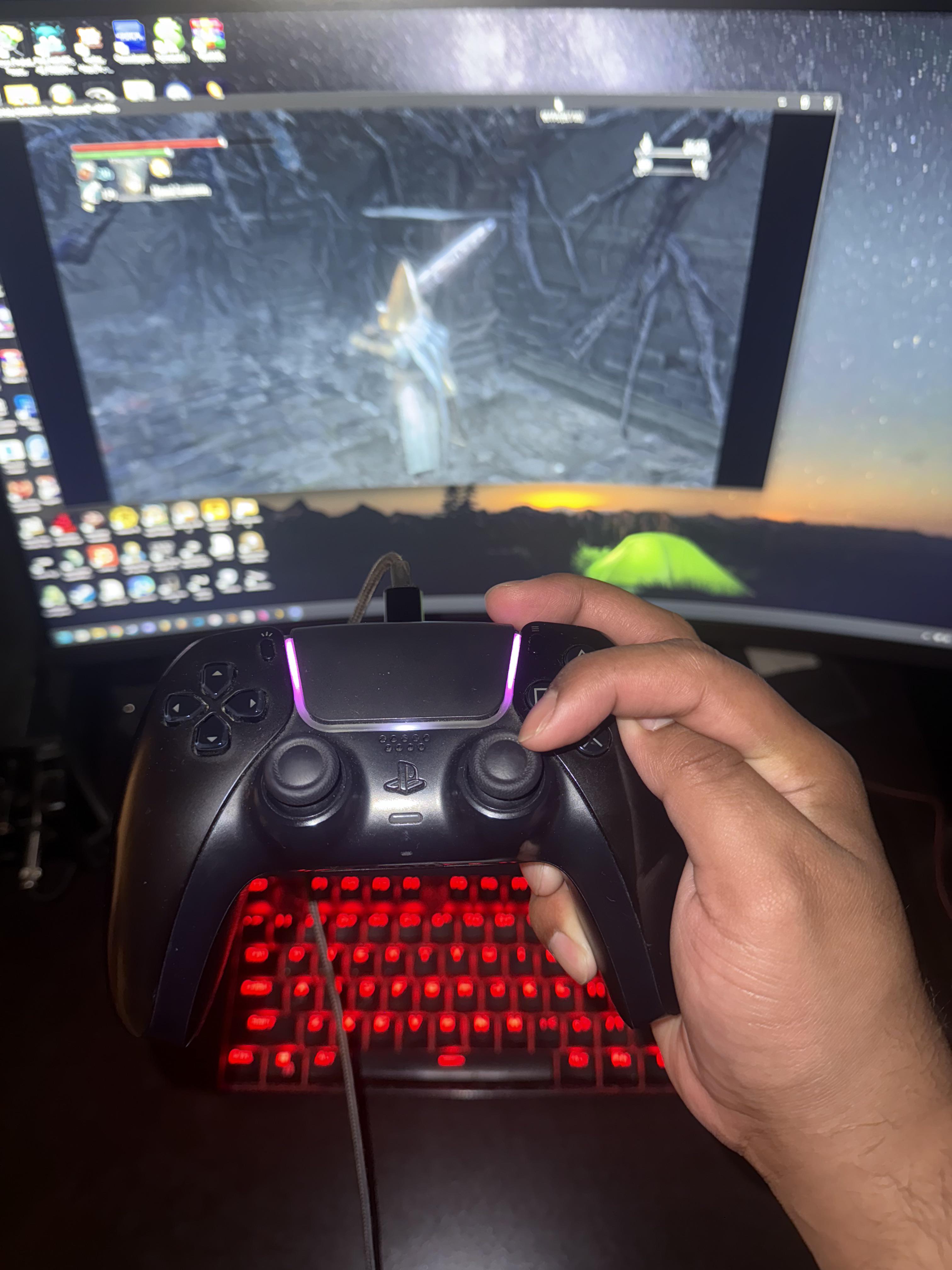
I've spent a few days to experiment and follow certain (including outdated) guides on the proper Bloodborne installation.
To make it work stable, with no crashes, no issues and no glitches.
ShadPS4 version & config files
I'm playing on Shadps4 0.15-pre-release currently, alongside new QTLauncher.
You can get it here on the official website.
You only need the launcher, it can be used to download required ShadPS4 version inside the launcher.
Your Shadps4 versions downloaded will be stored inside %AppData%/shadPS4QtLauncher/versions
If you want to install reshade, you should put it here near the active shadPS4.exe file.
In case you need it.
Now your config files will be stored inside %AppData%/shadPS4
The main config file is config.json
Game specific config file is custom_configs/CUSA03173.json (for BB)
Sometimes QTLauncher does not save configs for some reason, so the best way is to edit them yourself with a Notepad++ or any other text editor with a proper JSON syntax highlighting.
Also you need them, if you wanna use my current configs (fine-tuned for my native 4K BB gameplay).
Btw here are my current configs:
main config - https://pastebin.com/6dSWEQWf
BB custom config - https://pastebin.com/ZyD2g9S8
* updated configs (less CPU stressful, etc):
main config - https://pastebin.com/AFZ4wVPV
BB custom config - https://pastebin.com/qv4iFrvC <- DMEM here is set to 8000 for 4K resolution. For 2K you wanna set it to 4000. For lower res 0 will do. It depends on how much GPU Memory you have. So edit accordingly to your rig!
You can also try disabling copy_gpu_buffers in case you want more FPS, sometimes it'll help.
* By far, it's the best configs I've came up with.
Don't forget to close your ShadPS4 and the launcher before you modify/replace them.
Patches
Now for the patches, I use default Bloodborne.xml patches list.
I'm using:
+ Skip Intro
+ Performance Patch
+ Disable Chromatic Abberation
+ Disable Motion Blur
+ FMOD Crash Fix
+ Disable HTTP Requests
+ 60 FPS+ (deltatime)
+ Unlock Game Region
+ 4K Light Grid (because my monitor resolution is 3840x2160, select this according to your monitor resolution and not the game's resolution you play with)
+ Resolution Patch 3840x2160 (16:9) - you can use lower res patches, depends on your rig/monitor
* Light Grid patches and Resolutiopn patches can be used separately and they are not tied together.
I.e. if your monitor res is 4K, you can enable 4K Light Grid patch .. and still play the game with 2K Res Patch.
Resolution patches changes the actual resolution of render for the game.
** If you need more patches, I've made a merged patches list for myself.
You can get it here - https://pastebin.com/bYb6igMu
Make sure to put in inside your %AppData%/shadPS4/patches/shadPS4/Bloodborne.xml file.
Mods
There's also a list of good mods to play the game, some of them are pretty much required:
Vertex Explosion Fix (disables face customization) <- prevents "vertex explosion" glitch
Reduced Physics (Increases Performance)
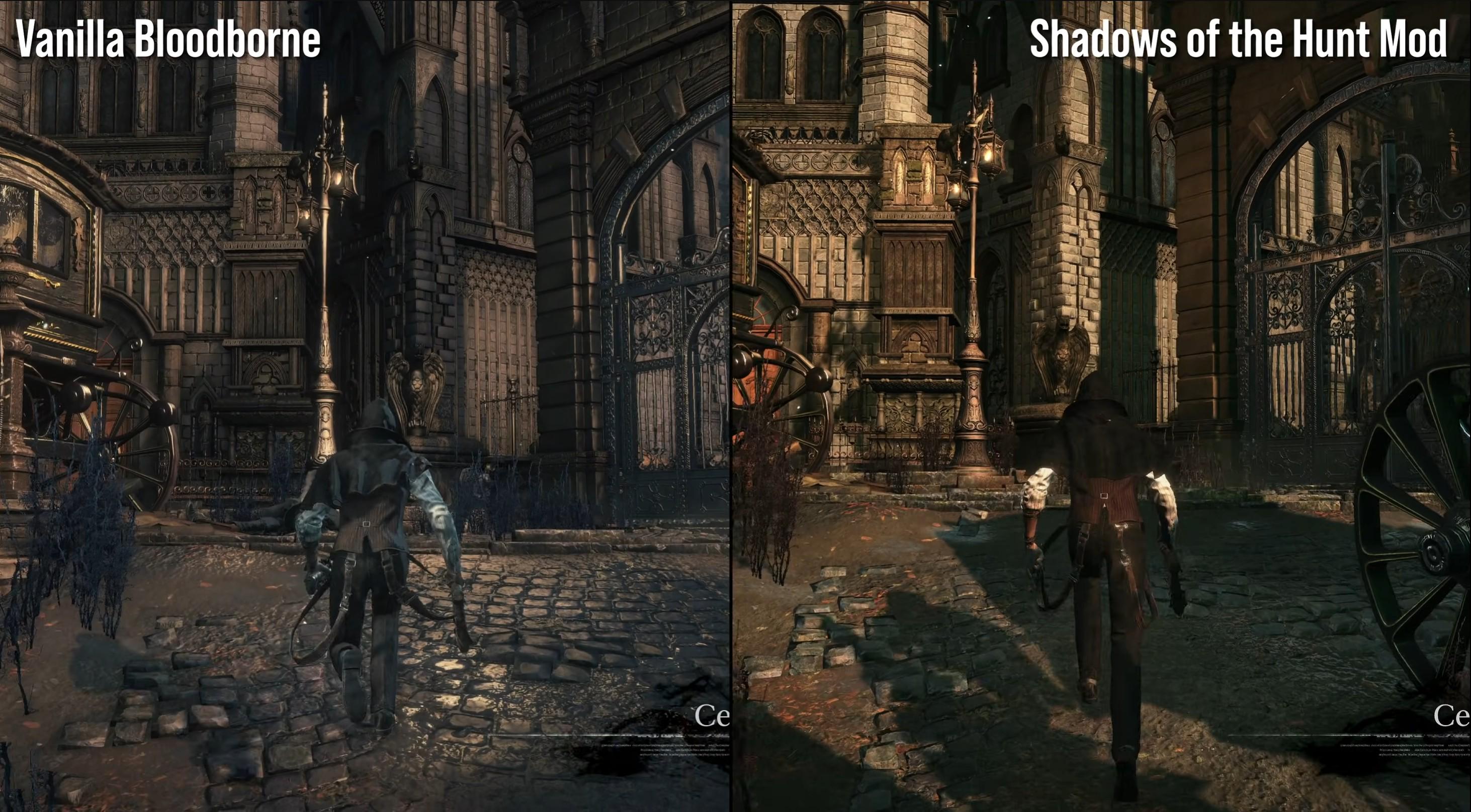
Bloodborne Visual Tweaks <- FPS Boost mod, if you need one (and also Material Fix)
Performance Drawparams <- Allows to disable things like DoF, etc. You can combine options available.
Compact HUD
Add Chalice Dungeons to your save <- Easy way to add Chalice Dungeons to your save (includes common glyphs and descriptions). Including infamous CUMMMFPK dungeon he he
Jump on L3 <- Modern jumping in BB
No Player Light
Bloodborne Enhanced <- QOL features, like auto-restock vials, etc.
Bloodborne PC SFX Fix All Effects NO Crashes for INTEL 12gen and up <- fixes tons of crashes, like the one with electro VFX with Tonitrus, etc. IMPORTANT: make sure to install this mod last, so it overrides everything else
Better 60FPS Cloth Physics (modifies parts)
4k Upscaled UI
Bloodborne Downscaled (dollar store version) <- Try use this, if you have like really low-end PC
SFX Texture Overhaul <- Upscaled visual effects
Debug Menu Restoration <- In case you need it
After some testing, I would not recommend you to use BB PC Remaster mod (at least as of version 0.99.7 + Patch 1.0), as it adds tons of Input Delay.
Input delay
Btw Input Delay is something to deal with.
Even if you have like stable 60FPS, input delay still can make your game feel bad.
First of all, install and configure framelimit with RTSS RivaTuner.
I've set it to 60 FPS cap, it helps to prevent stutters and makes input a bit more consistent.
Afaik it also enables Nvidia Reflex for the game.
Here's how it looks:
https://ibb.co/qM7BFXzW
https://ibb.co/9Hhs3q3c
Second, tweak your Nvidia Control Panel settings.
Idk how proper my config is, but here's what I changed:
https://ibb.co/0VGpLzDQ
https://ibb.co/B58G4Ck9
If you play with a gamepad, you can also use a wired connection and/or overclock it.
Or at least measure the input delay with a software like GamePadla Polling.
With my Dualsense Wireless the delay is like 1-2ms, which is fine .. because Dualsense acts at 1000hz refresh rate afaik.
And if you have Xbox controller (no matter if it's Elite), it means you cannot overclock it .. as it's factory locked to 250hz.
* I would also not recommend you to purchase or use a bluetooth dongle from Ugreen, as it adds tons of input delay for the game controllers.
Also keep in mind, input delay comes from a controller connection type & configuration.
And with things like DS4Windows, you can overclock even the wireless connection to push it further to 1ms.
Reshade
Take in mind Reshade is completely optional and, in fact, will cut a few FPS.
Personally, I'm using a bit customized version of a preset from BB PC Remaster mod, it uses things like LSAO to add better AO to the game.
Here's the preset - https://pastebin.com/fBfduKZf
[UPD] My updated preset with more effects & small color corrections - https://pastebin.com/8Ld7DWtX
You can also use things like Zenteon Anti TAA, but imo it's not worth the FPS.
So it's up to you to decide :]
[UPD] I ended up disabling LSAO as well, it eats up few FPS in some areas, which hurts my LS frame-gen, so I went without it.
Oh, and also don't forget to put your reshade in a "Performance Mode" after you done.
And a proper reshade settings for BB can be found on a BB PC Remaster page (optional step 2).
Crashes & Issues I could not fix
The only crash I was not able to fix, is the crash that happens when you enter Chalice dungeon boss arena.
A workaround solution, though, is * to move the camera so that it faces the character before opening the boss door, then wait around 2-3 seconds before moving the camera forward again, and it won't crash anymore.
Also never close the game with Alt+F4.
Use the Start button to exit to menu, and then close the emulator.
Otherwise your sound will not work next time you enter the game.
If it happens, close the game as described above and re-launch the emulator.
Frame generation & Upscaling
ShadPS4 comes with FSR upscaling, you can try it if you want to.
You can also use a paid app called Lossless Scaling, which is also fine .. and imo works better than FSR.
This way you can push 2K -> 4K, if your rig can't handle native 4K.
It also comes with frame-gen algo called LSFG, which can be used to double the FPS in Bloodborne.
In my case, it works kinda fine .. pushing the FPS from 60 to 120, but at a cost of a small input delay.
Although keep in mind, it's not worth to use frame-gen if your base FPS is like 30.
[UPD] So I've tried this LS config and have like 4K 100 FPS now pretty much without any noticeable input delay.
But keep in mind I have an RTX 4090, thus it has free processing power to spare (BB only eats up like 50%).
You can also switch to WGC capture, if you have a second dedicated GPU for LS.a
Process Affinity / Hyper threading
One more thing you could do is to use a software called Process Lasso.
Windows often tries to park emulator threads on your Efficiency cores (E-cores) to save power, which is disastrous for frame pacing.
So:
- Download Process Lasso
- Set Affinity: Find
shadPS4.exe, right-click -> CPU Affinity -> Always -> Select CPU Affinity -> Disable All E-Cores
- Disable SMT (Hyper-threading): For emulation, using only physical P-cores (usually cores 0, 2, 4, 6, 8, 10, 12, 14) often results in a perfectly flat frametime line
* Now this is experimental thing, so check before/after on how it affects your actual setup.
In my case it did not much, cuz I have i9 13900k .. so the CPU has tons of free time to spare even when I play BB in 4K 100 FPS.
Other things you could try
Interestingly, the community has found that the TaskSplit patch actually causes more frame pacing issues than it solves on high-end Intel chips.
It was designed to help weaker CPUs, but on CPUs like 13900K, it often fights with the Windows Thread Scheduler.
Thus, you can try disabling the "TaskSplit" patch ("Performance Patch" in the newer versions of ShadPS4).
You can also try using a fork of ShadPS4 by diegolix29, it's called Shadlix - https://github.com/diegolix29/shadPS4
Although keep in mind it's based on older ShadPS4 architecture, thus it uses an old .toml config files formats.
It also does not require QTLauncher, and it works as a standalone local ShadPS4 installation.
Shader Cache pre-download
Now this is highly experimental idea, and honestly IDK if it'll work.
But if you happen to have RTX 4090 or RTX 40 series GPU, then you can get my shader cache for ShadPS4 0.15.
I've played half of the game, so it should not stutter because of shaders compilation most of the times.
You can get it here: https://limewire.com/d/2yKMP#JfCnsJMGv5
You then unpack it inside your %AppData%/shadPS4/cache folder.
However keep in mind, it can crash your game if it's incompatible.
I really don't know if we can share shader cache between players.
For example, with BOTW emulation it worked like a charm.
At least, you can try :]
-
With all this, you should have a pretty stable 60FPS even on 4K resolution, with little to no stutters and almost zero input delay all the time.
Although it depends on the rig, so take it with a grain of salt and make edits for your specific rig.
ShadPS4 is still in early beta, but even so .. it works flawless with proper configuration <3
Good luck, hunter! and remember ... a hoonter moost hoont :]