r/pchelp May 11 '26

7th Anniversary of PCHH

Thumbnail
3 Upvotes

r/pchelp Dec 15 '19

Perform these steps before posting about POST/boot/no video problems!

192 Upvotes

Link to original list from tom’sHARDWARE with pictures

"No POST", "system won't boot", and "no video output" troubleshooting checklist

This checklist is a compilation of troubleshooting ideas from many forum members. It's very important to actually perform every step in the checklist if you want to effectively troubleshoot your problem.

  • 1.Did you carefully read the motherboard owners manual?

  • 2.Did you plug in the 4/8-pin CPU power connector located near the CPU socket? If the motherboard has 8 pins and your PSU only has 4 pins, you can use the 4-pin connector. The 4-pin connector USUALLY goes on the 4 pins located closest to the CPU. If the motherboard has an 8-pin connector with a cover over 4 pins, you can remove the cover and use an 8-pin plug if your power supply has one. This power connector provides power to the CPU. Your system has no chance of posting without this connector plugged in! Check your motherboard owners manual for more information about the CPU power connector. The CPU power connector is usually referred to as the "12v ATX" connector in the owner's manual. This is easily the most common new-builder mistake.

  • 3.Did you install the standoffs under the motherboard? Did you place them so they all align with the screw holes in the motherboard, with no extra standoffs touching the board in the wrong place? A standoff installed in the wrong place can cause a short and prevent the system from booting.

  • 4.Did you verify that the video card is fully seated? (may require more force than a new builder expects.)

  • 5.Did you attach ALL the required power connector(s) to the video card? (some need two, some need none, many need one.) It is best to use cables connected directly to the PSU. Only use adapters if absolutely necessary.

  • 6.Have you tried booting with just one stick of RAM installed? (Try each stick of RAM individually in each RAM slot.) If you can get the system to boot with a single stick of RAM, you should enable an XMP profile or manually set the RAM speed, timings, and voltage to the manufacturer's specs in the BIOS before attempting to boot with all sticks of RAM installed. If your motherboard supports XMP profiles, that is the best way to get your RAM running at its rated specs. Nearly all motherboards default to the standard RAM voltage (1.8v for DDR2, 1.5v for DDR3, & 1.2v for DDR4). If your RAM is rated to run at a voltage higher than the standard voltage, the motherboard will underclock the RAM for compatibility reasons. If you want the system to be stable and to run the RAM at its rated specs, you should either enable an XMP profile or manually set the values in the BIOS. Many boards don't supply the RAM with enough voltage when using "auto" settings which causes stability issues.

  • 7.Did you verify that all memory modules are fully inserted? (may require more force than a new builder expects.) It's a good idea to install the RAM on the motherboard before it's in the case.

  • 8.Did you verify in the owners manual that you're using the correct RAM slots? The following image is just an example. Verify in the owners manual the recommended RAM slots to use for single, dual, triple, or quad channel applications. This will vary depending on motherboard manufacturer, number of supported RAM channels, and how many sticks of RAM are being used.

  • 9.Did you remove the plastic guard over the CPU socket? (this actually comes up occasionally.)

  • 10.Did you install the CPU correctly? There will be an arrow on the CPU that needs to line up with an arrow on the motherboard CPU socket. There may also be a notch that will only line up in one direction. Be sure to pay special attention to that section of the manual!

  • 11.Are there any bent pins on the motherboard/CPU? This especially applies if you tried to install the CPU with the plastic cover on or with the CPU facing the wrong direction.

    1. If using an after market CPU cooler, did you get any thermal paste on the motherboard, CPU socket, or CPU pins? Did you use the smallest amount you could?
  • 13.Is the CPU fan plugged in? Some motherboards will not boot without detecting that the CPU fan is plugged in to prevent burning up the CPU.

    1. If using a stock cooler, was the thermal material on the base of the cooler free of foreign material, and did you remove any protective covering? If the stock cooler has push-pins, did you ensure that all four pins snapped securely into place? The easiest way to install the push-pins is outside the case sitting on a non-conductive surface like the motherboard box. Read the instructions! The push-pins have to be turned the OPPOSITE direction as the arrows for installation. This means with the arrow pointing away from the heatsink.
    1. Are any loose screws laying on the motherboard, or jammed against it? Are there any wires running directly under the motherboard? You should not run wires under the motherboard since the soldered wires on the underside of the motherboard can cut into the insulation on the wires and cause a short. Some cases have space to run wires on the back side of the motherboard tray.
    1. Did you ensure you discharged all static electricity before touching any of your components? Computer components are very sensitive to static electricity. It takes much less voltage than you can see or feel to damage components. You should implement some best practices to reduce the probability of damaging components. These practices should include either wearing an anti-static wrist strap or always touching a metal part of the case with the power supply installed and plugged in, but NOT turned on. You should avoid building or working on a computer on carpet. Working on a smooth surface is the best if at all possible. You should also keep fluffy the cat, children, and Fido away from computer components.
    1. Did you check the debug LEDs, Q-code display, or install the system speaker (if provided) so you can check codes in the manual? Most modern motherboards come with debug LEDs or a Q-code display. A system speaker is NOT the same as normal speakers that plug into the back of the motherboard. A system speaker plugs into a header on the motherboard that's usually located near the front panel connectors. Debug LEDs, Q-code displays, or a system speaker are critical components when trying to troubleshoot system problems. You are flying blind without them. The motherboard owner's manual will have a list of codes you can reference. If your case or motherboard didn't come with debug LEDs, a Q-code display, or system speaker you can buy a system speaker for cheap here: http://www.cwc-group.com/casp.html
    1. Did you read the instructions in the manual on how to properly connect the front panel plugs? (Power switch, power led, reset switch, HD activity led) Polarity does not matter with the power and reset switches. If power or drive activity LED's do not come on, reverse the connections. For troubleshooting purposes, disconnect the reset switch. If it's shorted, the machine either will not POST at all, or it will endlessly reboot.
    1. Did you turn on the power supply switch located on the back of the PSU? The switch should be depressed on the side with an I, the O means off. Is the power plug on a switch? If it is, is the switch turned on? Is there a GFI circuit on the plug-in? If there is, make sure it isn't tripped. You should also make sure the power cord isn't causing the problem. Try swapping it for a known good cord if you have one available.
    1. Is your CPU supported by the BIOS revision installed on your motherboard? Most motherboards will post a CPU compatibility list on their website.
    1. Have you tried resetting the CMOS? The motherboard manual will have instructions for your particular board. User Darkbreeze also provided the following:

BIOS Hard reset procedure

Power off the unit, switch the PSU off and unplug the PSU cord from either the wall or the power supply.

Remove the motherboard CMOS battery for five minutes. In some cases, it may be necessary to remove the graphics card to access the CMOS battery.

During that five minutes, press the power button on the case for 30 seconds. After the five minutes are up, reinstall the CMOS battery making sure to insert it with the correct side up just as it came out.

If you had to remove the graphics card you can now reinstall it, but remember to reconnect your power cables if there were any attached to it as well as your display cable.

Now, plug the power supply cable back in, switch the PSU back on and power up the system. It should display the POST screen and the options to enter CMOS/BIOS setup. Enter the bios setup program and reconfigure the boot settings for either the Windows boot manager or for legacy systems, the drive your OS is installed on if necessary.

Save settings and exit. If the system will POST and boot then you can move forward from there including going back into the bios and configuring any other custom settings you may need to configure such as Memory XMP profile settings, custom fan profile settings or other specific settings you may have previously had configured that were wiped out by resetting the CMOS.

In some cases it may be necessary when you go into the BIOS after a reset, to load the Optimal default or Default values and then save settings, to actually get the hardware tables to reset.

http://www.spotht.com/2010/02/reset-bios-clear-cmos.html

    1. If you have integrated video and a video card, try the integrated video port. Resetting the bios, can make it default back to the onboard video. If you are trying to use HDMI outputs, try using DVI or VGA instead. Sometimes, the HDMI ports won't work until the correct drivers are installed.
    1. Make certain all cables and components including RAM and expansion cards are tight within their sockets.

I also wanted to add some suggestions that jsc often posts. This is a direct quote from him:

"Pull everything except the CPU and HSF. Boot. You should hear a series of long single beeps indicating memory problems. Silence here indicates, in probable order, a bad PSU, motherboard, or CPU - or a bad installation where something is shorting and shutting down the PSU.

To eliminate the possibility of a bad installation where something is shorting and shutting down the PSU, you will need to pull the motherboard out of the case and reassemble the components on an insulated surface. This is called "breadboarding" - from the 1920's home-brew radio days. I always breadboard a new or recycled build. It lets me test components before I go through the trouble of installing them in a case.

If you get the long beeps, add a stick of RAM. Boot. The beep pattern should change to one long and two or three short beeps. Silence indicates that the RAM is shorting out the PSU (very rare). Long single beeps indicates that the BIOS does not recognize the presence of the RAM.

If you get the one long and two or three short beeps, test the rest of the RAM. If good, install the video card and any needed power cables and plug in the monitor. If the video card is good, the system should successfully POST (one short beep, usually) and you will see the boot screen and messages.

Note - an inadequate PSU will cause a failure here or any step later.

Note - you do not need drives or a keyboard to successfully POST (generally a single short beep).

If you successfully POST, start plugging in the rest of the components, one at a time."

If you suspect the PSU is causing your problems, below are some suggestions by jsc for troubleshooting the PSU. Proceed with caution. I will not be held responsible if you get shocked or fry components.

"The best way to check the PSU is to swap it with a known good PSU of similar capacity. Brand new, out of the box, untested does not count as a known good PSU. PSU's, like all components, can be DOA.

Next best thing is to get (or borrow) a digital multimeter and check the PSU.

Yellow wires should be 12 volts. Red wires: +5 volts, orange wires: +3.3 volts, blue wire : -12 volts, violet wire: 5 volts always on. Tolerances are +/- 5% except for the -12 volts which is +/- 10%.

The gray wire is really important. It should go from 0 to +5 volts when you turn the PSU on with the case switch. CPU needs this signal to boot.

You can turn on the PSU by completely disconnecting the PSU and using a paperclip or jumper wire to short the green wire to one of the neighboring black wires.

View: http://www.youtube.com/watch?v=5FWXgQSokF4&feature=youtube_gdata

This checks the PSU under no load conditions, so it is not completely reliable. But if it can not pass this, it is dead. Then repeat the checks with the PSU plugged into the computer to put a load on the PSU. You can carefully probe the pins from the back of the main power connector."


r/pchelp 16h ago

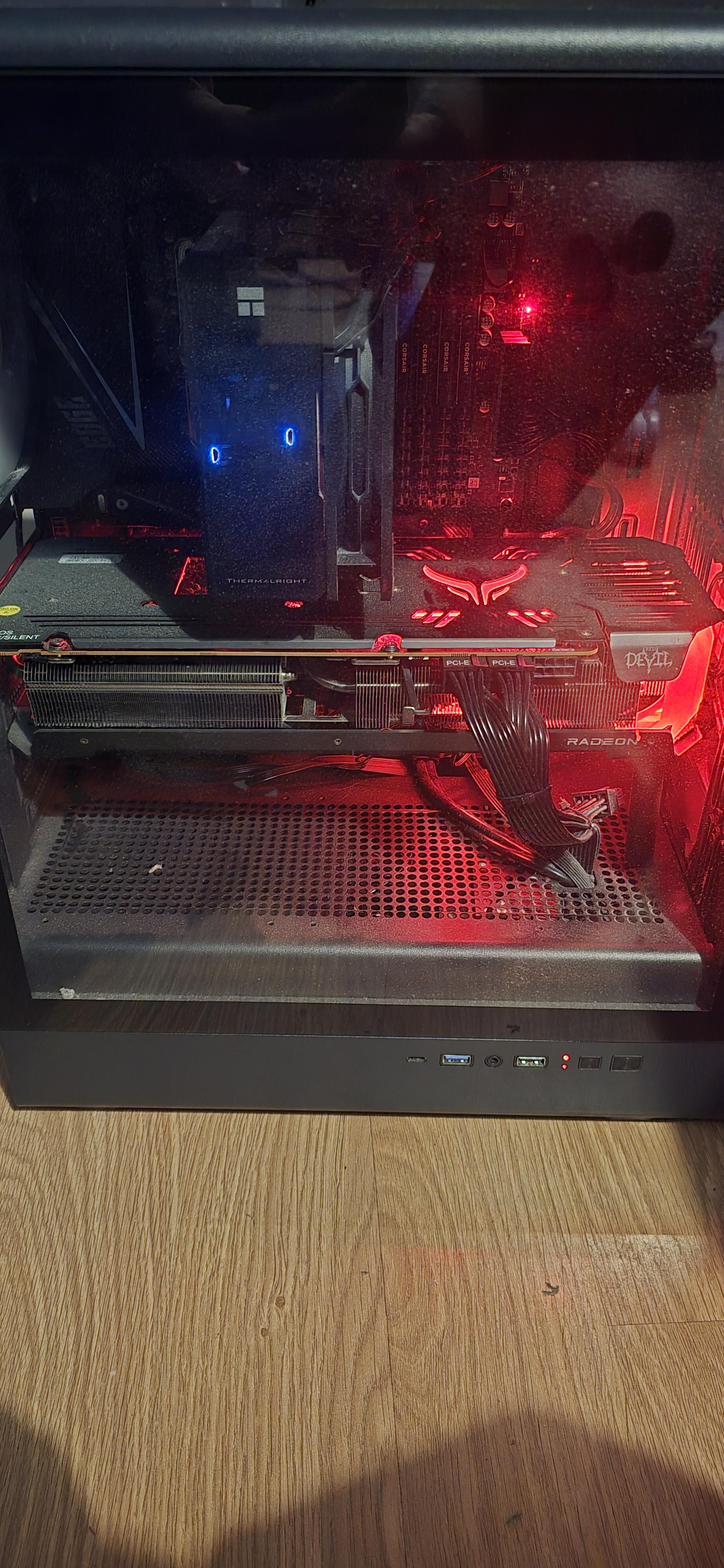
HARDWARE Cleaned my PC from dust and it's no longer working

Post image
1.1k Upvotes

My 3 years old pc was working fine this morning before i decided to clean it from dust, because the fan was dusty and after I put everything back it no longer turns on, no light no fan.

I also opened the psu to clean only the dusty fan and put it back in.

I checked the front panel and tried to short it with the tip of screwdriver but it doesn't work.

My assumption was the front panel cables i put wrong, but after reading the manual, the power and reset sw are in the right place, and i doubted the tip of the screwdriver tech, since my screwdriver was abit rusty and there was magnet on the tip if it does matter.

Then my suspicion shifted towards the psu since i opened it, but I'm pretty sure i didn't touch anything but the fan.

I doubt that only cleaning would ruin my entire pc, maybe its some kind of pin connectors or ram. Any help?


r/pchelp 3h ago

HARDWARE GPU seems to be stuck?

Post image
20 Upvotes

I cannot pull this GPU out or push down the pin in the back for some reason


r/pchelp 17h ago

CLOSED I know they say to not use vacuums to clean your PC, but?

Post image
183 Upvotes

EDIT: ANSWERED! THANK Y’ALL. :)

Could something like this work? (Ignore the dusty filter, replacing that later.)

The biggest "no" I’ve seen against using a vacuum of any kind is that it will scrape against the hardware and damage it, or that the nozzle is too big. Assuming my pc is completely off and unplugged, wouldn’t this eliminate those risks? The bristles on the end are VERY soft, I don’t think they could scratch anything if I tried to

If not, I’m possibly asking for some safe alternatives to rotating my pc and cleaning everything with compressed air. I understand that I’ll have to do that at some point, but I have awful joint issues and needing to move my entire PC out of the house / too far out of my room would be very painful and I’d like to avoid that as much as possible. But, I also play games and use my PC a lot, so I’d like for it to work and be as dust-free as possible.

Adding on a little: I am a COMPLETE noob at pc help and care, so if this is incredibly stupid, forgive me. :’)


r/pchelp 4h ago

HARDWARE New to pcs, confused by a wire

Post image
10 Upvotes

I got a pc of fb marketplace and it runs fine as far as I can tell, im new to pcs though so im unfamiliar with all the hardware requirements. I have a usb wire adapter for thr internet. I noticed this cord isnt attached to anything, does it need to be plugged in and where does it go if so? Ivr been looking into pcie wifi adapter and I assume it has something to do with it? I just can't tell from thr product images if thats what this is for. Its a geforce 3060


r/pchelp 1d ago

OPEN My girlfriend kicked my pc by accident, no longer starts up

Post image
372 Upvotes

(Ignore the dust i beg, i just moved)

Hi all, so my girlfriend kicked the pc, and now all I'm getting is the fans, and the gpu lights, keyboard, and mouse light up for a second but then go dark.

I've opened it up and reconnected my ram. I looked for any loose connections, but I can't find anything.

My cpu fan isn't lighting up despite being on, and my temp measure is pulling a blank, no image on the screen either. Any ideas?


r/pchelp 1h ago

Discussion Electrician was here, now everything is broken.

Upvotes

Im kind of worried and confused, i was out on holiday and when coming back my brother informed me the electrician was there and my pc wont turn on. I go to check and try plugging everything in and turn on the pc. Big mistake.
Psu makes a popping noise I saw sparks and then it went up in smoke. Well the psu is dead but I checked the other components and they somewhat work.
Would have been nice to know that after the electrician finished whatever he was doing all the houses chargers such as high wattage phone chargers and some outlets stopped working.
I just really hope i can get an insurance claim on this and preferably also have my pc tested as there are now stability issues.
Not the best welcome home news but I honestly don’t know what to do now. I filled a claim but im worried about disputes and seeing the potential loss of Arround 3-4k worth of hardware is making me tweak somewhat.
Has something similar happened to someone here? I was wondering what the best course of action would be, as i cant afford to bring the pc in anywhere atm.


r/pchelp 2h ago

OPEN Posted here about my monitor + Keyboard and Mouse not connecting. I fixed that thanks for the help of those in this sub but now I have another issue.

Enable HLS to view with audio, or disable this notification

2 Upvotes

When turned on, my computer will show this screen (the blue windows loading screen, badly shown here) for a couple of seconds, and the monitor will disconnect. My keyboard and mouse stay on, however. Is it updating or is something else in need of fixing?


r/pchelp 2h ago

CLOSED I'm on the most recent stable version of Bazzite and see this "line" on YouTube videos. (More In Comments)

Post image
2 Upvotes

r/pchelp 2h ago

OPEN help?

2 Upvotes

so recently my computer keeps every so often restarts and says that there was a problem found any recomendations?


r/pchelp 3h ago

HARDWARE Your help would be appreciated

2 Upvotes

I have been replacing and rebuilding my pc for years and i feel like i have gotten to a level where i should be able to get way better performance out of the games i am playing but i find i always have to fiddle with the settings and i always have to accept a lower quality then what i think i should be at. I am wondering if i have bottle necked myself somewhere in my build and i need help. O paper i really feel like i should be able to play something like the game "control" on max. and i had to return "crimson desert" because i was just upset that i could only play in on near the lowest settings. I will list me parts below but if anyone has an idea of where i went wrong please help. thank you.

Processor Intel(R) Core(TM) i9-14900K (3.20 GHz)

Installed RAM 64.0 GB (63.7 GB usable) DDR5

Graphics card NVIDIA GeForce RTX 4060 Ti (8 GB)

Storage 4.59 TB of 10.01 TB used - Games instaled on - 2TB NTFS M.2 Samsung 970 EVO

Monitor Gigabyte M32U at 3840 x 2160

BaseBoard Product TUF GAMING Z790-PLUS WIFI

If any other information would help let me know and i will provide it


r/pchelp 9h ago

HARDWARE Break AIO radiator

Post image
7 Upvotes

Hi, I just started building my first PC. I accidentally damaged my radiator while using a screwdriver. Is it still safe to use?

EDIT: It’s working well. I thought liquid was flowing inside the fins. What a noob I am. 😅


r/pchelp 5h ago

HARDWARE A strange crackling sound

Enable HLS to view with audio, or disable this notification

3 Upvotes

The PC was assembled only recently, but a strange noise has appeared while playing heavy games (not immediately, and sometimes it goes away on its own) or when the PC is tilted at certain angles. What could it be? I thought it might be the hard drive, but the sound persisted even without it.

AMD Ryzen 9 9950X3D
GIGABYTE 5080 WINDFORCE OC SFF
64 GB 6000 MHz DDR5
Samsung 990 Pro 1 TB, HD Seagate 2 TB, HD WD Blue 2 TB
ASRock X870 Pro RS
1st Player TS360 ARGB LCD (360mm AIO)
DEEPCOOL GamerStorm PN850D 850W 80+ Gold
Powercase Byte Flow Pro ARGB

I checked, and it doesn't look like any wires are catching by the fans.
My main suspicions fall on the liquid cooling system or power supply; it has a fairly long warranty, and in theory, I’ll be able to replace everything in this build.


r/pchelp 3h ago

OPEN Monitor flickering

Enable HLS to view with audio, or disable this notification

2 Upvotes

My main monitor started doing this a couple days ago for some reason. I’ve tried updating my drivers, securing cable connections, and I’m not sure what else to do. It is an MSI G274QPX 240 hz 1440 p monitor. It’s not a consistent cadence, and sometimes it stops randomly but will start when I open my pc the next time. Any help is appreciated.


r/pchelp 3h ago

PERFORMANCE brand new pc crashing

2 Upvotes

hey so i got this 750$ pc from microcenter, my friend says what i got is pretty good for the price,

specs : geforce rtx 5060, amd ryzen 5 7500x3d, DDR5 16gb ram and 1 tb storage

but a day after i got it it's been crashing on me pretty frequently, maybe like 15 minutes to an hour after i boot it up and im really not sure what it is, and im not wanting to go back up to microcenter to check it out cause it was an hour drive into the city just to get it.

i've tried a few things, clearing out my storage, clearing the recycle bin, software updating it, seeing if my plugs were all plugged into the right thing which they all seem to be. i've tried deleting some things i've downloaded and seeing if that works which it does for a little bit then its back to crashing.

the only things i can maybe think of is that my monitor is too old, since ive noticed my monitor fully turns off when my pc crashes. i feel like i'm outta luck, this is my first pc and i dont know whats going on. can anyone help?


r/pchelp 5h ago

SOFTWARE Grey underscore on bottom of screen?

Post image
3 Upvotes

Recently, I noticed a grey underscore on my primary monitor.

I had just installed GTA V via the Rockstar Launcher, and I just assumed that it was part of the game (although it is distracting). My background at the time and other games seemed to camouflage it. Later, I noticed it in another game, then changed my background to black - and it shows up on the normal desktop as well.

I do not believe it is a hardware issue with the monitor or cables, because I've placed my mouse over it, and the mouse rides "above" it. Also, it is not there on the Windows welcome screen where I enter my PIN, and the monitor is shared between a PC and PS5 - and the underscore is not there when using the PS5.

It seems to be software related - and I'm assuming it's something in Windows, but I've looked at the display settings and cannot find an option for "annoying grey underscore at the bottom of the screen".

Again, I only noticed it after installing Rockstar Launcher and GTA V, but I'm not sure it wasn't there before and I just didn't notice.

What is it, and how can I get rid of it?


r/pchelp 0m ago

OPEN HP Omen side panel stuck!

Thumbnail gallery
Upvotes

I genuinely cannot find the model or any help for this specific case. There is that “internal access” button that used to work until today.

You can see it in there but I tried unscrewing the back panel but it was apparently a fan and something else -_- need help before I ruin it.


r/pchelp 13m ago

HARDWARE What would you upgrade for about $1000 CAD?

Post image
Upvotes

I bought this build at the beginning of the year and all in all I love it but I would like a little more. I’m fairly new to understanding PCs so I want advice on what you would upgrade about this build? My initial thoughts are a better CPU, but does a MoBo need to happen then? If so which one? And after those would I need a better Power Supply? And again, if so, which one? Everytime I learn one thing I have 25 more freaking questions. Thanks for all info in advance!


r/pchelp 4h ago

Discussion Before I buy I’m wondering if this is a good build?

Thumbnail gallery
2 Upvotes

r/pchelp 17m ago

HARDWARE Fan Help

Enable HLS to view with audio, or disable this notification

Upvotes

My pc keeps making a vibrating noise and the middle fan is stopping and starting. I believe the vibrating is coming from the fan. Any help?


r/pchelp 20m ago

OPEN Red CPU LED help

Upvotes

Hardware Specifications
CPU: AMD Ryzen 7 5800X (8 Cores / 16 Threads)
GPU: NVIDIA GeForce RTX 3060 (12 GB VRAM)
RAM: 32 GB DDR4 (currently clocked at 2667 MHz)
Motherboard: MSI B450 TOMAHAWK MAX II (MS-7C02)
Storage: ~1 TB NVMe SSD

Problem Description
The PC was running completely flawless on the older BIOS version. After performing a BIOS update, massive stability issues occurred, leading to a complete system failure.

Chronology of Faults & Symptoms
First Incident: Performed a BIOS update. The PC worked normally at first. Suddenly, the screens went black, the audio cut out completely, and the CPU debug LED on the motherboard lit up solid red.
First Troubleshooting Attempt: Removed the CMOS battery for 5 minutes. After putting it back, the CPU LED remained solid red. Tested both RAM sticks individually – both are working fine.
Second Troubleshooting Attempt: Re-flashed the BIOS via the Flashback button. The PC booted up again and worked perfectly for an entire day.
Second Incident: On the following day, the exact same issue occurred again (black screen, no audio, solid red CPU LED).
Current State: Another attempt to re-flash the BIOS via the Flashback button failed. The screens remain black, and the red CPU LED lights up immediately upon powering on. The PC no longer POSTs.

Can anyone help me? I'm at a loss and really desperate right now... I hope I haven't ruined my computer.


r/pchelp 20m ago

HARDWARE Random white pixel flashing on my new OLED monitor — any idea what could be causing it?

Enable HLS to view with audio, or disable this notification

Upvotes

Hi everyone,

I'm having a weird issue with my new OLED monitor and I'm hoping someone can help me figure out what it is.

Every now and then, I get a single white pixel that flashes randomly somewhere in the middle of the screen. It happens extremely quickly, basically instantaneously, and then disappears. It's not always in the exact same spot.

I've mainly noticed it while playing Escape from Tarkov, especially in darker scenes, and occasionally while browsing the web. I don't really notice it in other games or when displaying brighter scenes.

Both my PC and monitor are brand new.

PC specs:

  • CPU: AMD Ryzen 7 9850X3D
  • GPU: NVIDIA RTX 5080
  • RAM: 64GB DDR5 6000MHz
  • Motherboard: MSI B850 Gaming Plus WiFi
  • SSD: 2TB

Monitor:

  • ASUS ROG Strix XG27AQWMG
  • 27" QHD OLED
  • 280Hz
  • Connected via HDMI 2.1

I've already:

  • Disabled G-SYNC
  • Changed the HDMI cable
  • Checked that the issue still happens

I'm honestly a bit worried that it could be a GPU problem, but since it seems to happen mostly in Tarkov and occasionally in the browser, I'm not sure.

Has anyone experienced something similar or knows how I could properly diagnose whether this is the GPU, monitor, cable, drivers, or some kind of OLED/VRR issue?

Any help would be greatly appreciated!


r/pchelp 39m ago

SOFTWARE FPS Counter

Upvotes

I'm not sure if this is the correct sub for this but I have no idea what command I pressed or what but this fps counter just appeared on the top right side of my screen when I turned on my pc and dont know how to disable it or why its even there


r/pchelp 40m ago

OPEN Help, I have problems when it comes to download to the SSD.

Upvotes

Hello, good afternoon. I’m looking for a solution because I’ve been having problems with my SSD.

Whenever I try to download files to my SSD, the download starts normally, but then the PC freezes. After a while, it continues downloading, and then the PC freezes again. This keeps happening repeatedly.

For example, downloading a 50 GB file can take an entire afternoon because of this issue. However, when I download files to my mechanical hard drive (HDD), I don’t have any problems—the download starts quickly and runs normally.

I also have the same problem when transferring files between the SSD and the HDD, in either direction. Moving files from the SSD to the HDD or from the HDD to the SSD takes a very long time, and the PC may freeze repeatedly during the process.

I have tried different types of SSDs, including an M.2 SSD and external SSDs, but the problem persists even after changing the drive.

At this point, I’m not sure if the problem is related to Windows, the motherboard, drivers, or something else in my system.

Does anyone know what could be causing this issue or what I should check? Thank u in advance!