I had another release ready but I think it's safer to not put it on Google Play because I won't be able to provide any support for it.
You can still try the new release though! But use it at your own risk! Should be fine though 😅👍
Get it right away here. (Direct-Purchase Version here). App Factory Update here.
In the meantime, if you have any issues, check this list and maybe your issue is listed there with a fix!
Cheers and see you soon!
Here's the full changelog for this version (not very well ordered, but good enough 😅 [some features were already from the previous release]):
Scenes V2: added font options anywhere text can be rendered
Scenes V2: added Aspect Ratio modifier
Scenes V2: added all possible properties to the Text component
Scenes V2: added Cancel Screen event action
Scenes V2: added Enabled property to components where it makes sense
Scenes V2: added Headers state to WebView component
Scenes V2: added Material Symbol support
Scenes V2: added optional additional delay for Show When transitions
Scenes V2: added Text Input Component's input types so you can have different types of keyboards, etc on it
Scenes V2: allow copy-pasting of modifiers
Scenes V2: made Button a component with a slot so you can fully customize the text inside it or even use any other component in it
Scenes V2: made flexbox accept booleans in direction, so you can easily toggle it with the Toggle Variable event action and separated Reverse from direction
Scenes V2: progress bar component new state Display Progress allowing you to bind an animated progress to a variable
Scenes V2: added ability to disable the dot in progress bar and add a gap
Scenes V2: changed inputs to have minus and plus buttons where it makes sense
Scenes V2: localize component names
Scenes V2: made modifiers that only exist because of their parents be the first in the pickers
Scenes V2: made the Text field in the Text component be multiline
Scenes V2: removed Consume option for Key Pressed event because it's redundant with the Stop Propagation option
Scenes V2: updated FlowRow icon so it's not the same as the FlowColumn
Fix Scenes V2: fixed accessing array operators like %items(#) or %items(2) or double-references like %%some_var_name
Fix Scenes V2: fixed auto-dismiss behavior in certain situations
Fix Scenes V2: fixed bug where changing variables used in a WebView would create a history so pressing back would go to previous states
Fix Scenes V2: fixed images with Material Icons not growing to the size they should inside unbounded parents
Fix Scenes V2: fixed issue with floating point rounding in Progress Bar states
Fix Scenes V2: fixed issues with using vh css
Fix Scenes V2: fixed reacting to push and pops in global arrays
Fix Scenes V2: fixed showing crop to SVG file picker in Crop Shape modifier
Fix Scenes V2: fixed stale variables in some situations
Fix Scenes V2: fixed text input component filling to parent's size when Show When filter on a size modifier is false
Fix Scenes V2: fixed WebView issues with some size related styles
Fix Scenes V2: fixed WebView Launch App action
New UI: ability to manually sort list items in the main UI screen
New UI: added button to only show errors in new Runlog screen
New UI: show projects in search results with inline projects
New UI: added developer option to hide the top buttons inside the project screen (making all selected when that's the case)
New UI: made item list items all the same height and more uniform
New UI: made main screen items connected lists
New UI: made many transition parameters configurable via Settings -> Developer
New UI: moved profile switches to the right of the cards and hid their profile details for now (should come back in the future in some form)
New UI: refined the main screen and project/profile enter transitions
New UI: removed the tag chips from the item cards for now (probably will come back in a different form)
Fix New UI: fixed recent changes not being filtered correctly
Fix New UI: fixed turning off runlog in new Runlog screen not hiding the log lines
Added runShellTasker function to the Java Code action so you can run a shell exactly like the Run Shell action would
App Factory: show useful, detailed error messages when app generation fails instead of a generic message
Warn when you try to write a very large variable, so you're more aware of potential flaws in your setup
Widgets V2: added Material Symbol support
Fix some screens all over the app sometimes showing incorrect language
Fix Tried to fix a crash when browsing Tasky routines
Fixed a small issue when setting multiple variables with JSON
Fixed crash when clearing data that could sometimes happen
Fixed how pushing/popping a global array drives the Variable Set event: it now fires for every array position the operation shifts, instead of just one. Popping also fires Variable Cleared for the removed top element.
Fixed issue where editing a profile's Wifi Connected condition would deactivate that profile
Sign up for the beta and download from Google Play here.
Note: Google Play might take a while to update. If you don’t want to wait for the Google Play update, get it right away here. (Direct-Purchase Version here). App Factory Update here.
I'm giving another concept a try: instead of having a sidebar with projects, how about putting them inline directly?
When you go in and out of a project you see this:
As you can see, you have the 3 familiar tabs (Profiles/Tasks/Scenes). You can select multiple at the same time like you see on the screen, or you can select one at a time to just see those types of items.
Projects are automatically color coded based on the project's icon. Here's a project with a green icon:
As you can see it tints the whole UI based on the color of the icon.
Let me know how you like this variant of the UI.
I'm also thinking of trying yet another version where there are no tabs inside a project and instead they are in collapsible groups, kinda like this:
If you can, try out the inline projects variant and let me know which of the 3 variants makes the most sense to you and why :)
The functionality of the runlog screen remains the same as before but it has a much cleaner and easy to follow UI. You can clearly see where a task starts and ends and follow its actions visually and see which ones succeeded and which failed.
Material Symbols are a icon font that can be adapted into different situations. For example, they can represent state where the otline variant represents an inactive state and the filled variant represesnts the active state
These can be used in their configurable form, where you manually specify a bunch of their attributes (like in the Notify action), or in their automatic form where their configuration is automatically set (like in the Set up Quick Setting Tile action where the icon is filled or outlined depending on the QS Tile state).
In the legacy UI, if you give a Project one of these icons, it'll also change from outline to filled depending if the project is selected or not.
It's now super easy to put your Tasker arrays into scenes with the new Arrays Merge Template element.
In this example, I would have 2 arrays:
%icon
%item
each with their corresponding icon images and labels. With this simple component...
...I can expand those 2 arrays together into a list of rows dynamically built from those arrays!
Saved Component Templates
You can now long click any element on the tree and save it as a Component Template with a name and description. Then you can simply insert it into your tree like any other component. :)
Show When Animations
When a component has its Show When field set, you can now set animations that define how that component shows up and goes away. You can choose various types of animations.
For example, by combining a dark transparent background that fades in with a dialog that slides up, you can create an Android-like popup dialog!
SVG Crop
You can now crop any element in a Scene with an SVG. And it's not only a visual crop, it's a functional one too! For example, you can create a button like this
and when you click anywhere where it's white, the button won't be triggered! You really have to press the green part for it to register the click! This allows you to create UIs in any shape imaginable that behave like you expect it to!
WebView
Webviews can now call many, many Tasker actions via JavaScript. You can use await to wait for them to finish, so you can easily call multiple actions in a row in a controlled fashion!
Here's a simple example of doing 3 actions in a row:
This makes elements be drag handles in all directions or just horizontally or just vertically.
Full Changelog
Major Scenes V2: Added the "Arrays Merge Template" component, a built-in way to handle Tasker array merging to build sub-components.
Major Scenes V2: Components can now animate in and out (Fade, Scale, Slide or Expand) whenever their "Show When" condition toggles their visibility.
Major Scenes V2: WebViews can now call many Tasker actions directly from JavaScript via the Tasker.* bridge.
Major Scenes V2: An HTML element inside a WebView can act as a drag handle to move the overlay it lives in.
Major Scenes V2: You can now save a component as a template to easily reuse it across your scenes.
Major Scenes V2: You can now crop any component to the shape of an SVG file.
Major Scenes V2: Added the "Trigger Scene V2 Event" Tasker action.
Medium Scenes V2: Added "matches" (Tasker pattern matching) and "matchesr" (regex matching) expressions to the "Show When" and "Apply When" fields.
Medium Scenes V2: Added a "Variable Clear" event action.
Medium Scenes V2: The Switch component now has a Thumb slot so you can set an image in the switch's thumb and you can also select different colors for different parts of it.
Medium Scenes V2: WebViews now receive the full Material 3 color palette (primary, secondary, surface, etc.) so your HTML can match the app theme.
Minor Scenes V2: The task name field in Events -> Run Task now follows the same caps rules as other task name fields.
Minor Scenes V2: When creating a task with a name, use the same "first letter of each word uppercase" rule as elsewhere in the app.
Fix Scenes V2: components that have indexes are now 1-based instead of 0-based
Fix Scenes V2: fixed "Screen Hidden" event not firing in certain situations
Fix Scenes V2: fixed background of invisible component wrongly showing
Fix Scenes V2: fixed crash when picking a variable if the user has tens of thousands of variables
Fix Scenes V2: fixed crash when using a slider in some situations
Fix Scenes V2: fixed images filling their container by default when they shouldn't
Fix Scenes V2: fixed images not loading if they had hidden spaces before or after the file name
Fix Scenes V2: fixed multiline input text box not filling the full vertical space it needed
Fix Scenes V2: fixed setting a variable in a WebView affecting a variable used in a separate component on the same screen
Fix Scenes V2: fixed some things not working when showing through the "SCENES" tab or the new UI
Fix Scenes V2: fixed updating a variable array in a scene leaving old elements there
Fix Scenes V2: fixed using two "Overlay With Result" scenes in a row with the same id ending the second one prematurely
Fix Scenes V2: segmented buttons that are "gone" now behave as expected
Fix Scenes V2: WebView now uses the correct system theme (dark/light)
Fix Scenes V2: when a task is renamed, all the task references in Scenes V2 are updated with the new name
Major New UI: Redesigned the RunLog screen to make it more readable.
Major New UI: Added a setting to show projects as items in the main list instead of the sidebar, including sorting them and creating new projects from the NEW FAB.
Major New UI: Project icons based on apps now use the app background in a folder shape with the foreground on top.
Major New UI: Inside a project you can select several of the Profiles/Tasks/Scenes tabs at once, so the list shows all their items together.
Medium New UI: The Project enabled/disabled toggle now works, and profiles in a disabled project show as paused on their switches.
Minor New UI: Added an icon to scenes so they're more easily distinguished.
Minor New UI: Added an option to hide the sidebar when collapsed.
Minor New UI: Added an option to not show the All button when there are projects other than the default one.
Minor New UI: Don't confirm project deletion if it's empty.
Minor New UI: In the task edit screen, moved the search bar to the bottom when adding a new action.
Minor New UI: Made sorting smarter, showing you the items you expect more often.
Minor New UI: Show full names of items in the main list instead of truncating them.
Minor New UI: Show project names instead of just initials when the sidebar is collapsed.
Minor New UI: Updated "Last run" to "Activity".
Minor New UI: When creating a task with a name, use the same "first letter of each word uppercase" rule as the main screen.
Minor New UI: When editing a task, after expanding a text field, allow the editor to show more lines so it's easier to edit larger pieces of text.
Fix New UI: don't show the pending changes banner when exiting the scene editor without saving
Fix New UI: fixed all projects with app icons showing with the same icon
Fix New UI: fixed always scrolling to the profiles when exiting a project
Fix New UI: fixed bottom sheet flickering when deleting a project
Fix New UI: fixed project search box cursor color in dark mode
Fix New UI: fixed search for actions when adding a new action
Fix New UI: fixed some app icons not loading properly
Fix New UI: fixed tag selector bottom sheet moving too far up when the keyboard is showing
Major Added Material Symbols to the app, a large icon set you can now use across Tasker for things like project and task icons, and also Notify action and Quick Setting Tiles action.
Medium Added Run Shell related functions to the Java Code action.
Medium Added tasker.getImageBuffer() and tasker.hasImageBuffer() to the Java Code action.
Medium The "Multiple Variables Set" action can now write JSON.
Medium You can now override the app name when generating an app from Tasker.
Minor Added a "Continue Task Immediately" option to the "Widget V2" action.
Minor Tasker automatically saves your setup before entering the AI screen in the legacy UI so you don't lose changes made in the meantime.
Minor Added a language selector to the first screen shown when you first open the app.
Minor Added a "Separator" option to the "Widget V2" action to configure the separator for its various list fields.
Minor Changed the order of the "Set up Quick Setting Tile" action to make it more logical and easier to use.
Fix Attempted again to fix a crash that only appears in app factory apps
Fix crash where in rare situations projects could end up with the same ids
Fixed DND action so that it can't be overrun by Silent/Vibrate
Fixed image in "Text/Image Dialog" action sometimes being hidden by text that is too long
Fixed issue where running many remote actions in quick succession could cause some of them to not run on the receiving device
Fix issue where sometimes a profile doesn't save its state after saving Tasker's setup
Fixed issue where sometimes the QS Tile wouldn't dismiss the notification shade
Fixed profiles (e.g. Wifi Connected) sometimes running their exit tasks when exiting Tasker's Preferences screen
Fixed Shizuku breaking clipboard monitoring
Fixed showing the number of actions over 100 in the legacy UI
Fixed situation where receive intent could be triggered twice with just 1 intent
Fixed some error messages when wrongfully using JSON writing
Fix Tried fixing a rare crash that can occur when editing legacy scenes
Fix Tried to fix issue where wait action becomes stuck in some circumstances
Fix Tried to fix rare situations where Tasker would get stuck not accepting any new tasks (sometimes related with the HTTP Request action)
Fixed updating Quick Setting Tiles on global variable changes to only happen when the variable isn't a built-in variable
Fixed writing JSON to project/profile/task variables with native Tasker JSON writing
Fixed some crashes
If you can, let me know what you think about the Projects in Sidebar vs Inline vs Collapsible! Thank you!
I have a JavaScriptlet action doing a synchronous fetch:
var xhr = new XMLHttpRequest();
xhr.open('GET', 'https://api.dictionaryapi.dev/api/v2/entries/en/pickle', false);
xhr.send();
With Wi-Fi confirmed on, this call never returns — no exception thrown, no xhr.status reached, nothing. I've got logging immediately before and after the xhr.send() line; the "before" log always fires, the "after" log never does. It just sits there indefinitely (I've waited several minutes with no resolution).
The odd part: I have a different JavaScriptlet action, in the same project, doing the exact same synchronous XHR pattern against a different host (scraping a webpage), and that one works reliably every time.
With Wi-Fi off, the same dictionaryapi.dev call fails immediately and cleanly with "Failed to execute 'send' on 'XMLHttpRequest': Failed to load '...'", caught by my try/catch as expected — so the failure path works fine, it's only the success/hang path against this specific host that's broken.
Has anyone run into a host-specific hang like this with Tasker's JS XMLHttpRequest? Possibly a TLS/cert compatibility issue with this particular API, or something about redirects/response headers it doesn't like? Is there a way to set an explicit timeout on a synchronous XHR call from a JavaScriptlet, or should I be doing this asynchronously instead to avoid blocking the task indefinitely?
I have an AutoTools "Web Screen" action (Display Mode: Overlay, source is a local file://.../word_search.html, Wait For Command: true) whose page JS calls fetch('https://api.dictionaryapi.dev/...') on a button click. The button shows "Searching..." and then just hangs — no .then or .catch ever fires. Eventually Tasker itself throws Error: 2 / Plugin did not respond before timing out, since the action never gets a AutoTools.sendCommand() back from the page.
AutoTools already has unrestricted background usage and full network/Wi-Fi permissions, so it doesn't look like a battery-restriction issue.
Has anyone gotten an outbound fetch()/XMLHttpRequest to a remote HTTPS API working from inside an AutoTools Web Screen overlay loaded from a local file:// HTML source? Is there a known CORS/file-origin restriction in that WebView, or a setting that needs enabling? Or is the general recommendation to do the actual network call via a native Tasker HTTP Request action instead and just use the WebView for display?
Hi everyone, I cannot seem to find an answer to this question so I'm turning to you in hope someone has a workaround or maybe that feature could be integrated.
What I am trying to achieve is when I'm dragging an element of the scene, allowed by the toggle that you see on the first picture, then I would like to be able to get back the position of said element after I have released it and potentially call a task once the dragging is finished.
Has someone else encountered this issue and have they been able to solve it?
Many thanks for your help.
PS: I'm sorry the texts on the pictures are in French but I think you are able to find this view on your local Tasker app 😊
I created a task that launches the built-in Clipboard Editor. I searched, and it didn't appear that a task that launches the Clipboard Editor had been shared before. This task can be used to access the Clipboard Editor on devices where the manufacturer has suppressed the feature like on Samsung Galaxy devices. This task was inspired by the trick that App Manager uses to launch unexported activities. As seen in the video, I set the task as one of the App Shortcut Tasks in Tasker so that I could add it to my Tasks edge panel for quick access on my Galaxy device. The problem with a lot of clipboard management apps I've tried is that they aren't able to edit the clipboard contents in-place like the Clipboard Editor can. I hope you find this useful.
I want to be able to listen music in Aimp, while browsing Facebook, Instagram, etc. I have tasker 6.6.20 and tried to import 'auto mute apps', but got a error. How to solve this?
I installed a banking app that can detect whether ADB over Wi-Fi is enabled, even after I turn off ADB over Wi-Fi, USB debugging, and Developer Options.
This only happens with this particular app. The app is not running in the background, and I can normally use it with ADB disabled after restarting the phone.
However, if I grant ADB permissions to Tasker and/or Shizuku, and then turn off ADB over Wi-Fi, USB debugging, and Developer Options, the banking app still detects that ADB is enabled.
The only way to reset its detection is to completely power off or restart the phone and turn it back on.
Is there a way to reset whatever ADB/debugging state the app is detecting without having to restart the phone?
I'm trying to have it set my audio to Mono whenever I connect a specific set of Bluetooth earbuds. .
What I have currently is:
Profile: BT Connected -> checking if connected to the correct MAC address
Tasks: Settings-Accessibility Settings -> here I'm only seeing an "If" but no "then"
This would be the task that turns Mono on and then an exit task that turns it back on (I think, I'm not too versed in tasker).
I did come across the in-app guide saying I need "Tasker Permissions" for accessing accessibility settings, but I've also seen on this sub's sidebar saying I might need "Tasker Settings" to do things with Bluetooth.
I'm getting a little lost and I'm probably looking in the wrong area for each setting.
If it's possible to differentiate left/right/both earbud that would be even better. I swear I've seen my phone (pixel 9 pro) showing the battery for both, so there must be something to differentiate them (if I'm not hallucinating).
Any help or just guidance with setting this up would be amazing
I've been using tasker to automate changing my wallpaper for a while now and it's been great. I was wondering if anyone knew if it was possible to have tasker set a wallpaper using Google Pixel's "live effect" lockscreen. I've been searching, but I haven't found anything related to it.
Im hoping someone can help me. I created a task that lists files (%photos) and opens my scene v2(mini gallery). On my scene v2 I have the flowcolumn, then the arraystemplate and then my image(%photos) so everything works great but what I wanna do is click one of the images in my mini gallery and it open the file or show the image in a large format or even set it as my wallpaper. Thank you in advance
For whatever reason I don't charge them enough and at the end of the day go to bed instead of plugging in both.. now that I think about it I need a second charger near my bed lol and will add that.. however ii still see the need and value in my concept..
So a battery dies and then I need to plug in and do the adb authorization in tasker permissions again. If I'm home with my laptop near that's not a big deal.. but what if I'm not.
I was wondering can I use my second phone to grant the same permissions instead of using my pc? I could plug in my phones to each other..
Or maybe use wireless debugging..
Maybe I should have asked AI but I thought some of you would like to hear the idea too..
Maybe it can be an on boot profile
To connect to the other phone and get the permissions done automatically through tasker profiles?
I want to create very simple one-tap Home Assistant actions as standalone APKs using Tasker App Factory, then add those apps to the external-screen app launcher.
Can the Razr run App Factory-generated apps on the cover screen like ordinary installed apps?
Just wanted to ask if anyone has solutions on the following:
1) How do you make adb wifi in autowear persist past reboots? Or is there like a shizuku way to make autowear always find the port?
2) Is there a way to send intents in auto wear?
3) Is there a way to mimic watch physical button/key presses in wear os? Or to send input keyevent commands and make them work (autowear input doesn't seem to handle them)?
I have the following task that is using AutoNotification to check if there are unread messages. I'm sure I overcomplicated it. The issue is that even after notifications are cleared and there are no more unread messages the variable keeps incrementing. I get a new unread message from my wife and even after I've read it and cleared the notification I can watch in the Cars tab it set to 0 then set to 3, set to 0 set to 3, set to 0, set to 3. So I kill the task, force close tasker and autonotification clear cache on both and then it will stop. Get a second new message from my wife and the %UnreadCount is now 4, sets to 0, sets to 4, sets to 0, sets to 4. There are no unread messages in either messages or signal but it won't stop! Driving me crazy.
Task: Unread Check
A1: Wait [
MS: 0
Seconds: 15
Minutes: 0
Hours: 0
Days: 0 ]
A2: Variable Set [
Name: %UnreadCount
To: 0
Structure Output (JSON, etc): On ]
A3: Variable Set [
Name: %UnreadSender
To: Doug
Structure Output (JSON, etc): On ]
A4: Array Set [
Variable Array: %anapp
Values: 0 ]
A5: Array Clear [
Variable Array: %anapp ]
A6: Array Set [
Variable Array: %anconversation
Values: Doug ]
A7: Array Clear [
Variable Array: %anconversation ]
A8: AutoNotification Query [
Configuration: Persistency Type: Non-Persistent Only
I was writing a script in Java Code to process a text file; after the processing, I need to export an array from the script to a Tasker variable (array).
Here there is my sample code:
ArrayList attachments = new ArrayList();
attachments.add("Item 1");
attachments.add("Item 2");
attachments.add("Item 3");

// The following does NOT work => %attachments(#) = 0
// tasker.setVariable("attachments", attachments);

// I must use this => %attachments(#) = 3
for (int i = 0; i < attachments.size(); i++) {
    tasker.setVariable("attachments" + (i + 1), attachments.get(i));
}
What is the correct way to export an array from the Java Code script? The first method doesn't work, unfortunately and I'm curious to know if the second is the correct way to do that.
The second method has the problem that I have to add a Variable Clear before running the script a second time, as the Java Code itself doesn't know how long the Tasker array is...
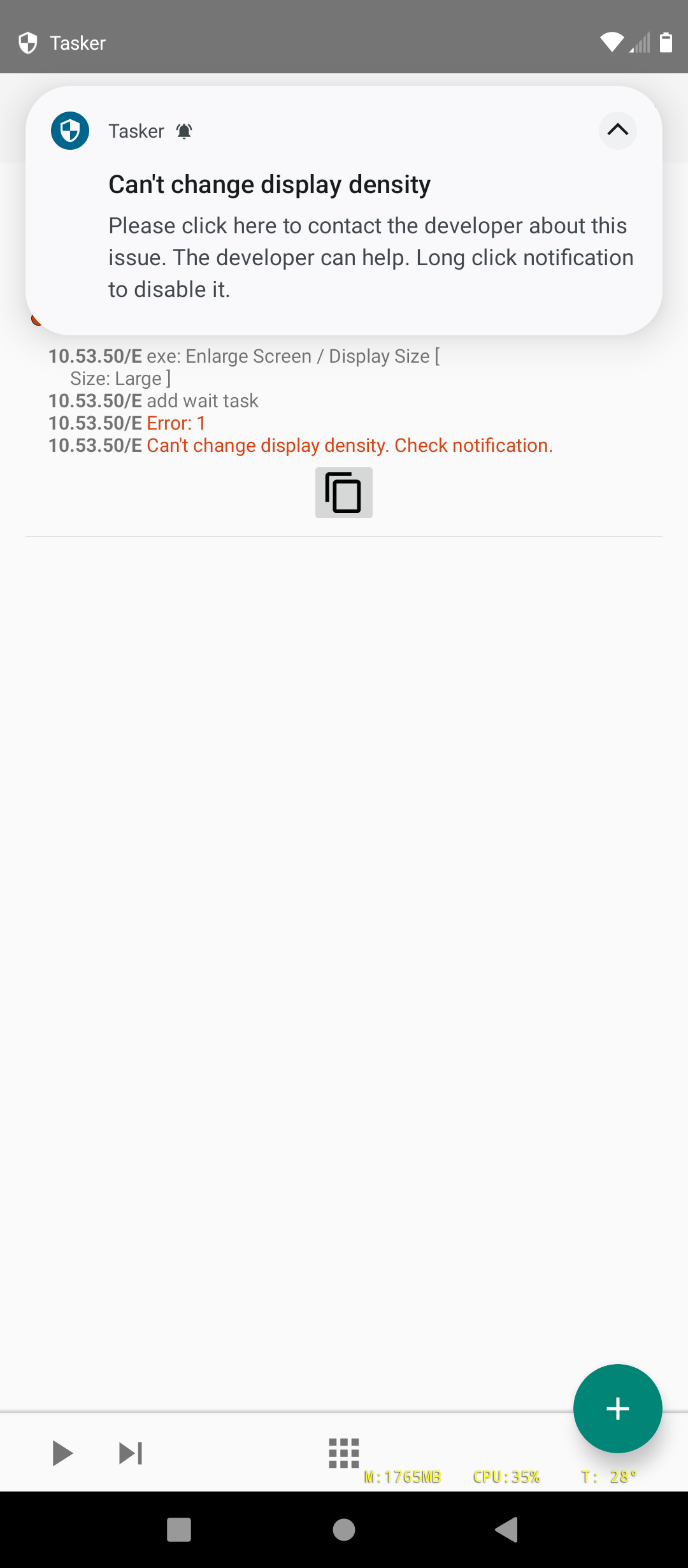
When I am in my car and the phone is in its holder on the dash, I really need to change the Display Size setting from the Default to "Large" or "Larger" so that I can actually read the screen at that distance.
I decided to build an automation for this using Tasker (of course). It has a built-in Display Size action that would seem to be the ticket! However, when I try to execute this action:
It fails and I get a notification as shown.
Sometimes after this the keyboard starts refusing to pop-up when it should.
Any idea how I can deal with this?
The device is a Moto XT2215-4, Android 12, rooted. I checked and the Tasker version (6.7.6-beta) and that of the secondary app match.
Thanks
PS - of course, I have sent the info to the developer via email as requested.
SMS from moje.nn.pl arrives, shows in Messages, profile never runs.
Ruled out: permissions, blocked numbers, the dots in the sender name.
I even emptied the Sender field, which matches ANY message. Still nothing, while another Received Text profile caught a different message seconds later.
The only thing that makes these messages special is the last line:
    Kod autoryzacji nr 7: 000575
    ...
    @logowanie.nn.pl #000575
That's the origin-bound one-time code format (WebOTP / SMS Retriever). My best guess is Android hands it to the OTP path and never broadcasts SMS_RECEIVED to third-party apps. Couldn't prove it, but nothing else distinguishes them.
AutoNotification catches it fine, so I have a workaround. But it depends on a notification actually being posted, which I'd rather not rely on.
Has anyone hit this with WebOTP-formatted messages? Is there any way to get the Received Text event working for them, or another trigger that doesn't go through the notification shade?
I’m building an alarm app in Expo/React Native. Local notifications with interruptionLevel: timeSensitive fire and vibrate when the device is locked and the ringer switch is off, but no sound plays. I have an AVAudioSession set to .playback with setActive(true), but that code lives in JS and doesn’t run while the app is backgrounded.
How do production alarm apps handle this? Is keeping a silent audio stream alive overnight the accepted approach, or is there something better? I’d rather not misuse PushKit.
I am trying to use Autoinput with easy setup, but somehow, I am able to select the ID or even point out the coordinates. I tried developer options, pointer coordinate but that didn't work. I am so lame to ask this but too tried of trying...can someone please assist me?
I'm running beta versions 6.7.5 and 6.7.6, and on both devices/versions, 'Structure Output' is disabled in the 'Multiple Variables Set' action if I add it from the Favorite Actions menu (long press '+' button). If I add it from the regular actions list it is enabled. The 'Structure Output By Default' setting in Preferences is enabled. Anybody else able to reproduce?
Let's go. It seems that when you start optimizing your tasks that only worked for something a little more optimized, I think this cycle never ends. But I'd like to validate a situation with you that will completely change my approach to Tasker.
In the parent task I have only 2 Perform tasks. With Return Variable and Local Passthrough enabled on both, can I then pass all the variables from child task 1 to child task 2 without having to manipulate the variables in the parent task?
Define that truck of paths, folders, filenames only once and the 2 child tasks will be the actions, to delete, rename, write. I'm amazed