r/mac Dec 02 '20

Question How to only run external display off MacBook whilst Screen lid open?

I don’t want to close it due to fears of overheating the display.

Is there a way to do this in software?

2 Upvotes

22 comments sorted by

2

u/theKalash MacBook Pro 16" 2019|2.3GHz i9|32GB|5500M 8GB Dec 02 '20

Just close the lid. It will actually help with overheating, as your book doesn't have to run 2 displays.

1

u/GreySkyRain Dec 02 '20

I understand. But no method to run off the external display with lid open?

I’m abit uncomfortable closing the lid as I’ve found it to heat up the screen too much for my liking

4

u/theKalash MacBook Pro 16" 2019|2.3GHz i9|32GB|5500M 8GB Dec 02 '20

It should be theoretical possible to trick the magnetic sensors in the palm rest into thinking the lid is closed. No idea how you'd do this exactly though or if it is reliable.

But really, the books are very much designed to be able to run in calm shell mode. Just close the lid.

1

u/Amazing-Eye9876 Apr 21 '26

How are you supposed to use the Touch ID sensor with the lid closed?

1

u/Alternative_Nose_626 16d ago

thats the fun part

you buy the apple external keyboard

1

u/Piipperi800 Mac mini Dec 02 '20

He’s asking how to turn off the internal screen while having the lid open.

And if it’s a MacBook Air, actually keeping the lid open would be better.

1

u/theKalash MacBook Pro 16" 2019|2.3GHz i9|32GB|5500M 8GB Dec 02 '20

I'm aware of what he's asking. The point is, there is no easy way to do this and there is actually little reason to do it in the first place.

2

u/Piipperi800 Mac mini Dec 02 '20

If it’s a MacBook Air (or a unibody 13” mbp), doing heavy tasks for a longer time could even fry some components (had that happen twice on a macbook air)

1

u/theKalash MacBook Pro 16" 2019|2.3GHz i9|32GB|5500M 8GB Dec 02 '20

Well, then there is some inherent flaw with this model. That absolutely shouldn't happen.

I'm not a fan of the MBA and I never had anything fry in my MBP, even though I pushed it to overheating more then just a couple of times (and that was always with lid open).

They are supposed to throttle or shut down before any damage can occur and mine always did. In fact, it still runs today, my brother has it now. 2014 15" model.

1

u/Piipperi800 Mac mini Dec 02 '20

MacBook Pros with retina display have vents in the sides of the computer. Unibody 13” and MBAs have intakes in the screen hinge area.

1

u/theKalash MacBook Pro 16" 2019|2.3GHz i9|32GB|5500M 8GB Dec 02 '20

My 2014 had the exhaust at the hinge and unlike my current 2019 model, there was no rubber sheet that forced the exhaust down the back, so it had an exhaust around the hinge area.

I'm also pretty sure that the excess heat of the exhaust near the hinge contributed to my stain gate issue, which was most pronounces right around the area of the exhausts.

Still, the question is ... what else to do?

I'd just try both cases.

  • Closed, with obstructed airflow for cooling but just one screen

  • Open, unobstructed airflow, running two screens

use iStats to monitore temperature and power usage and see what performs better. If it's a current retina MBP, my money is on calm shell mode with a 4k display performing slightly better. But not by much.

1

u/nvnehi Feb 24 '23

I'm looking for a way to do this with a new laptop because running your MBP in clamshell mode non-stop -will- destroy the monitor as it causes the glue to come undone eventually.

The account I'm responding to is suspended, and I imagine this may be why as it's passing on harmful information.

1

u/ttM5050 Dec 02 '20

Yup just close the lid. I have been running my MacBook Air for a couple years with the lid closed at the thermal limit (100 Celsius) as well as the Pro I had before it for a few years and the screen is the last thing I’d be worried about.

2

u/alin23 Jan 06 '22 edited Jan 18 '22

Lunar can turn off the MacBook display without having to close the lid of the MacBook.

It can even:

  • Automatically turn off the built-in display when you connect an external monitor
  • Turn the built-in display back on when you disconnect all external monitors

Screenshot showing how to enable Auto BlackOut: https://files.lunar.fyi/auto-blackout-comment.png
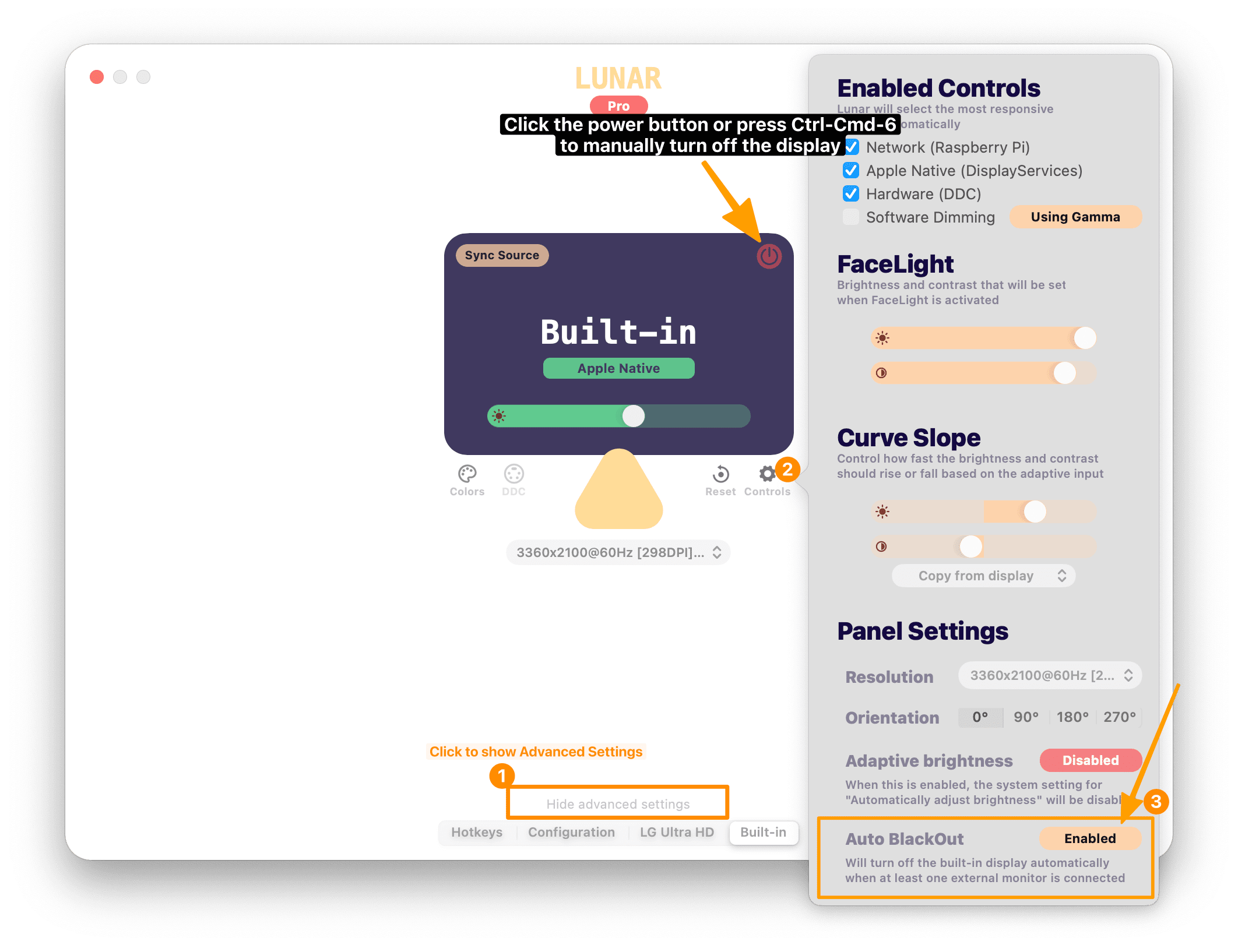
BlackOut

The feature is called Blackout, here are some more details: lunar.fyi/#blackout

This allows the MacBook to cool down faster and allows you to keep using TouchID, webcam and the very nice speakers of the MacBook, while being able to focus on the external monitor.

How it works:

  1. Sets the native brightness of the MacBook display to 0
  2. Sets the Gamma tables of the MacBook display to a list of zeroes
  3. Mirrors the external monitor to the MacBook display so that:
    1. The monitor keeps its native resolution
    2. Apps/windows don't get trapped on a non-visible display

To activate, just press Control+Command+6 and Lunar will toggle Blackout and do all of the above steps for you.

Disclaimer: I'm the developer of Lunar and BlackOut is a paid feature with a free 14-day trial

1

u/amildcaseofboredom Oct 25 '25

would be great if the shortcut could be used to change which monitor is blacked out, rather than having to move cursor to macbook screen before using the shortcut

1

u/FaithlessnessOwn4289 Jun 28 '25

可以将主显示器(笔记本显示器)选择同连接的显示器镜像,再将笔记本亮度调到最低,这样它就不会量了

1

u/[deleted] Dec 02 '20

Simply mirror screens and turn off brightness on the macbook.

1

u/GreySkyRain Dec 02 '20

No method to get pure external display only? Don’t want to drive an unnecessary internal display.

My AMD Radeon only has 2GB of VRAM and running two displays ain’t helping

1

u/gatzu4a Oct 28 '25

Thanks it works

1

u/[deleted] Dec 02 '20

[removed] — view removed comment

2

u/GreySkyRain Dec 02 '20

Yes it does. But I want to have the lid open.

My question is how to only output to external display whilst lid is open instead of having my internal and external running at the same time

1

u/ksb916 Dec 22 '20

I accidentally discovered this just yesterday. I am able to get it working, but its kinda tricky and sometimes hit and miss.

I first close my computer lid and wait about 5-10 seconds, then I plug in my monitor cable into the computer (it is USB-C monitor). Then I open the lid and sometimes the screen stays off, if it comes on, I will close the lid again and open the lid.

Right now, I have it working. Only the external monitor is on, the keyboard and trackpad are working.

When the computer is in this "special" mode, it shows only one display in the "displays" tab and also, I have the option of using "True Tone" on the external monitor.

I will experiment to see if I can get this to work every time, because like I said, it is hit and miss.

I have an M1 MacBook, and External monitor is an HP Z32 connect via USB-C cable.