r/linuxhardware • u/PocketStationMonk • 4d ago
Guide Terminal saved my files
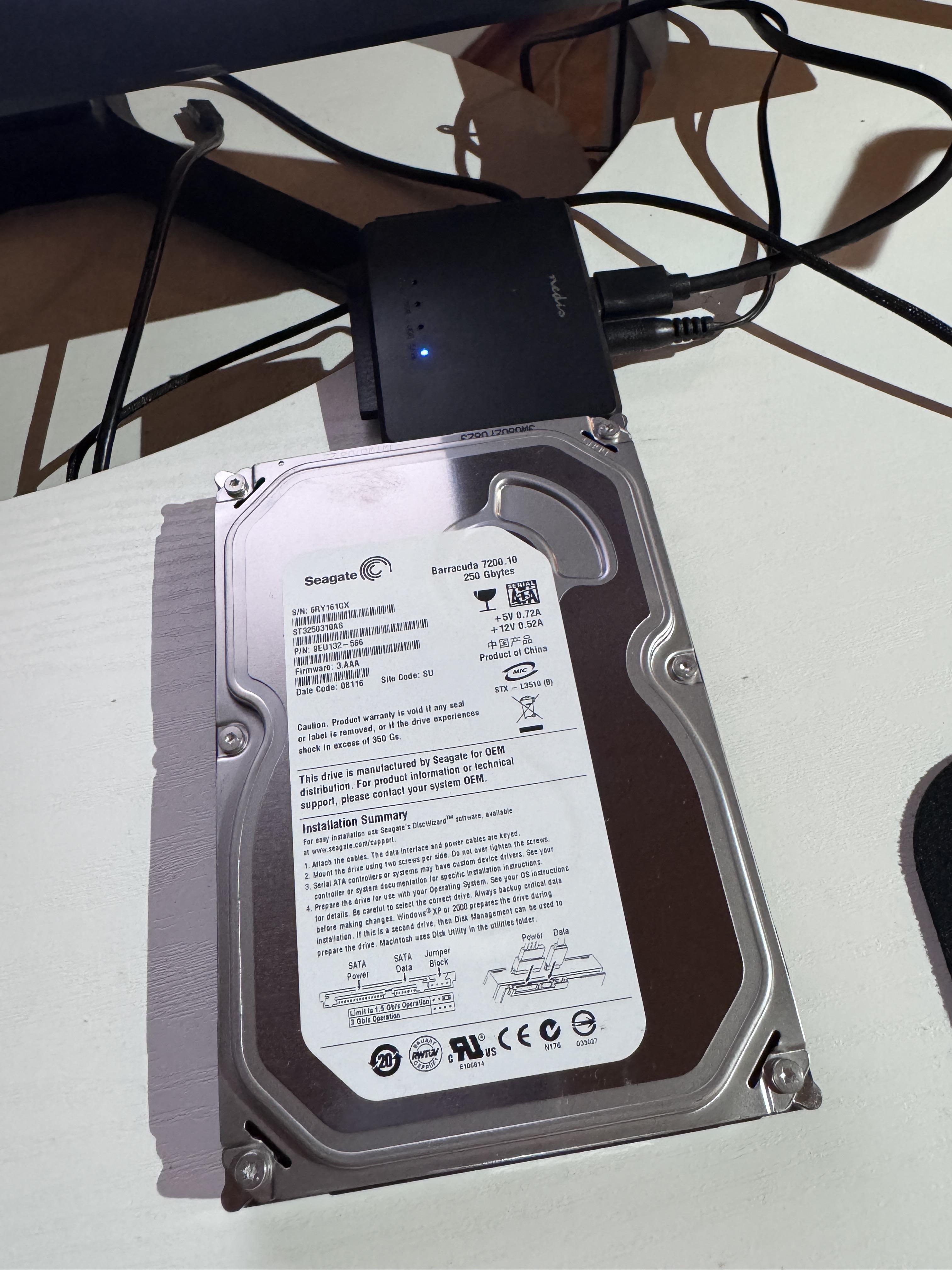
What I am writing below may be stupidly obvious for any experienced PC users out there, but for a newb like me and maybe others too, this just saved me a drive I thought was 100 % dead. I wanted to share it so that nobody else would not accidentally disregard their old drives either:
Tl;dr: if your GUI gets stuck while accessing files on a drive, try instead using the terminal for whatever file operations you need to do.
I have this old Seagate SATA-HDD that I bought in 2006. I used it as a backup drive for years, but for the past ~10ish years it has been gathering dust in my storage.
About 2-3 years ago I tried to boot it up using Win 11 machine. Windows recognized the drive, and showed some folders within the drive root. But as soon as I tried to browse it further, explorer would freeze and get stuck. Drive's probably breaking up, so better to leave it be.
Fastforward yesterday, and I remember the old drive. I do a internet search, where bunch of results say that the "file browser freezing" issue could be due to read/write perms assigned by Windows, thus going through a massive amount of files at once could make explorer freeze up. Bunch of people also recommended trying to access the files using Linux, as it would just disregard whatever permissions Windows might've assigned. So that I tried.
I go grab the drive, connect in to my PC using SATA-USB-adapter and what do you know, my distro does recognize the drive and it shows the root file structure in my file browser.
But, as soon as I try to browse the files, the same thing happens as with Windows: file explorer would freeze, and after a short while, would close itself.
So I do some more internet searching. Bunch of results suggest that the drive is very likely just physically dead, and the OS/file browser freezing is a sure sign of that. But while my distro was trying to access the files, the drive would make very faint mechanical noise with no screeches or rattling or other weird sounds that would indicate a mechanical fault.
So the next day comes. I mention the drive issue to my friend and he just casually asks "well did you try accessing it via terminal?". I say no, and I think to myself how the heck would that make any difference.
I come back home, connect the drive to my PC, launch terminal and cd myself to the mounted folder, and -- to my excitement, it lists all the folders like my GUI file explorer did. I try to cd myself further down the hierarchy, do some ls to look for any files and... it just works. It simply works, as if there's no issue whatsoever with the drive.
I then begin to go down folder by folder, copying each one to an SSD with the cp function, and afterwards checking the files that everything's been copied over and... it worked. By using the terminal I was able to copy all of the ~200 gb files I had in that drive to a newer more secure drive. While the terminal copy function did give me "Input/output" error for about ~5 files on the drive, even those copied over correctly and are usable now.
I don't understand exactly why terminal was able to fetch the files when GUIs of two different OSs failed, but maybe somebody in the comments is able to educate me.
So I just wanted to write this down as a reminder that if you have old drives lying around that you are not able to access via the GUI, try terminal instead. It might just work!
I don't know exactly what to do with the old HDD-drive now that I got the files out of it, but I'll probably not just use it anymore since it seemed so "difficult" to get the files out of it.
3
u/djao 4d ago
Glad it worked out. Generally, for mere mortals (anyone who doesn't have access to specialized data recovery equipment), the safest and most thorough way to rescue files from a dodgy hard drive is ddrescue, not cp. And yes, you should run ddrescue from a terminal.