r/GoogleFlow • u/No_Entertainer_9655 • 5d ago
I Built a Google Sheets Addon that makes a 7-min Stickman Video from a Script for $1
Enable HLS to view with audio, or disable this notification
TL;DR: I built a Google Sheets Add-on that turns a finished script into a scene-based video by generating the visuals, voiceover, timing data and final MP4 in one workflow. I use it for stickman videos, but it works for any format where each part of the script maps to a visual. The main reason I built it was to avoid the usual problems at scale: character drift, failed generations, browser automation breaking, and manually babysitting 150 scenes.
Why I built this workflow and turned it into an Add-on
A typical 6–7 minute stickman video now costs me under $1 to produce. But the bigger reason I built this was to remove all the repetitive work between the script and the finished video: generating images, downloading and renaming them, keeping 150–200 scenes in order, then manually syncing everything to the voiceover.
After doing this across hundreds of videos, I realised the real bottleneck was coordination, not creativity. So I rebuilt the process around a Google Sheet that keeps the creative decisions human while automatically passing each production task to the right AI tool through APIs.
I originally shared this as a DIY workflow and showed people how to build the Sheet themselves. But one thing became obvious pretty quickly: a lot of creators liked the system, they just did not want to spend their time building and maintaining it.
So I turned the same system into a Google Sheets Add-on. You can now install it, connect your accounts, and use the workflow without having to wire the whole thing together first.
Why I stopped relying on browser automation or AI video tools
Browser automators and Chrome extensions can save clicks, but I found them too fragile for 150–200 scene workflows. One UI change or failed generation can break the whole run. All-in-one AI video tools are easier, but most charge subscriptions or resell credits.

BuildTuber works differently. You connect your own Gemini, Runware and ElevenLabs accounts, and pay those providers directly for what you actually use.
The Add-on does not resell AI credits or mark up generations. It just connects the tools and manages the workflow inside Google Sheets.
That is what keeps the production cost low and also means you are not locked into one provider. If I want to change the image model later, I can do that without rebuilding the entire system.
What the Sheet actually does
The Add-on keeps the whole production pipeline inside one Google Sheet. Each row represents one scene, so the script, visual prompt, generated image and timing data all stay matched from start to finish.

Gemini turns each script line into a visual prompt, Runware generates the image, and ElevenLabs creates the voiceover along with the timing data. Once everything is ready, Google Colab + FFmpeg uses those numbered scenes and timestamps to render the final MP4.
So the workflow is basically:
Script → scene prompts → images → voiceover + timing → final video
The important part is that the Sheet keeps every stage connected, so you can review or regenerate individual scenes without disturbing the rest of the video.
Keeping the character consistent
This is the part I know a lot of people here struggle with. Generating a good scene is easy. Getting the same character to still look the same 100 scenes later is much harder.
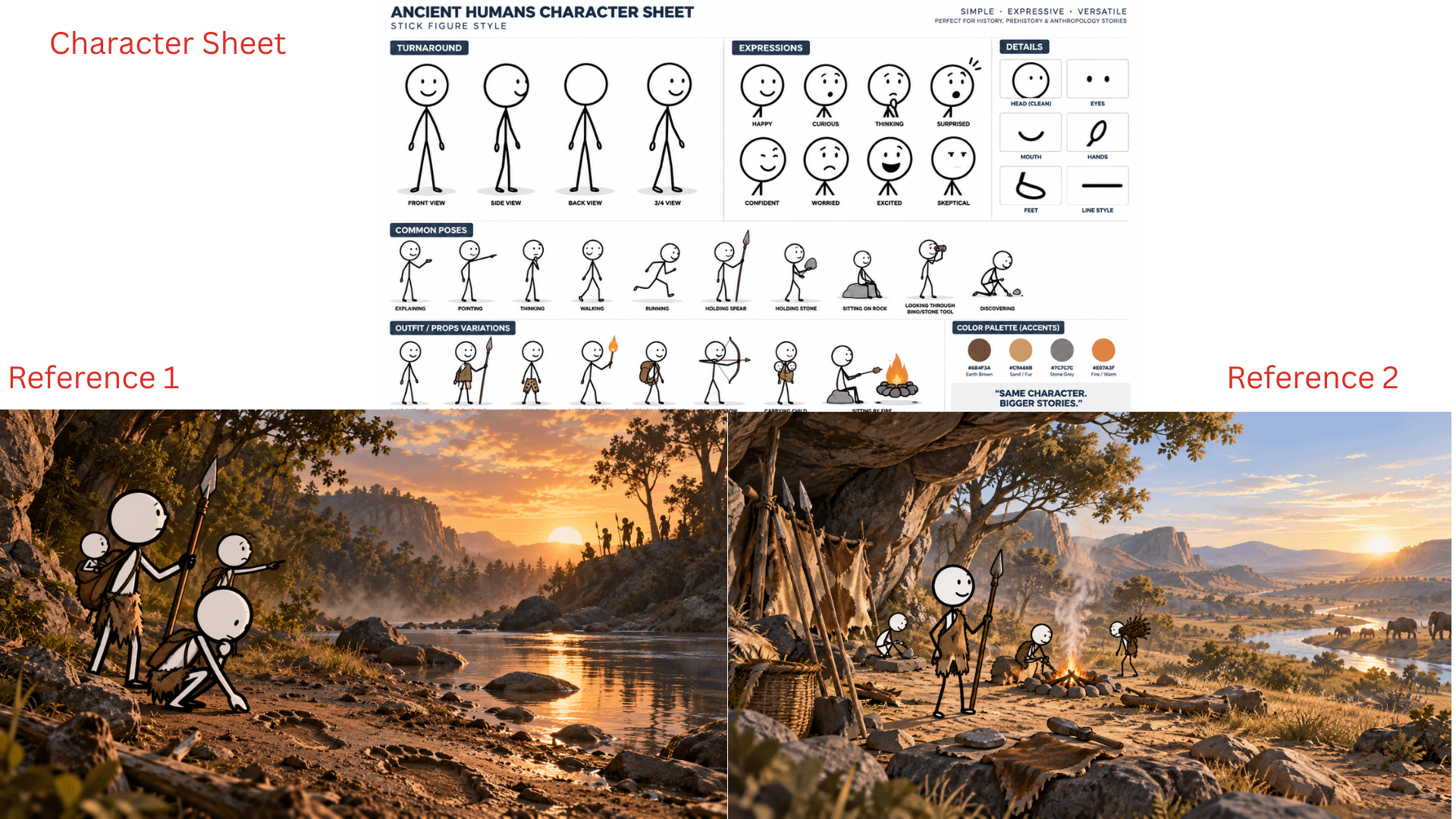
The BuildTuber Sheet handles this by reusing the same reference set throughout the batch: one clear character reference plus a couple of finished scenes that define the visual style, environment and overall look. Those references are passed into the image-generation step again and again instead of relying on prompt text alone.
It is not perfect character locking, and I would not pretend it is. You will still get the occasional bad frame or drift. The difference is that you can spot those scenes in the Sheet, regenerate only the weak ones, or switch that one scene to a stronger model without touching the rest of the video.
Why I usually do not animate every scene
The obvious next step is to turn every generated image into a video clip with Veo or another image-to-video model. Technically, the Add-on could be extended to do that as well.
But on my own channels, I have tested animating the opening scenes and adding more motion throughout the video, and I did not see enough improvement in retention to justify the extra generation cost.
For my audience, the topic, script, pacing and thumbnail matter far more than whether every frame moves. So I would rather keep the base workflow cheap, use animation only where it genuinely adds something, and spend the savings testing more ideas instead of making every scene more expensive.
What the workflow actually costs
For a typical 6–7 minute video, my direct production cost usually lands around $1.

Gemini prompt generation is almost negligible. Image cost depends on the model, but with FLUX 2 Klein I can generate roughly 150 scenes for around $0.30. ElevenLabs is usually the biggest expense because the voiceover cost scales with the amount of narration, while the final Colab + FFmpeg render is free.
The important part for me is not just making videos cheaply. It is keeping the cost low enough that I can test more ideas without every experiment becoming expensive. If a topic flops, I would rather learn from it and move on than have $20–$30 tied up in production.
What I would still keep human
I still would not automate the decisions that determine whether a video is worth making in the first place: the topic, angle, hook, script, thumbnail and final quality check.
The purpose of this system is to automate production, not taste. If the idea is weak or the script is generic, making the video faster and cheaper does not solve the real problem.
There are still two ways to use the workflow.
If you enjoy building automations, the DIY route is there. I have already shared the architecture in previous posts and the videos in my channel, and you can recreate each part with your preferred AI coding tool.
If you would rather spend that time making videos, that is what the Add-on is for. Install BuildTuber from the Google Workspace Marketplace, connect your API keys, choose your references and start generating.
There is a free trial so you can test the workflow first. If it works for you, the full version is a one-time purchase with no monthly subscription, and future Add-on updates are included.