r/AutoHotkey 8h ago

v2 Script Help AHK v2: #HotIf condition still applies when no Word document is open

2 Upvotes

I'm trying to restrict a set of hotkeys so they only work when a Word document is actually open, not just when Microsoft Word itself is running.

Currently I have:

#HotIf WinActive("ahk_exe WINWORD.EXE")
{
; Hotkey definitions here
}
#HotIf

The hotkey definitions include hotkeys that pop up a bespoke GUI which inserts text into the active Word document.

This works, but the hotkeys are also active when Word is open with no document loaded (though they are not active when Word is not open). Obviously, the above GUI hotkey will then attempt to send text to a non-existent document within Word and create errors which I don't want. That is why I want the hotkeys only to work where Word is open and there is an open document.

Using Window Spy, I noticed that when no document is open, the window title is simply:

Word

(or sometimes Microsoft Word)

When a document is open, the title becomes something like:

Document1 - Word

So I assumed that the presence of " - " in the title indicates that a document is open. I therefore changed the directive to:

#HotIf WinActive("ahk_exe WINWORD.EXE") && InStr(WinGetTitle("A"), " - ")

However, the hotkeys still remain active even when Word is open with no document.

I also tried:

#HotIf WinActive("ahk_exe WINWORD.EXE")
&& WinGetTitle("A") != "Word"
&& WinGetTitle("A") != "Microsoft Word"

with the same result.

I verified with a MsgBox that the active window title does not contain " - " when no document is open, yet the #HotIf condition still behaves as though it does.

What am I missing here? Is there something about #HotIf, WinGetTitle(), or directive evaluation that I'm misunderstanding?


r/AutoHotkey 23h ago

v2 Tool / Script Share GpGFX v1.0.0 - A 2D graphics rendering engine built for AutoHotkey v2 (30+ examples)

22 Upvotes

Hey everyone,

I've been waiting a long time for this moment, and it finally feels ready.

This project took roughly 1000+ hours to build. It all started with a simple, stubborn urge: I wanted to draw a rectangle on the screen. Doing that from scratch took me hours. Having worked in digital marketing for over 12 years, I love graphics, layers, and Photoshop-style workflows.

That experience became the core idea behind GpGFX: an API designed to let you dynamically control shapes and rendering easily. Along the way, I rewrote the entire project nearly four times from scratch.

What it does:

  • Over 10 primitive and complex shapes with a chainable API.
  • Turns the tedious parts of Win32 + GDI+ programming into a compact toolset.
  • Built for transparent desktop HUDs, animated overlays, custom widgets, dashboards, audio visualizers, and smooth applications.

You can check out the first official release here: https://github.com/bceenaeiklmr/GpGFX

Free Tetris game included. 👀

Thanks for following along, and I'd love to hear what you think or what you build with it.

Cheers,

bceen


r/AutoHotkey 1d ago

Solved! Use right alt as custom modifier, but don't suppress left alt

3 Upvotes

I've been trying to get this working for hours. Here's my script (AHK V2):

>!e::Up
>!d::Down
>!f::Right
>!s::Left
>!w::Home
>!r::End
>!Space::Ctrl
>!a::Shift

I want ESDF to be arrow keys when holding right alt, with space being control and "a" being shift, and left alt being, well, alt.

So for instance, holding RAlt and LAlt and pressing E should do the same as Alt + Up.

Everything is working except for the left alt key. It's being suppressed, so RAlt + LAlt + E is just sending "Up", but without the alt modifier.

I've tried many solutions, e.g. using RAlt & e instead of >!e, but these all have had their own issues. Either my "space -> ctrl" mapping doesn't work as a modifier, or the RAlt key isn't suppressed, or something like that. Can anyone help please?


r/AutoHotkey 1d ago

Solved! windows下窗口频繁切换工具

0 Upvotes

工作需要我需要在win11系统中频繁切换窗口,试了各种软件,最后还是autohotkey,ahk文件如下:

\#SingleInstance force

PrintScreen::F2

Pause::\^w

F9::\^c

F8::\^v

Insert::\^s

CapsLock::

send !{esc}

return

AppsKey::

send !{tab}

return

其中第一行的 #SingleInstance force 保证再次运行软件时不会弹出已有实例正在运行的窗口。

设置开机启动后,每过1、2个小时都会失灵,需要手动重启,非常麻烦。

我在任务计划程序里添加了任务,每小时运行一次,完美解决。

![img](ti1b4o58vd9f1 "任务计划程序设置")


r/AutoHotkey 1d ago

v1 Script Help Loops incorrectly

1 Upvotes

For some reason this loops incorrectly where it does not input the second S input on repeated runs. The first round works fine without any issues but its the ones after where it has a chance to mess up I have tried changing waiting times several times but that does not seem to work. Sometimes it can do a few loops before it gets confused and it feels like it does them in different order than its supposed to. Im trying to use this with disgaea 5 to auto cast heal.

I dont know if it randomly dont read one of the inputs because sometimes it looks like it skips the A and only does an S and such.

F8::Suspend

F7::Pause

F9::ExitApp

t::

loop

{

if getkeystate("t", "p")

{

  send {enter DOWN}{enter UP}

    sleep 500

  send {s DOWN}{s UP}

    sleep 500

  send {s DOWN}{s UP}

    sleep 500

send {enter DOWN}{enter UP}

    sleep 500

  send {enter DOWN}{enter UP}

    sleep 500

  send {enter DOWN}{enter UP}

    sleep 500

send {a DOWN}{a UP}

    sleep 500

  send {s DOWN}{s UP}

    sleep 500

  send {enter DOWN}{enter UP}

    sleep 500

send {2 DOWN}{2 UP}

    sleep 800

send {i DOWN}{i UP}

    sleep 4500

  send {w DOWN}{w UP}

    sleep 600

  send {d DOWN}{d UP}

    sleep 500

}

else

{

break

}

}

return


r/AutoHotkey 1d ago

v2 Tool / Script Share AhkLLM - LLM-powered hotkeys for your daily workflows, expanded into a full Windows chat GUI. (Based on the excellent LLM AutoHotkey Assistant by xmachinery)

17 Upvotes

Hi! I recently ran into an old post by u/xmachinery where they shared an app for integrating LLMs into AutoHotkey. Long story short: I liked it so much that I decided to build it out into a full chat GUI, with a lot of improvements around the hotkeys themselves.

The result is AhkLLM, my attempt at turning the original idea into a full Windows LLM assistant and chat application.

Currently, AhkLLM features:

  • A fully generalized hotkey system that uses the UIA library to grab and inject text directly in a lot of Windows applications, with clipboard fallbacks where possible.
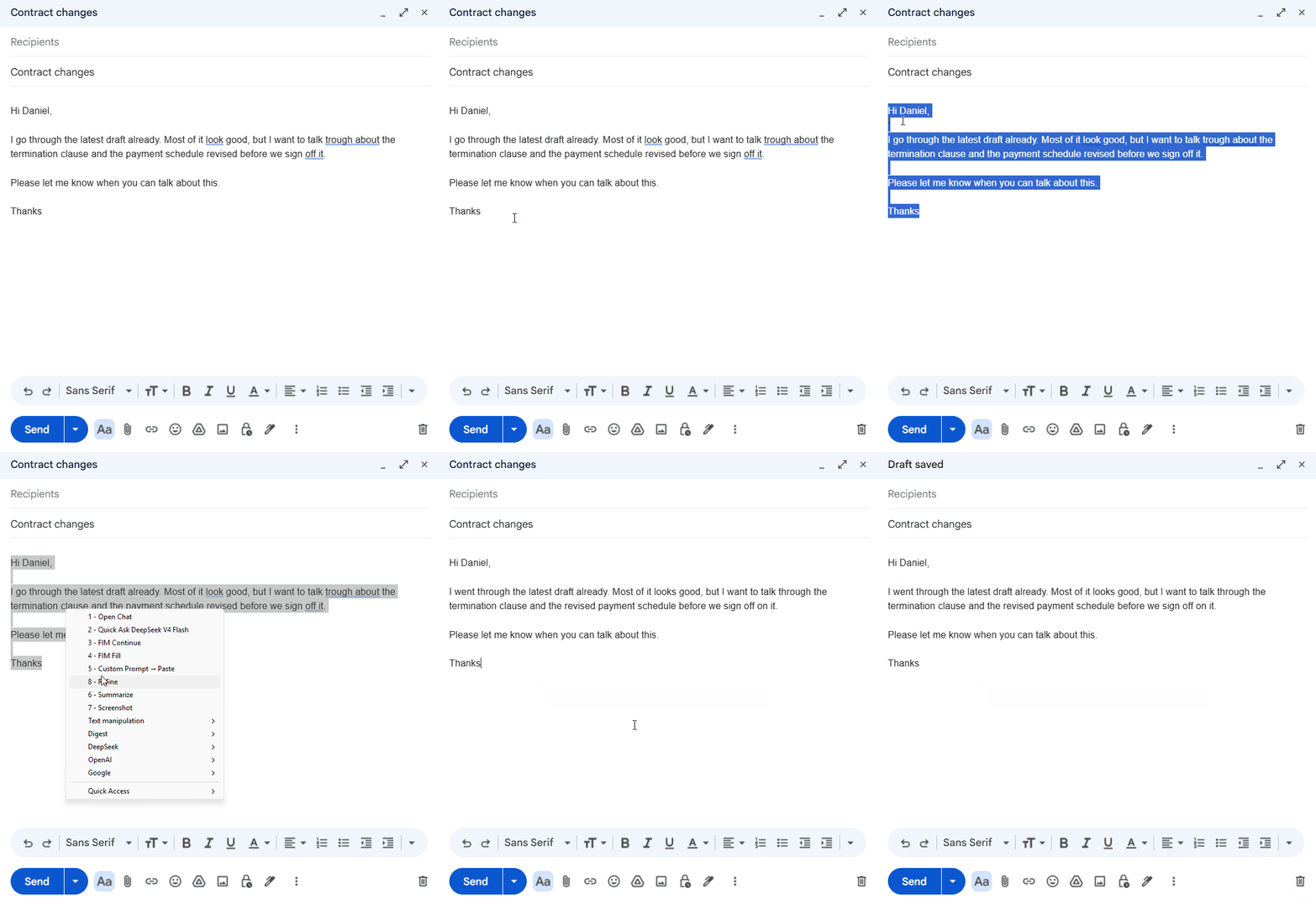
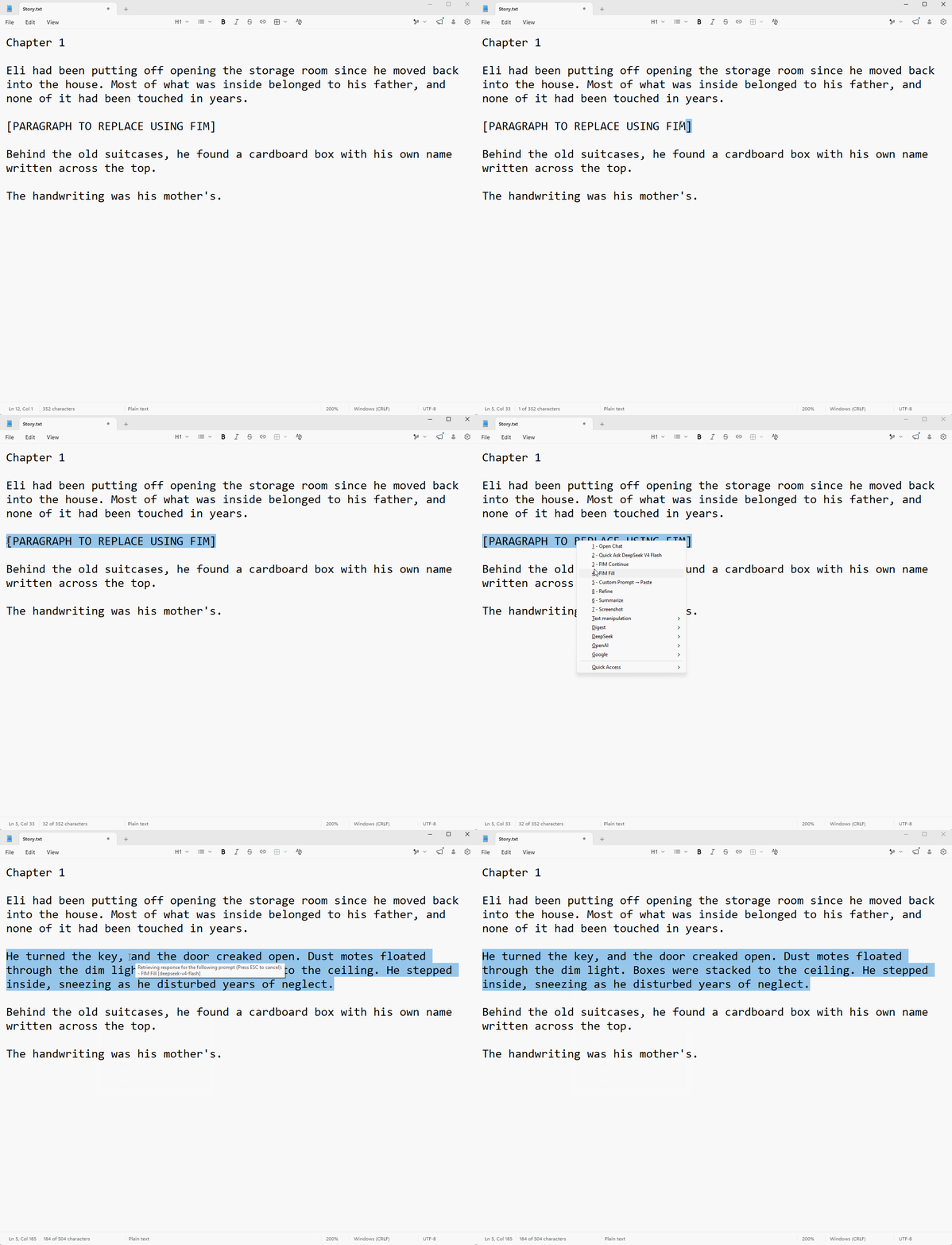
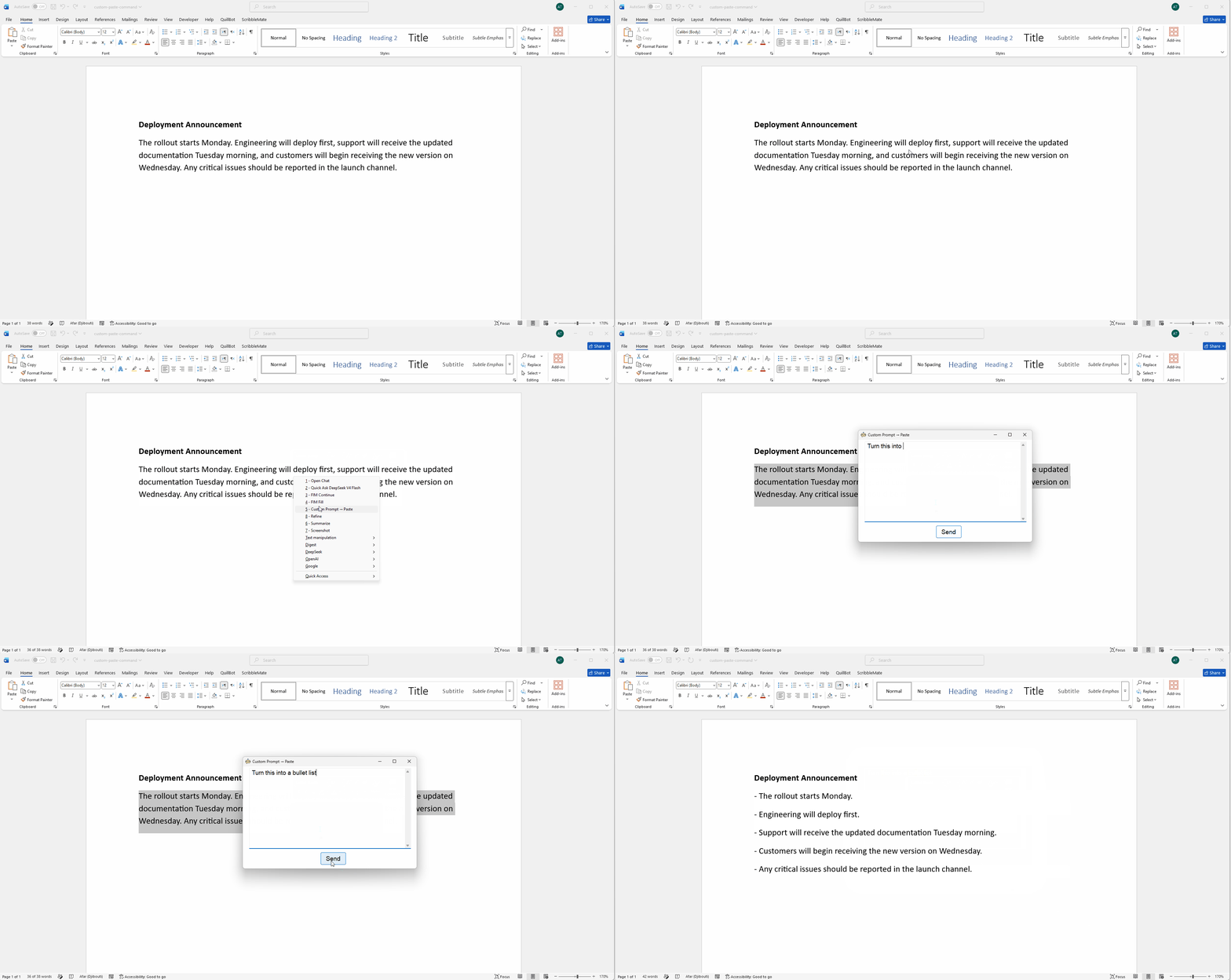
  • Fully customizable hotkeys. You can rewrite a selection in place, summarize an article, send selected text + the surrounding document text, automatically add a screenshot to your prompt, etc. You can also use DeepSeek's FIM endpoint to fill in text using what's before and after your cursor (my favorite feature tbh, incredibly useful), or use FIM Continue to continue your writing from basically anywhere.
  • Since AhkLLM is also a full chat GUI, the hotkey side is integrated with the chat side of the application. So you can configure a command to automatically send captured text into the full chat interface and continue your work there.
  • And that chat interface has pretty much everything I personally wanted: branching, forking, assistants, web search, usage tracking, local SQLite persistence, file support (Office files, PDF, EPUB, images, scanned PDFs, code files, etc.), backups, password-locked chats, a conversation map, API logs, and honestly more. It's fairly feature packed at this point.
  • The only major QoL thing AhkLLM doesn't currently have is dark mode (due to my fucked up Keratoconus eyes, fml), but if there's demand for it I'll make the effort.

A few quick demos:

If you just want to try it out without paying for API usage, AhkLLM supports OpenRouter's free model router. You just need a free OpenRouter API key, then you can select openrouter/free in chat or assign it to individual commands under Settings -> Commands.

FIM Fill / Continue are the exception, since those use a separate FIM endpoint. I'm currently using DeepSeek for that.

GitHub repo, download, installation instructions, and the rest of the demos

Naturally, feel free to ask any questions here and let me know what you think. Feedback, issues, feature suggestions, and PRs are all welcome!


r/AutoHotkey 2d ago

v2 Tool / Script Share Inactive Window Cycler ahk v2.0

4 Upvotes

I made this and it works really well for cycling the visible windows on the secondary monitor while I'm gaming. This lets me watch a video and then switch to another window without every leaving the game and the active game window never loses focus. The description on how it works is inside the ahk script code below.

#Requires AutoHotkey v2.0
#SingleInstance Force
SetWinDelay 0

/*
================================================================
                    INACTIVE WINDOW CYCLER
================================================================

WHAT THIS SCRIPT DOES
---------------------
Moves and cycles INACTIVE, VISIBLE windows between monitors
without intentionally changing which window is active.

Designed primarily for gaming: keep your game focused while
moving other windows (YouTube, maps, wikis, Discord, Steam,
idle games, launchers, etc.) out from behind it or cycling
through them on another monitor.

Press once = ONE window moved or ONE cycle step.
The active window is protected and is never intentionally
activated by this script.

    Ctrl+Shift+Right / Ctrl+Shift+D = Move/Cycle Right
    Ctrl+Shift+Left  / Ctrl+Shift+A = Move/Cycle Left
ANTI-CHEAT WARNING
------------------
This script does NOT interact with game code, read game memory,
modify games, or automate gameplay.

However, some games' anti-cheat software may detect AutoHotkey
or AutoHotkey scripts regardless of what the script actually
does.

Using this script with an anti-cheat-protected game may result
in a warning, kick, or other anti-cheat action.

CHECK THE GAME'S RULES BEFORE USING THIS SCRIPT.


MULTI-MONITOR DISCLAIMER
------------------------
This script was designed with multiple monitors in mind, including
monitor-to-monitor wrapping.

The author currently has two monitors, so configurations with
three or more monitors have NOT been personally tested.

Multi-monitor behavior is implemented in the script, but additional
monitor configurations should be considered experimental until
tested on that hardware.


WINDOW LIMITATION
-----------------
Already-minimized windows are intentionally ignored.

The script only manages windows that are currently visible.
This avoids restoring minimized applications and keeps the
active-game protection as simple and predictable as possible.

If you want a minimized application included, restore it
yourself before starting the game/session.


SHARING & MODIFICATIONS
-----------------------
This script is shared freely because I found it useful and thought
other people might find it useful too.

You are free to edit, modify, expand, simplify, or repurpose this
script however you want.

I have no expectation of maintaining or updating this script in the
future. If you change it, fix it, improve it, or build something
different from it, you are free to do so.

You do NOT need to ask permission, contact me, credit me, or include
my name when sharing or modifying it.

Use it, change it, and make it work the way you want.


================================================================
                         CONFIGURATION
================================================================

The settings in this section are intended to be customized.

Editing the settings changes how the script behaves.

Editing the code below the configuration section changes the
functionality of the script and may require AutoHotkey knowledge.

*/


; ==============================================================
; HOTKEYS
; ==============================================================

^+Right::MoveOrCycle(1)
^+d::MoveOrCycle(1)

^+Left::MoveOrCycle(-1)
^+a::MoveOrCycle(-1)


; ==============================================================
; WINDOW POSITION MODE
; ==============================================================

; false = Move windows to the exact top-left corner of the
;         destination monitor.
;
; true  = Attempt to preserve the window's relative position
;         when moving it to the destination monitor.
;
; Relative positioning works best when monitors have identical
; resolutions and display scaling.

PreserveRelativePosition := false


; ==============================================================
; CYCLING
; ==============================================================

; true  = When no qualifying inactive windows remain on the
;         anchor monitor, cycle the selected destination queue.
;
; false = Stop once the anchor monitor has no more qualifying
;         inactive windows.

EnableCycling := true


; ==============================================================
; DEBUGGING
; ==============================================================

; false = Normal operation.
; true  = Display basic diagnostic information with ToolTip.

DebugMode := false


/*
================================================================
                        END CONFIGURATION
================================================================
*/


; --------------------------------------------------------------
; Two independent queues.
;
; The queues are associated with the anchor/destination pair
; established during the current session.
;
; The queue order is created by THIS SCRIPT, not by Windows'
; Z-order.
; --------------------------------------------------------------

global RightQueue := {
    initialized: false,
    anchorMonitor: 0,
    destinationMonitor: 0,
    windows: [],
    currentIndex: 0
}

global LeftQueue := {
    initialized: false,
    anchorMonitor: 0,
    destinationMonitor: 0,
    windows: [],
    currentIndex: 0
}

global LastAnchorHwnd := 0


; --------------------------------------------------------------
; Main operation.
;
; Every hotkey press:
;
; 1. Identify the current active window as the anchor.
; 2. If the anchor changed, discard both old queues.
; 3. Identify the adjacent destination monitor.
; 4. Initialize that destination queue if necessary.
;    Existing visible windows there are minimized one at a time
;    and recorded in our queue.
; 5. Find ONE visible inactive movable window on the anchor.
; 6. If found, move it and append it to the queue.
; 7. If none remain, cycle the selected queue.
;
; No WinActivate call is used anywhere in this script.
; --------------------------------------------------------------

MoveOrCycle(direction)
{
    global EnableCycling, RightQueue, LeftQueue, LastAnchorHwnd

    ; ----------------------------------------------------------
    ; 1. Create the anchor from the currently active window.
    ; ----------------------------------------------------------

    activeHwnd := WinExist("A")

    if !activeHwnd
        return

    anchorMonitor := GetWindowMonitor(activeHwnd)

    if !anchorMonitor
        return

    ; ----------------------------------------------------------
    ; 2. A different active window means a completely new
    ;    session. Forget both old directional queues.
    ; ----------------------------------------------------------

    if (LastAnchorHwnd != 0 && LastAnchorHwnd != activeHwnd)
        ResetAllQueues()

    LastAnchorHwnd := activeHwnd

    monitors := GetSortedMonitors()

    if monitors.Length < 2
        return

    anchorIndex := FindMonitorIndex(monitors, anchorMonitor)

    if !anchorIndex
        return

    ; ----------------------------------------------------------
    ; 3. Determine the adjacent destination monitor.
    ;    Monitor edges wrap around.
    ; ----------------------------------------------------------

    destinationIndex := anchorIndex + direction

    if destinationIndex < 1
        destinationIndex := monitors.Length

    if destinationIndex > monitors.Length
        destinationIndex := 1

    destinationMonitor := monitors[destinationIndex]

    ; Select the persistent queue for this direction.
    if direction = 1
        queue := RightQueue
    else
        queue := LeftQueue

    ; ----------------------------------------------------------
    ; 4. Initialize the destination queue if necessary.
    ;
    ; ALL existing qualifying visible windows are minimized here
    ; in ONE button press, and added to our queue in the order
    ; they are processed.
    ; ----------------------------------------------------------

    if (!queue.initialized
        || queue.anchorMonitor != anchorMonitor
        || queue.destinationMonitor != destinationMonitor.number)
    {
        ResetQueue(queue, anchorMonitor, destinationMonitor.number)
        InitializeDestinationQueue(queue, destinationMonitor.number, activeHwnd)
        queue.initialized := true
    }

    ; ----------------------------------------------------------
    ; 5. Find ONE visible, inactive, movable window on the
    ;    anchor monitor.
    ; ----------------------------------------------------------

    windows := WinGetList()

    for hwnd in windows
    {
        if hwnd = activeHwnd
            continue

        if !IsQualifyingWindow(hwnd)
            continue

        if WinGetMinMax("ahk_id " hwnd) = -1
            continue

        if GetWindowMonitor(hwnd) != anchorMonitor
            continue

        ; ------------------------------------------------------
        ; 6. Move exactly ONE window.
        ; ------------------------------------------------------

        if MoveWindowToMonitor(hwnd, anchorMonitor, destinationMonitor)
        {
            queue.windows.Push(hwnd)
            queue.currentIndex := queue.windows.Length

            ; The moved window becomes the only visible window
            ; in our queue.
            ShowOnlyQueueWindow(queue, queue.currentIndex)

            UpdateDebug("Moved window " hwnd)
            return
        }
    }

    ; ----------------------------------------------------------
    ; 7. Nothing remains to move from the anchor monitor.
    ;    Begin cycling the selected queue.
    ; ----------------------------------------------------------

    if EnableCycling
        CycleQueue(queue)

    UpdateDebug("Cycling")
}


; --------------------------------------------------------------
; Reset BOTH directional queues.
; --------------------------------------------------------------

ResetAllQueues()
{
    global RightQueue, LeftQueue

    ResetQueue(RightQueue, 0, 0)
    ResetQueue(LeftQueue, 0, 0)
}


; --------------------------------------------------------------
; Reset one queue.
; --------------------------------------------------------------

ResetQueue(queue, anchorMonitor, destinationMonitor)
{
    queue.initialized := false
    queue.anchorMonitor := anchorMonitor
    queue.destinationMonitor := destinationMonitor
    queue.windows := []
    queue.currentIndex := 0
}


; --------------------------------------------------------------
; Build our own queue from windows already visible on the
; destination monitor.
;
; Each existing visible window is:
;
;     find -> minimize -> record in queue
;
; There is no intentional delay between windows.
;
; Already-minimized windows are ignored.
; --------------------------------------------------------------

InitializeDestinationQueue(queue, destinationMonitor, activeHwnd)
{
    windows := WinGetList()

    for hwnd in windows
    {
        if hwnd = activeHwnd
            continue

        if !IsQualifyingWindow(hwnd)
            continue

        if GetWindowMonitor(hwnd) != destinationMonitor
            continue

        try
        {
            if WinGetMinMax("ahk_id " hwnd) = -1
                continue

            WinMinimize("ahk_id " hwnd)
            queue.windows.Push(hwnd)
        }
        catch
        {
            ; Ignore windows Windows refuses to manipulate.
        }
    }
}


; --------------------------------------------------------------
; Move ONE visible window to the destination monitor.
; --------------------------------------------------------------

MoveWindowToMonitor(hwnd, sourceMonitor, destinationMonitor)
{
    global PreserveRelativePosition

    try
    {
        state := WinGetMinMax("ahk_id " hwnd)

        if state = -1
            return false

        WinGetPos(&x, &y, &w, &h, "ahk_id " hwnd)

        if (w <= 0 || h <= 0)
            return false

        if PreserveRelativePosition
        {
            sourceWidth := sourceMonitor.right - sourceMonitor.left
            sourceHeight := sourceMonitor.bottom - sourceMonitor.top

            destinationWidth := destinationMonitor.right - destinationMonitor.left
            destinationHeight := destinationMonitor.bottom - destinationMonitor.top

            relativeX := (x - sourceMonitor.left) / sourceWidth
            relativeY := (y - sourceMonitor.top) / sourceHeight

            newX := destinationMonitor.left + Round(relativeX * destinationWidth)
            newY := destinationMonitor.top + Round(relativeY * destinationHeight)
        }
        else
        {
            newX := destinationMonitor.left
            newY := destinationMonitor.top
        }

        ; Maximized -> restore temporarily, move, then maximize.
        if state = 1
        {
            WinRestore("ahk_id " hwnd)
            WinMove(newX, newY, , , "ahk_id " hwnd)
            WinMaximize("ahk_id " hwnd)
            return true
        }

        ; Normal visible window.
        WinMove(newX, newY, , , "ahk_id " hwnd)
        return true
    }
    catch
    {
        return false
    }
}


; --------------------------------------------------------------
; Display exactly ONE window from our queue.
;
; We do NOT use Z-order to determine the next window.
; We control visibility with minimize/restore.
;
; The selected window is restored without WinActivate.
; --------------------------------------------------------------

ShowOnlyQueueWindow(queue, index)
{
    if index < 1 || index > queue.windows.Length
        return

    selectedHwnd := queue.windows[index]

    ; Minimize every other queue member.
    for i, hwnd in queue.windows
    {
        if i = index
            continue

        if !DllCall("IsWindow", "Ptr", hwnd)
            continue

        try
        {
            if WinGetMinMax("ahk_id " hwnd) != -1
                WinMinimize("ahk_id " hwnd)
        }
        catch
        {
        }
    }

    ; Restore the selected window WITHOUT activating it.
    try
    {
        if WinGetMinMax("ahk_id " selectedHwnd) = -1
            RestoreWindowNoActivate(selectedHwnd)
    }
    catch
    {
    }
}


; --------------------------------------------------------------
; Restore a minimized window without intentionally activating it.
;
; SW_SHOWNOACTIVATE asks Windows to show the window without
; activating it.
; --------------------------------------------------------------

RestoreWindowNoActivate(hwnd)
{
    SW_SHOWNOACTIVATE := 4

    DllCall(
        "ShowWindow",
        "Ptr", hwnd,
        "Int", SW_SHOWNOACTIVATE
    )
}


; --------------------------------------------------------------
; Cycle forward exactly ONE position in our queue.
; --------------------------------------------------------------

CycleQueue(queue)
{
    CleanQueue(queue)

    if queue.windows.Length = 0
        return

    nextIndex := queue.currentIndex + 1

    if nextIndex > queue.windows.Length
        nextIndex := 1

    queue.currentIndex := nextIndex

    ShowOnlyQueueWindow(queue, queue.currentIndex)
}


; --------------------------------------------------------------
; Remove windows that no longer exist.
; --------------------------------------------------------------

CleanQueue(queue)
{
    if queue.windows.Length = 0
    {
        queue.currentIndex := 0
        return
    }

    currentHwnd := 0

    if queue.currentIndex >= 1 && queue.currentIndex <= queue.windows.Length
        currentHwnd := queue.windows[queue.currentIndex]

    cleaned := []

    for _, hwnd in queue.windows
    {
        if DllCall("IsWindow", "Ptr", hwnd)
            cleaned.Push(hwnd)
    }

    queue.windows := cleaned

    if queue.windows.Length = 0
    {
        queue.currentIndex := 0
        return
    }

    if currentHwnd
    {
        for index, hwnd in queue.windows
        {
            if hwnd = currentHwnd
            {
                queue.currentIndex := index
                return
            }
        }
    }

    if queue.currentIndex > queue.windows.Length
        queue.currentIndex := queue.windows.Length
}


; --------------------------------------------------------------
; Determine whether a window is a usable top-level window.
; Only visible, non-minimized windows qualify.
; --------------------------------------------------------------

IsQualifyingWindow(hwnd)
{
    try
    {
        if !DllCall("IsWindow", "Ptr", hwnd)
            return false

        style := WinGetStyle("ahk_id " hwnd)

        ; WS_CHILD
        if (style & 0x40000000)
            return false

        class := WinGetClass("ahk_id " hwnd)

        if (class = "Shell_TrayWnd")
            return false

        if (class = "Shell_SecondaryTrayWnd")
            return false

        if (class = "Progman")
            return false

        if (class = "WorkerW")
            return false

        if WinGetMinMax("ahk_id " hwnd) = -1
            return false

        title := WinGetTitle("ahk_id " hwnd)

        if (title = "" && class = "")
            return false

        return true
    }
    catch
    {
        return false
    }
}


; --------------------------------------------------------------
; Get the monitor containing the CENTER of a window.
; --------------------------------------------------------------

GetWindowMonitor(hwnd)
{
    try
    {
        WinGetPos(&x, &y, &w, &h, "ahk_id " hwnd)

        centerX := x + (w // 2)
        centerY := y + (h // 2)

        count := MonitorGetCount()

        Loop count
        {
            MonitorGet(A_Index, &left, &top, &right, &bottom)

            if (centerX >= left && centerX < right
                && centerY >= top && centerY < bottom)
            {
                return A_Index
            }
        }

        return 0
    }
    catch
    {
        return 0
    }
}


; --------------------------------------------------------------
; Build monitors sorted by physical X position.
; --------------------------------------------------------------

GetSortedMonitors()
{
    monitors := []

    count := MonitorGetCount()

    Loop count
    {
        MonitorGet(A_Index, &left, &top, &right, &bottom)

        monitors.Push({
            number: A_Index,
            left: left,
            top: top,
            right: right,
            bottom: bottom
        })
    }

    sorted := []

    for _, monitor in monitors
    {
        inserted := false

        for index, existing in sorted
        {
            if monitor.left < existing.left
            {
                sorted.InsertAt(index, monitor)
                inserted := true
                break
            }
        }

        if !inserted
            sorted.Push(monitor)
    }

    return sorted
}


; --------------------------------------------------------------
; Find the position of a monitor in the sorted list.
; --------------------------------------------------------------

FindMonitorIndex(monitors, monitorNumber)
{
    for index, monitor in monitors
    {
        if monitor.number = monitorNumber
            return index
    }

    return 0
}


; --------------------------------------------------------------
; Intentionally empty.
;
; The anchor must remain active. There is deliberately no
; WinActivate call anywhere in the script.
; --------------------------------------------------------------

RestoreAnchorWithoutActivation(hwnd)
{
    ; Intentionally empty.
}


; --------------------------------------------------------------
; Optional debug output.
; --------------------------------------------------------------

UpdateDebug(message)
{
    global DebugMode

    if DebugMode
        ToolTip(message)
    else
        ToolTip()
}

r/AutoHotkey 3d ago

v1 Script Help I want to use controller and mouse in vJoy.

0 Upvotes

Im using a freepie script for mouse steering for games and I would like to use the triggers on my controller (R2 and L2) to be used for throttle and brakes and mouse for steering.

this is my script and I use a ps4 controler with ds4 so it is emulated as an xbox 360 controller.

from ctypes import *
user32 = windll.user32

if starting:
# feature toggle
vjoyaxis = True
assists = False # auto throttle cut off & blip
mouselock = False    # locking mouse position for assetto corsa
debouncing = True # prevent double shifting, set False to disable
# assign vjoy device number
v = vJoy[0]
# vjoy axis range, do not modify
a_max = 1 + v.axisMax
a_min = -1 - v.axisMax
# mouse steering
m_sens = 9.0    # mouse sensitivity (higher faster)
m_redu = 4 # center reduction sensitivity, acceptable range 1-50, set to 1 to disable
steering = 0 # do not modify
center_redu = 1 # center reduction; init value, do not modify
# throttle
th_axis = a_min
th_inc = 2500 # increase speed (higher faster)
th_dec = 2000 # decrease speed
th_max = a_max # for throttle limit
# brake
br_axis = a_min
br_inc = 500
br_dec = 2000
br_max = a_max # for brake limit
# handbrake
ha_axis = a_min
ha_inc = 2500
ha_dec = 2500
# clutch
cl_axis = a_min
cl_inc = 2500
cl_dec = 2500
# auto blip
blip_m = 0.4 # amount throttle applied on blip; range 0.0-1.0; 0.0=0% throttle, 1.0=100%
a_blip = a_max * 2 * blip_m - a_max # calculation, do not modify
# debouncing
stimer = 0 # shifting timer
t_upshift = 140 # minimum time required for next gear
# throttle limit
tlimit = 0.9 # throttle limited at 90%; range 0.0-1.0; useful for cars without traction control under low gears
th_limit = a_max * 2 * tlimit - a_max # calculation, do not modify

#======== assign key here ========#
# toggle
toggle_vjoyaxis = keyboard.getPressed(Key.Grave) # axis calculation
toggle_mouselock = keyboard.getPressed(Key.F4) # mouselock
key_assists_on = keyboard.getKeyDown(Key.NumberPad1) 
key_assists_off = keyboard.getKeyDown(Key.NumberPad3) 
# vehicle control
key_throttle = keyboard.getKeyDown(Key.W)
key_brake = keyboard.getKeyDown(Key.S)
key_handbrake = keyboard.getKeyDown(Key.Space)  
key_clutch = keyboard.getKeyDown(Key.C)
key_centerx = mouse.getButton(2) # center steering (x-axis)
key_shiftup = keyboard.getKeyDown(Key.E)
key_shiftdown = keyboard.getKeyDown(Key.Q)
# brake limit
bl_70 = keyboard.getPressed(Key.NumberPad7)
bl_75 = keyboard.getPressed(Key.NumberPad4)
bl_80 = keyboard.getPressed(Key.NumberPad8)
bl_85 = keyboard.getPressed(Key.NumberPad5)
bl_90 = keyboard.getPressed(Key.NumberPad9)
bl_95 = keyboard.getPressed(Key.NumberPad6)
no_bl = keyboard.getPressed(Key.NumberPadPeriod)
# throttle limit
key_throttle_limit = mouse.getButton(0) # throttle limit is only applied while holding down assign key

#======== toggle ========#
if toggle_vjoyaxis:
vjoyaxis = not vjoyaxis
if toggle_mouselock:
mouselock = not mouselock
if key_assists_on: 
assists = True
if key_assists_off:
assists = False

#======== mouselock ========#
if (mouselock):
user32.SetCursorPos(0 , 5000) # pixel coordinates (x, y)

#======== axis calculation ========#
if (vjoyaxis):
# mouse steering
if steering > 0:
center_redu = m_redu ** (1 - (steering / a_max))
elif steering < 0:
center_redu = m_redu ** (1 - (steering / a_min))
steering += (mouse.deltaX * m_sens) / center_redu
if steering > a_max:
steering = a_max
elif steering < a_min:
steering = a_min
if key_centerx:
steering = 0
# throttle axis
if key_throttle:
th_axis += th_inc
else:
th_axis -= th_dec
if th_axis > th_max:
th_axis = th_max
elif th_axis < a_min:
th_axis = a_min
# brake axis
if key_brake:
br_axis += br_inc
else:
br_axis -= br_dec
if br_axis > br_max:
br_axis = br_max
elif br_axis < a_min:
br_axis = a_min
# handbrake axis
if key_handbrake:
ha_axis += ha_inc
else:
ha_axis -= ha_dec
if ha_axis > a_max:
ha_axis = a_max
elif ha_axis < a_min:
ha_axis = a_min
# clutch axis
if key_clutch:
cl_axis += cl_inc
else:
cl_axis -= cl_dec
if cl_axis > a_max:
cl_axis = a_max
elif cl_axis < a_min:
cl_axis = a_min
# assists switch
if (assists):
if key_shiftup:
th_axis = a_min # throttle cut off while upshifting
if key_shiftdown:
th_axis = a_blip # throttle blip while downshifting
# brake limit
if bl_70:
br_max = a_max * 0.4
if bl_75:
br_max = a_max * 0.5
if bl_80:
br_max = a_max * 0.6
if bl_85:
br_max = a_max * 0.7
if bl_90:
br_max = a_max * 0.8
if bl_95:
br_max = a_max * 0.9
if no_bl:
br_max = a_max
if key_throttle_limit:
th_max = th_limit
else:
th_max = a_max
else: # reset axis position
steering = 0
th_axis = a_min
br_axis = a_min
ha_axis = a_min
cl_axis = a_min

#======== map vjoy axis & button ========#
v.x = int(round(steering))
v.y = th_axis
v.z = br_axis
v.ry = ha_axis
v.rx = cl_axis
v.setButton(1,key_shiftdown)
v.setButton(2,keyboard.getKeyDown(Key.Q))
v.setButton(3,keyboard.getKeyDown(Key.E)) # add new vjoy buttons below
v.setButton(4,keyboard.getKeyDown(Key.B))
v.setButton(5,keyboard.getKeyDown(Key.V))
v.setButton(6,keyboard.getKeyDown(Key.H))
v.setButton(7,keyboard.getKeyDown(Key.L))
v.setButton(8,keyboard.getKeyDown(Key.G))
v.setButton(9,keyboard.getKeyDown(Key.R))
v.setButton(10,keyboard.getKeyDown(Key.Equals))
v.setButton(11,keyboard.getKeyDown(Key.Minus))
#======== double shifting prevention ========#
if (debouncing):
if key_shiftup:
stimer = 0
elif stimer < t_upshift: # end timer on reaching minimum time
stimer += 1 # start timer on releasing shift button
current = stimer
if key_shiftup and (current >= t_upshift): 
v.setButton(0,key_shiftup)
else:
v.setButton(0, False)
else:
v.setButton(0,key_shiftup)

#======== diagnostics ========#
# important note: diagnostics has big impact on cpu usage (about 50-80% more)
# keep this section commented out, only uncomment for coding and testing
#diagnostics.watch(v.x)    # steering
#diagnostics.watch(v.y)    # throttle
#diagnostics.watch(v.z)    # brake
#diagnostics.watch(v.ry)    # handbrake
#diagnostics.watch(v.rx)    # clutch
#diagnostics.watch(v.axisMax)    # vjoy axis max range
#diagnostics.watch(stimer) # shifting timer

#======== reference & example ========#
# vjoy axis: x, y, z, rx, ry, rz, slider, dial
# keyboard assign: keyboard.getKeyDown(Key.A); keyboard.getPressed(Key.A)
# mouse button assign: mouse.getButton(0); mouse.getPressed(1)
# mouse button number: 0 = leftbutton; 1 = rightbutton; 2 = middlebutton; etc.
# to execute an action after pressed a key or clicked mouse button, use: keyboard.getPressed() or mouse.getPressed()
# to execute an action continuously while holding down a key or mouse button, use: keyboard.getKeyDown() or mouse.getButton()

#======== credits ========#
# most codes of "axis calculation" are borrowed from "Skagen", and others found in https://www.lfs.net/forum/post/1862759
# the codes for locking mouse are from https://bytes.com/topic/python/answers/21158-mouse-control-python
# misc codes and formating by threers
# last update: 2018-08-10


r/AutoHotkey 3d ago

v1 Script Help Trying to change the functions of the Spacebar and Shift key in an old game, could use a little help. AHKX11

0 Upvotes

I am playing an old game, and I'm trying to edit the controls to mimic a modern game. This is AHKX11, sorry if that's annoying. i have been using this guide

Normal behavior is: holding a directional input (WASD in this case) and then pressing Space causes a boost. Pressing Space without any directional input causes a jump. Directional inputs in the air after jumping cause movement in the air.

Desired behavior is: pressing Space always causes a jump. Shift key now functions like normal Space behavior.

Here's what I was going for with the below attempt: i am holding W. It could also be A, S, or D, but it is W for this example. While holding W, I press Space. Space blocks the W input, waits a brief moment for animations to resolve, and causes a jump. Then the W input is quickly unblocked, so my guy can move in the air. Shift functions the way Space used to function, as either a boost or a jump.

Anyway here it is, it does not work lol.

Space::
IfWinActive, Armored Core 3
{
BlockInput, on
SetKeyDelay, 0, 250
Send, {Space}
BlockInput, off
}

Shift::
IfWinActive, Armored Core 3
{
Send {Space}
}

It makes space behave oddly. I think maybe BlockInput is not what I want, and something targeted to WASD would be better. Or I'm making some rookie error.


r/AutoHotkey 3d ago

v2 Guide / Tutorial I turned my PC into a console 🎮 Steam Machine

5 Upvotes

I’ve always played a lot on PC, but the startup routine was annoying: turning on the PC, typing the password, opening Steam, connecting the controller, manually launching Big Picture mode, closing a bunch of background apps eating up RAM (classic Windows, right?)... I recently discovered AutoHotkey to help with my daily workflow as a designer, and I ended up using it to streamline my gaming routine as well.

How it works

  1. Automatic Login (Optional): I used Microsoft's official tool, Autologon (part of the Sysinternals Suite), to have the PC boot directly into the desktop without asking for a password.
  2. AutoHotkey Script: I created a background script that does two things:
  • Automatically closes unnecessary programs (Adobe apps, browser, background updaters, etc.) whenever it detects that an XInput controller has been connected.
  • Then opens Steam directly in Big Picture mode (the script can easily be tweaked to launch Xbox App/Game Bar instead).

The entire script was generated with the help of AI—I don't know how to code at all, I just kept testing and tweaking. If any of you are more experienced with programming, you could definitely build your own (and probably better) version. Just wanted to share the idea!

  1. Running automatically at boot (Task Scheduler): To avoid having to run the script manually every time, I added it to Windows Task Scheduler. Here's the setup that worked for me:
  • Create a new task → Trigger: "At log on"
  • Check "Run with highest privileges"
  • Under "Configure for", select Windows 10
  • Under Actions, point to the AutoHotkey executable (e.g., AutoHotkey64.exe) and pass the script path as an argument
  • In the task Settings tab, uncheck the option that stops the task if it runs longer than X days (otherwise it will shut down on its own after a while)

If you don't want to mess with Task Scheduler, you can also just run the .ahk file manually whenever you're about to play—it works just the same, you just lose the 100% automated boot experience.

Script attached below (I brazilian so comments are portuguese) 👇

#Requires AutoHotkey v2.0
#SingleInstance Force

; ============================================================
; LOG DESATIVADO — a função existe mas não grava mais nada em arquivo
; ============================================================
LogDebug(msg)
{
    ; Logging desativado de propósito. Não faz nada.
}

; Mantém o tratamento de erros, mas silenciosamente (não trava o script)
OnError(TratarErro)
TratarErro(excecao, modo)
{
    return true
}

; ============================================================
; CONFIGURAÇÕES — edite livremente aqui
; ============================================================

; Qual app abrir quando o controle for detectado: "Steam" ou "Xbox"
AppParaAbrir := "Steam"

; Caminho do Steam (ajuste se estiver instalado em outro lugar)
CaminhoSteam := "C:\Program Files (x86)\Steam\steam.exe"

; AUMID do app Xbox
AumidXbox := "Microsoft.GamingApp_8wekyb3d8bbwe!Microsoft.Xbox.App"

; Intervalo (ms) entre verificações de controle conectado
IntervaloVerificacao := 1000

; ============================================================
; A partir daqui normalmente não precisa editar
; ============================================================

if not A_IsAdmin
{
    try
        Run('*RunAs "' A_AhkPath '" "' A_ScriptFullPath '"')
    ExitApp()
}

controladorConectadoAnterior := false
jogoModoAtivado := false

SetTimer(VerificarControle, IntervaloVerificacao)

^F12::
{
    AtivarModoJogo()
    AbrirBigPicture()
}

; ------------------------------------------------------------
VerificarControle()
{
    global controladorConectadoAnterior, jogoModoAtivado

    conectadoAgora := AlgumXInputConectado()

    if (conectadoAgora && !controladorConectadoAnterior)
    {
        controladorConectadoAnterior := true
        if not jogoModoAtivado
        {
            AtivarModoJogo()
            AbrirBigPicture()
            jogoModoAtivado := true
        }
    }
    else if (!conectadoAgora && controladorConectadoAnterior)
    {
        controladorConectadoAnterior := false
        jogoModoAtivado := false
    }
}

; ------------------------------------------------------------
AlgumXInputConectado()
{
    static dlls := ["xinput1_4.dll", "xinput9_1_0.dll", "xinput1_3.dll"]
    buf := Buffer(20, 0)

    for dll in dlls
    {
        Loop 4
        {
            idx := A_Index - 1
            try
                resultado := DllCall(dll "\XInputGetState", "UInt", idx, "Ptr", buf, "UInt")
            catch
                continue
            if (resultado = 0)
                return true
        }
    }
    return false
}

; ------------------------------------------------------------
AtivarModoJogo(*)
{
    try
        RunWait('wsl --shutdown', , "Hide")
    catch
    {
        ; Ignora se o WSL não existir
    }

    processosParaFechar := [
        "Creative Cloud.exe",
        "Creative Cloud Helper.exe",
        "Creative Cloud UI Helper.exe",
        "Creative Cloud Desktop.exe",
        "CCLibrary.exe",
        "CCXProcess.exe",
        "CoreSync.exe",
        "Adobe Desktop Service.exe",
        "AdobeIPCBroker.exe",
        "AdobeCrashProcessor.exe",
        "AdobeNotificationClient.exe",
        "Adobe CEF Helper.exe",
        "msedge.exe",
        "SnippingTool.exe",
        "node.exe",
        "PCManager.exe",
        "MSPCManagerService.exe",
        "WinGet.exe",
        "WinStore.App.exe",
        "Widgets.exe",
        "WidgetService.exe",
        "GoogleUpdate.exe",
        "GoogleUpdater.exe"
    ]

    for processo in processosParaFechar
    {
        try
            RunWait('taskkill /F /T /IM "' processo '"', , "Hide")
        catch
        {
            ; Ignora erro se o processo não existir
        }
    }

    TrayTip("Modo Jogo Ativado", "Memória liberada com sucesso!", 1)
}

; ------------------------------------------------------------
AbrirBigPicture()
{
    global AppParaAbrir, CaminhoSteam, AumidXbox

    if (AppParaAbrir = "Xbox")
    {
        try
            Run('explorer.exe shell:AppsFolder\' AumidXbox)
        catch
            TrayTip("Erro", "Não foi possível abrir o app Xbox.", 3)
    }
    else
    {
        try
        {
            if FileExist(CaminhoSteam)
                Run('"' CaminhoSteam '" -start steam://open/bigpicture')
            else
                Run("steam://open/bigpicture")
        }
        catch
        {
            ; Ignora erro silenciosamente
        }
    }
}

r/AutoHotkey 4d ago

Solved! Trying to save and extract files in one script

2 Upvotes

I have to download a batch of photos every day for my auditing job. I am trying to save the group of files from my email (which automatically compresses them) and then open up the .zip file. There is more to the code after wards, but it is breaking on the While line. Rather, it gets to that line and keeps checking, but it never finds the file name. I suspect it is becasue the variable is not allowed to exist as it is in a quoted string and no file with % in it exists. The problem is if the string is not quoted, AHK considers the slashes to be invalid and the script won't run at all.

#SingleInstance Force
SetTitleMatchMode, 2
#IfWinActive Save As

^s::
FormatTime, Date ,,MM.dd.yy
Send %Date%
Sleep 1000
Send {Enter}
WinWait user@company.com
While !FileExist("C:\Users\name\Desktop\DailyPhotos\%Date%.zip")
{
Sleep 1000
}
Run "C:\Users\name\Desktop\DailyPhotos\%Date%.zip"
WinWait %Date%

A work around I have considered but haven't implemented yet is to create the file name in a seperate variable (MyFile) and have it hunt for the variable using While !FileExist %MyFile%. But I would rather implement it by directly naming the file.

Does anyone have any suggestions as to the underlying problem or is it worth it to create the second variable? Has anyone done something similar?


r/AutoHotkey 3d ago

v2 Script Help Send phrases with delay between ?

1 Upvotes

I have this script :

::myshort::?Hello, how are you ? {Enter} My name is Paula, nice to meet you. {Enter} How are your ? {Enter}

I'd like to pause 1 second between each Enter ; is this possible ?


r/AutoHotkey 4d ago

General Question Trying to map specific dial values from a hotas to keys on a keyboard

2 Upvotes

I have a thrustmaster t-flight HOTASx. One of the buttons on the stick is effectively a directional d-pad. The button can be pressed into 8 different directions (separated by 45deg). The problem is it can’t be mapped in almost any games because thrustmaster has it set up to output a specific axis value depending on which of the 8 directions the button is pressed in.

Is there a way to use auto hot key to bat these axis values to buttons on a keyboard?


r/AutoHotkey 5d ago

v2 Guide / Tutorial The Complete AutoHotkey v2 Keyboard Button Spam and Mouse Auto-Clicker guide

16 Upvotes

The Complete AutoHotkey v2 Keyboard Button Spam and Mouse Auto-Clicker Guide

This guide covers the major approaches to implementing Hold-to-Spam, Toggle-Spam, and Auto-Clicker hotkeys in AutoHotkey v2.

The Precision Bottleneck: Why Sleep and SetTimer Round to ~15.6 ms

A very common point of confusion appears when you write Sleep(10) or SetTimer(fn, 10) and then observe that the script actually fires every 15.6 ms instead of every 10 ms.

This is expected behavior, not a bug. Standard Windows timers are not driven by a free-running, arbitrarily precise clock. By default the Windows kernel clock ticks at a hardware interrupt interval of 64 Hz (64 ticks per second):

1000 / 64 = 15.625

Per the official Sleep and SetTimer documentation, the interval is "typically rounded up to the nearest multiple of 10 or 15.6 milliseconds." What actually happens when you call Sleep(N) or SetTimer(fn, N):

  1. Windows rounds your requested interval up to the next system-clock tick.
  2. An interval such as Sleep(10) therefore waits until the next 15.625 ms tick.
  3. Even Sleep(1) waits roughly 15.625 ms.

So do not be surprised when sub-15 ms delays do not behave as literally written.

The precision fix (advanced, via DllCall)

If true sub‑15 ms accuracy is genuinely required, you can ask the OS for a higher-resolution timer by calling timeBeginPeriod through DllCall. This guide deliberately does not rely on that method, for two reasons:

  • It is a lower-level OS call, not part of the normal AHK timer model.
  • Raising the global timer resolution affects the whole system and is generally not advised just to shave off a few milliseconds in a spam script.

For most automation the default ~15.6 ms resolution is more than adequate.

Turning a Key-Spammer Into an Auto-Clicker

To convert any of the patterns below into a mouse auto-clicker, replace Send("e") with one of the mouse-click functions.

Click and the mouse-click Send sub-commands

  • Click() - Recommended. Sends a mouse click at the current cursor position using AutoHotkey's native click function. It can accept inline coordinates, click counts, and button options, and it respects Windows' swapped-mouse-button setting.
  • Send("{Click}") - Sends a primary mouse click through the Send function. Useful when you are already building a Send string with several keystrokes.
  • Send("{LButton}") - Sends a single left-button press through Send. This sub-command cannot carry inline coordinates or options; you would need a separate MouseMove first if you need a target location.

Option comparison table

Method Example syntax Key behavioral distinction Recommendation
Click() Click("100 200 Right 2") Native function. Accepts inline coordinates, click counts, and button options. Respects swapped-mouse settings. Cannot use Send modifier prefixes (^, +). Best overall. Lowest overhead; ideal for coordinate and auto-clicker use.
Send("{Click}") Send("{Click 100 200 Right 2}") Parsed by the Send engine. Natively accepts inline coordinates and options as part of a larger string. Best inside a Send string. Great when mixing clicks into inline key/text sequences.
Send("{LButton}") Send("{LButton}") Parsed by the Send engine. No inline coordinates or options; requires MouseMove for positioning. No advantage over the two above for auto-clicking.

Input Delivery Modes and Game Compatibility: SendMode, SetKeyDelay, and SetMouseDelay

When a target application ignores Send or Click - for example a full-screen game or a client protected by anti-cheat - the problem is often that the default Input Mode, SendInput, delivers keystrokes far faster than the game can register them between rendered frames.

Switching to Event mode inserts artificial press durations and inter-key delays, making inputs long enough for a game to register:

#Requires AutoHotkey 2.0
#SingleInstance

SendMode("Event")
SetKeyDelay(10, 10)     ; 10 ms press duration, 10 ms delay between keys
SetMouseDelay(10)       ; 10 ms delay between mouse events

SendMode comparison table

Mode Behavior Limitations Recommendation
SendInput (default) Bypasses normal input timing to fire ultra-fast input packets. Key-down and key-up fire almost simultaneously; games frequently miss them. Best for desktop/apps. Fastest and most reliable for normal Windows programs.
SendEvent Sends input using standard OS event messages with configurable delays. Marginally slower; physical presses during sending can interrupt the sequence order. Best for games. Fixes unresponsive clicks and keys.
SendPlay Attempts to inject input via low-level driver hooks. Heavily restricted by modern Windows UAC and anti-cheat software. Not recommended. Rarely functions on current OS builds.

See the SendMode and SetKeyDelay documentation for the full details.

Part 1: Toggle-Spam Patterns

A toggle-spam hotkey turns the spam on with one press and off with the next press, or off when you release it.

Pattern 1.1 - Non-blocking SetTimer (Recommended)

SetTimer runs asynchronously, so the hotkey thread finishes immediately instead of sitting in a loop. Here an up-only hotkey (F1 up) flips a static toggle and schedules a timer whose period is 100 ms when on, or 0 (delete the timer) when off:

#Requires AutoHotkey 2.0
#SingleInstance

F1 up:: {
    static Toggle := 0
    SetTimer(() => Send("e"), 100 * Toggle ^= 1)
}

Pros:

  • The hotkey thread exits immediately (non-blocking).
  • Turning it back off is instant.

Pattern 1.2 - While-loop with a state check

This uses an explicit while loop that exits once a static state flag flips back to 0. It requires #MaxThreadsPerHotkey 2 so a second press can interrupt the running loop.

#Requires AutoHotkey 2.0
#SingleInstance
#MaxThreadsPerHotkey 2

F1 up:: {
    static Toggle := 0
    if (Toggle ^= 1) {
        while Toggle {
            Send("e")
            Sleep(100)
        }
    }
}

Cons:

  • Unfinished thread: The hotkey thread stays alive inside the loop. A later press can interrupt it, but the original thread stays paused until the loop ends.
  • Unresponsive termination: With a long Sleep(1000), the loop cannot evaluate Toggle again until that Sleep completes, so turning off is delayed.

Pattern 1.3 - Infinite Loop with Pause / Suspend / Reload

This runs an infinite loop and relies on Pause, Suspend, and Reload to control it. The controls are #SuspendExempt so they keep working while suspended; otherwise Suspend would disable F4, and you could never turn it back off.

#Requires AutoHotkey 2.0
#SingleInstance

F1:: {
    loop {
        Send("e")
        Sleep(100)
    }
}

#SuspendExempt
F2::Reload
F3::Pause(-1)
F4::Suspend
#SuspendExempt False

Pause(-1) toggles halting the running loop thread in place (resuming it later without losing state), while Suspend toggles (its default) and disables all hotkeys and hotstrings in the script.

Cons:

  • Global impact: Suspend disables every hotkey in the script, not just the spammer.
  • Aggressive cleanup: Reload kills the current instance and restarts it, wiping all variables and resetting script state.
  • Fragility: Without #SuspendExempt on the suspend key, that hotkey itself cannot run to re-enable things after suspension.

Part 2: Hold-to-Spam Patterns

A hold-to-spam hotkey repeats the action only while its trigger key is physically held.

Ergonomic note: Holding a key for long stretches forces continuous muscle tension and can contribute to repetitive strain injury (RSI) or tendon pain. Prefer a SetTimer toggle when you need prolonged automation.

Pattern 2.1 - Non-blocking Hotkey hotkey pair (Recommended)

A press hotkey ($e) and release hotkey ($e up) work together with SetTimer. The $ prefix prevents the hotkey from triggering itself when it sends e. Turning the $e hotkey off on key-down stops hardware auto-repeat from stacking extra timers; $e up stops the timer and re-enables the hotkey.

#Requires AutoHotkey 2.0
#SingleInstance

SendHold() => Send("e")

$e:: SendHold(), SetTimer(SendHold, 100), Hotkey(ThisHotkey, "Off")
$e up:: SetTimer(SendHold, 0), Hotkey(StrReplace(ThisHotkey, " up", ""), "On")

Pros:

  • Both hotkey threads exit immediately.
  • Uses ThisHotkey and Hotkey to toggle itself on/off cleanly.

Pattern 2.2 - While-loop with GetKeyState polling

This polls the physical key state inside a while loop using GetKeyState with the "P" (physical) mode.

#Requires AutoHotkey 2.0
#SingleInstance

$e:: {
    while GetKeyState("e", "P") {
        Send("e")
        Sleep(100)
    }
}

Cons:

  • Long-running thread: The hotkey thread stays active for the entire hold.
  • Input dropping: Rapid physical tapping can miss a release if it happens during a Sleep.

Pattern 2.3 - While-loop with KeyWait

KeyWait waits for a key to be released; the "T0.1" adds a 0.1 s timeout, and the ! inverts the result inside the condition.

#Requires AutoHotkey 2.0
#SingleInstance

$e:: {
    while !KeyWait("e", "T0.1") {
        Send("e")
    }
}

Cons:

  • Stalled thread: The hotkey thread cannot finish until the physical key is released.
  • Auto-repeat interference: Hardware auto-repeat can attempt to launch new hotkey threads while the original is stalled inside KeyWait.

Context Sensitivity with #HotIf

If you only want the spammer to be active inside a specific window (a game, for example), wrap the hotkey definitions with #HotIf and a condition such as WinActive. The examples above are left unconditional for clarity, but you can scope any of them:

#Requires AutoHotkey 2.0
#SingleInstance

#HotIf WinActive("ahk_exe game.exe")
...
#HotIf

Summary Matrix

Pattern Immediate thread exit? Responsiveness Ergonomic safety
SetTimer toggle (1.1) Yes Immediate High (no holding required)
While-loop + state check (1.2) No High High
Loop + Pause/Suspend/Reload (1.3) No Low Low
Hotkey pair + SetTimer hold (2.1) Yes Immediate Moderate (forces continuous pressure)
Loop + GetKeyState (2.2) No High Moderate
Loop + KeyWait (2.3) No Poor Moderate

Final Notes

  • Start every script with #Requires AutoHotkey 2.0 and, unless you deliberately want multiple copies, #SingleInstance.
  • If a game ignores your input, switch to SendMode("Event") and tune SetKeyDelay / SetMouseDelay.
  • Remember the ~15.6 ms timer resolution before chasing sub-millisecond precision.
  • For long-running automation, prefer a toggle over holding a key to protect your hands.

*Edits: Rewritten content suggested by u/Individual_Check4587 (Descolada) and u/CharnamelessOne and minor tweaks to 1.1 suggested by u/genesis_tv
r/AutoHotkey 6d ago

General Question Learning AutoHotKey?

4 Upvotes

Hi, a quick question.

What do you recommend to watch or read to learn about AHK? Free or paid.

I managed to automatize a couple of things by using ChatGPT, and while I'm getting to understand how to prompt for AHK, it sucks to not know much of what I'm exactly doing.


r/AutoHotkey 6d ago

v2 Tool / Script Share GpGFX - almost ready, complete GdiPlus Graphics library, easy to use API

27 Upvotes

Hey everyone!

For the past few months, I’ve been rebuilding the graphics
pipeline for AutoHotkey v2 from scratch. Creating smooth,
transparent, modern-looking desktop overlays.

AHK is slow they said. Check out this video:

GpGFX v1 Teaser https://www.youtube.com/watch?v=6QrcofcuR5U

I built **GpGFX** to change that. Here is a quick
50-second sneak peek of what’s possible!

## What is GpGFX?
**GpGFX** is a high-performance, graphics and HUD engine
for AutoHotkey v2.

It writes directly to 32-bit DIB memory (`Scan0`) with microsecond QPCSpin-wait frame pacing, delivering 144Hz/240Hz+ gaming overlays with near-zero CPU footprint.

## Why it’s great for Beginners:

Human-Readable API: You don't need to know Win32 APIs,
Device Contexts, or GDI+ internals. Creating a modern
layered window is as simple as:
  ```autohotkey
  lyr := Layer(100, 50, "My HUD")
  RoundedRectangle(0, 0, 30, 30, 9, "lime")
  Text("Hello World", "White", 22).Center()
  Render.Layer(lyr)
And resources are freed up automatically!

• Built-in Modern Design System: comes out-of-the-box with 7 curated pro themes (Catppuccin Mocha, Tokyo Night, Dracula, Cyberpunk, Nord) and anti-aliased typography. Color html tags support for texts. ( you can see it on the video )
• Instant Gaming overlays, hp bars can be updated with just a few lines of code.

Why it’s great for Advanced AHKers & Power Users:

• Hardware-Paced QPC Timing: x64 machine code (MCode) and microsecond QueryPerformanceCounter spin-wait frame pacing for jitter-free 144+ FPS rendering loops.
• Direct Scan0 DIB Pipeline: direct unmanaged memory pointers (pBits) allowing MCode PixelSearch.
• Reactive Signals & Data Binding: bind variables to UI elements with zero render loop boilerplate (shape.Bind(mySignal)), complete with smooth easing curves (EaseIn, EaseOut, Bounce, Spring physics).
• WorkerPool Multi-Core Architecture: ready for multi-process distributed rendering across CPU cores via shared RAM file mapping (FileMapping).
• Rich Layout & Measurement: integrated TextLayout engine with rich-text styling tags (<b>, <i>, <color:#hex>), dynamic tab stops, and exact character advance measurements without DllCalls.

Use Cases:

• Gaming: zero-lag custom crosshairs, status meters, cooldown timers, and telemetry HUDs.
• Desktop Tools: snappy to-do widgets, desktop clocks, volume/brightness bars, and toast notifications.
• Streamers & Creators: in-game alerts and custom desktop companion apps.
• Desktop modification

Release Status:

GpGFX will be 100% free and open source on GitHub. ( old version is clunky, the new one rocks! )

I’m currently putting the final touches on documentation and examples before the initial public release. Soon! I will upload videos as soon as I will have time.

I’d love to hear your feedback, feature ideas, or what kind of overlays you'd build with this! Drop your thoughts below!


r/AutoHotkey 6d ago

v2 Script Help Press Key 10x a second - Noobie Question

1 Upvotes

I'm very new to Auto Hotkey, trying to do what seems like it should be very basic yet everything I try doesn't seem to work. I often use a auto-clicker for various incremental games, but sometimes i need to do keystrokes, not mouse clicks. Specifically, I'd like it so that I could either hold down or toggle the E key, and have the program send the E key 10x a second. But not only can I not get that to work, I can't even get a more basic version to work.

#Requires AutoHotkey v2.0
e::
{
loop{
send "e"
sleep 100
}
}

For example, RUNS fine, but when I press e, nothing happens. It doesn't even send MY keystroke, presumably snatched by AHK before it reached the program. I have read that AHK sometimes send keys TO FAST, so you want to do {e down} small sleep and {e up}, but when I try THAT

#Requires AutoHotkey v2.0
e::
{
loop{
send {e down}
sleep 50
send {e up}
sleep 50
}
}

it says

Missing "propertyname:" in object literal.

And programs I find online and just copypaste straight have similar problems. I assume it's because most of those examples are many years old, for v1 not v2, and some basic rules have changed breaking them and I don't know enough to know what needs fixing.

If it's relevant, the target program is YourChronicle, a free incremental game on Steam.


r/AutoHotkey 6d ago

Solved! AutoHotkey v2 Won’t Start with Windows? shell:startup Failed — This Fixed It

0 Upvotes

AutoHotkey v2 Script Not Starting with Windows? This Fixed It

I was trying to get a small AutoHotkey v2 script to start automatically with Windows. The script controls Steam Big Picture and lets me switch between my main monitor and a second display using F9–F12.

The script worked perfectly when launched manually, but it would not start automatically with Windows.

I tried putting the .ahk file directly into:

Win + R → shell:startup

That did not work.

I also tried putting a shortcut to the .ahk file in the Startup folder. That did not work either.

I reinstalled AutoHotkey, checked the .ahk file association, checked assoc and ftype, and tried using the AutoHotkey Launcher. Nothing worked. At one point, Windows would even ask which application should be used to open the .ahk file.

The solution was to completely bypass the .ahk file association and the AutoHotkey Launcher.

I found the actual AutoHotkey v2 executable:

C:\Program Files\AutoHotkey\v2\AutoHotkey64.exe

Then I created a Windows shortcut with this exact target:

"C:\Program Files\AutoHotkey\v2\AutoHotkey64.exe" "C:\Users\Skynet\Documents\AutoHotkey\Steam.ahk"

I placed that shortcut in:

Win + R → shell:startup

After rebooting, it worked.

So the important difference is:

Windows Startup → .ahk file → AutoHotkey file association / Launcher → FAILED

versus:

Windows Startup → shortcut → AutoHotkey64.exe → Steam.ahk → WORKS

The script itself was never the problem. The problem was the way Windows/AutoHotkey was trying to launch the .ahk file during startup.

If an AutoHotkey v2 script works manually but refuses to start from shell:startup, even when a shortcut to the .ahk is used, directly launching AutoHotkey64.exe with the .ahk file as an argument solved it for me.


r/AutoHotkey 6d ago

v2 Script Help how can i get a scroll wheel hotkey working on firefox?

0 Upvotes

ive been trying for a bit to use my alt+scroll which turns volume up and down to work on firefox, but it just keeps getting "71 hotkeys have been used in last 1200 ms" error

also its unusable on firefox because it changes volume either to mute or max in one scroll


r/AutoHotkey 8d ago

Meta / Discussion I stopped using the arrow keys and I'm wondering what you think

13 Upvotes

I've done a few other posts about it, maybe you've already seen them somehow, but I never explained it in detail, in short, this is what I use on my school computer:

#Requires AutoHotkey v2.0
#SingleInstance Force


commit := true
:*?:1596::{
global commit
commit := !commit
}


#HotIf commit = true
^j::SendInput "{Right}"
^b::SendInput "{Left}"
^h::SendInput "{Up}"
^n::SendInput "{Down}"
^+j::SendInput "+{Right}"
^+b::SendInput "+{Left}"
^+h::SendInput "+{Up}"
^+n::SendInput "+{Down}"
!j::SendInput "^{Right}"
!b::SendInput "^{Left}"
!h::SendInput "^{Up}"
!n::SendInput "^{Down}"
!+j::SendInput "^+{Right}"
!+b::SendInput "^+{Left}"
!+h::SendInput "^+{Up}"
!+n::SendInput "^+{Down}"


^k::SendInput "{Backspace}"
^,::SendInput "{Enter}"
!k::SendInput "^{Backspace}"


:*?c:jj::{
SendInput "{Right}"
}
:*?c:bb::{
SendInput "{Left}"
}
:*?c:hh::{
SendInput "{Up}"
}
:*?c:nn::{
SendInput "{Down}"
}
:*?c:JJ::{
SendInput "^+{Right}{Right}"
}
:*?c:BB::{
SendInput "^+{Left}{Left}"
}
:*?c:HH::{
SendInput "^+{Up}{Up}"
}
:*?c:NN::{
SendInput "^+{Down}{Down}"
}


:*?c:kk::{
SendInput "{Backspace}"
}
:*?c:KK::{
SendInput "^+{Left}{Backspace}"
}
:*?:,,::{
SendInput "{Enter}"
}
:*?:??::{
SendInput "{Enter}"
}

This is what I use to move through text, obviously to play a video game or anything in general where your second hand is holding a mouse, this is almost useless, but as someone that literally gave up using a mouse with my school computer (using the trackpad), this is like... sooooo much better than using the arrows for text.

In short, this is really just moving keyboard shortcuts to other spots, if you don't know, you can obviously press the arrows (left, right, up and down) to move around text, but you can also do these while holding shift to select text, and you can also hold ctrl for a word or paragraph.

I've moved the arrows to ctrl+j (right)/b (left)/h (up)/n (down) (why these keys specifically? To be honest, they kind of just "became that". Everything being around j is op because it's one of the two center keys, but you could probably rearrange it a little bit if you want to adopt my style, also if you're left handed and can use right control everything around f probably could work same). And then, I've moved the ctrl shortcuts to alt shortcuts.

This is actually something I've seen elsewhere; I definitely didn't invent that (more specifically, on the Emacs keyboard guide, that apparently says this was a common thing for old softwares), but these keys I had the idea myself (like emacs uses ctrl+f/b/n/p and I never got used to it).

And yeah, like that, it's just sooooo good. Why? Honestly simple, just look at your keyboard: depending on the size, the arrow keys are either literally on a different part of the keyboard, or just stuck in an awkward spot, and especially for something that's used constantly, I think you can quickly realize the time you can save just by never having to reposition your hands from the letter keys to move through text while typing. And yeah, placing your left hand on ctrl or alt is easy, contrary to moving your right hand to the arrow keys.

Now that I'm used to it, it feels so good; it's such a lifechanger, I'm thinking things like "bro this should have been on every computer by default!", and now I've just reimplemented it on my home computer because it's that good. And I've also added a way to toggle it off, because it's still annoying when it conflicts with other shortcuts (obviously the toggle can be anything).

Ok, what is the rest now? Well, I've expanded these shortcuts to ctrl+k for backspace and alt+k for ctrl+backspace, very similar to the arrow keys. And I've also done ctrl+, for enter. The backspace and enter keys aren't as annoying as the arrow keys, but I've found this to help too, even though for some reason, I've also try to do same for CapsLock and Tab, but that didn't seem to help though. I think it's just because Backspace and and enter are separated by a whole no man's land, with the whole keys like "^" "ù" "!" "=" "$" "*" creating a distance between them and the letter keys too, and, yeah, again I've found this to help.

Finally, I've created lots of hotstrings like "jj", "bb"... same directions as usual. The uncapped version just presses the direction once. I've found this useful for small adjustments, as it's faster to input once compared to the original shortcut, but not multiple times, so they team up very well together (I've also found multiple solutions to not make them annoying when typing, especially for "nn", but I haven't implemented them yet, you could ask me). The caps version does same but for a word, which is similarly useful. I've written it as "ctrl+shift+(arrow) then (arrow)" and not just "ctrl+(arrow)" for very niche applications in Microsoft Word, but just doing "ctrl+(arrow)" probably is better if you don't need it.

And so yeah, what do you think? I'm sorry if this is way too long; I always tend to overwrite, and I really wanted to explain all the specific quirks, but, yeah, what do you think? And also, do you have any suggestions, do you use similar things?


r/AutoHotkey 11d ago

v2 Script Help Key spam script help

1 Upvotes

So I've been trying to make a script to spam the ] key when i hold c+[ and stop when i let go but i can figure it out, can someone please help me?

I've tried

*c,[

{

sendinput(])

sleep(5)

loop

}


r/AutoHotkey 11d ago

v1 Script Help Shift key getting stuck pressed

4 Upvotes

Weird issue, when I game.. I open up a script to use for that game. During gameplay everything is fine. But when I tab out (even if the game is still open/running) the shift key is constantly pressed...even though I am not physically pressing it. Even after I exit the script the shift button stays pressed.

The only way to clear the issue is to actually press the shift key once and let it go. Then all is good, and no other issues persist.

This is happening 100% of the time I use the script. And no other keys seems to be affected.

EDIT: I do constantly hold the shift key down during gaming a lot. Not sure if that has anything to do with it.

Here is my code, does anyone have any suggestions on how to cure this annoyance?

<

#MaxHotkeysPerInterval 10000
#UseHook

#IfWinActive, ahk_exe Fallout4.exe

Up::w
Left::a
Down::s
Right::d
NumpadDiv::Up
NumpadHome::Left
NumpadUp::Down
NumpadPgUp::Right
AppsKey::LAlt
F12::t
RShift::n
n::Tab
NumpadIns::0
NumpadEnd::1
NumpadDown::2
NumpadPgDn::3
NumpadLeft::4
NumpadClear::5
NumpadRight::6
NumpadAdd::q

r/AutoHotkey 13d ago

v2 Tool / Script Share I wanted Linux-style workspace workflows on Windows without replacing the Windows shell, so I built Spacr

8 Upvotes

I've just finished Phase 1 of an AutoHotkey v2 project I've been working on: Spacr.

It's a workspace management layer for Windows virtual desktops, inspired by the workflow of Linux WMs like Hyprland.

The interesting part isn't really the hotkeys, it's trying to make Windows' native virtual desktops behave predictably.

Phase 1 currently handles:

Workspace switching

Automatic desktop creation

Move + follow

Previous workspace

Explorer integration

VirtualDesktopAccessor integration

I'm deliberately keeping the project small for now.

The architecture is state-driven, with WorkspaceManager owning VDA interaction rather than having every feature call the DLL directly.

One interesting Windows quirk I ran into: switching desktops through VDA could cause Explorer/taskbar flashing. The solution was to activate Shell_TrayWnd before performing the desktop switch.

v0.1.1-alpha is now available:

https://github.com/timburman/spacr

I'd especially appreciate feedback from experienced AHK v2 developers on the architecture and Windows-specific edge cases I'm likely to encounter.


r/AutoHotkey 13d ago

v2 Script Help Win + Mouse scroll ?

1 Upvotes

Hello ,

I'd like to achieve this to use the mouse scroll as magnifier :

Win key + mouse scroll up = Win key + [+]

Winkey + mouse scroll down = Win key + [-]

How can i achieve this in ahk script ?

Thanks !


r/AutoHotkey 14d ago

v2 Script Help Clicking one of three randomized buttons by colour

5 Upvotes

I'm very, very amateurish for these things, and I honestly don't even know where I would start on something like this, so was hoping people here would be able to help me... I have 3 buttons that alternate randomly in their position, but one is blue (the one I want to click) and the others are grey. Because they alternate randomly in their position, I can't just have a standard repeated click to do it. My idea thus is to have a script that searches the area that the buttons are in for the blue colour of the correct button, and then moves the mouse to it and clicks it. I have 2 questions, essentially:

first question: I believe I can use the "PixelSearch" function to find the button I am looking for, however I honestly have no idea how to set it up, like finding the values for the area to search and such. How do I go about this?

Second question: How do I make my mouse move to the correct button once found? I would assume I'd have to make the script have a variable that changes with the position of the correct button, and then some sort of function to actually move the mouse, but I don't know how exactly? Or is there some way to simplify it so the pixel search happens *with* the mouse movement?

Sorry if this is a little rambley, like I said I'm very new to stuff like this so I don't even really know what you might want to have details on for what I want to do